Post-Call Briefing and MEDDPICC Scoring
After every call, Backdrop writes a structured summary and a MEDDPICC qualification scorecard, and drafts a personalized follow-up email on demand. Nothing sends until you send it.
When a call ends, Backdrop writes it up. Every call gets its own page: a recap at the top, then the summary, the MEDDPICC scorecard, and the follow-up email, all on one scrolling page. Nothing sends automatically.
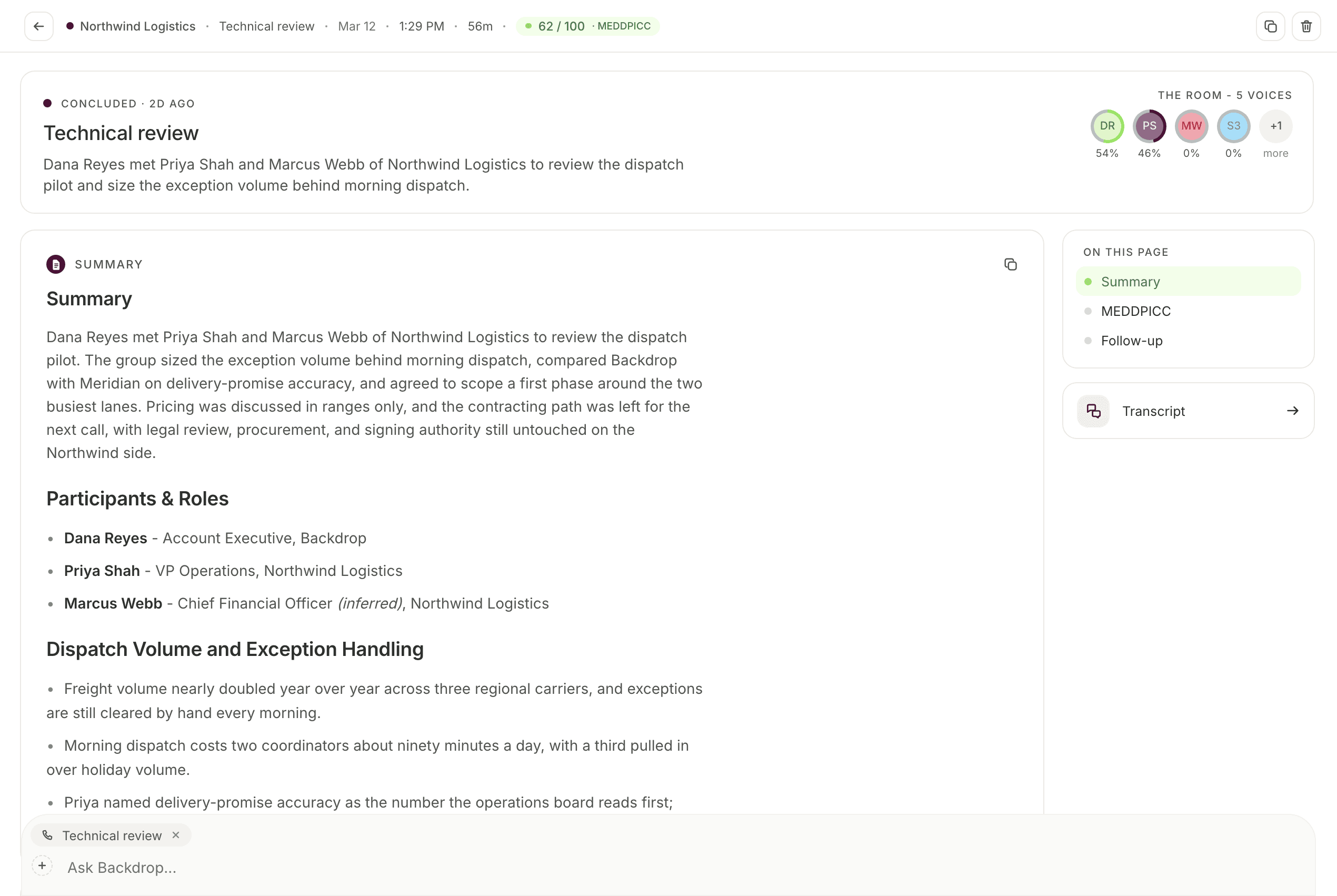
The header bar
Across the top of the call page, left to right:
- A back arrow
- The account the call belongs to
- The call title
- The date, start time, and duration
- A score pill with the call's overall qualification score, for example 62 / 100 · MEDDPICC
The score pill is the same overall score you'll see on the qualification card further down the page, so you can read a call's qualification without scrolling.
Two icon buttons sit at the right end of the bar: a copy button and a delete button.
The recap card
Under the header sits a card with the shape of the call:
- A status line: the call's state and how long ago it happened, for example CONCLUDED · 2D AGO
- The call title
- A one-line recap of what the call was about
On the right of the card, The room shows the voices Backdrop heard, with a count in the label: THE ROOM - 5 VOICES. Each voice gets an avatar with its share of talk time underneath, a quick read on whether the call was a conversation or a monologue. When there are more voices than fit, an overflow avatar shows how many are hidden.
Moving around the page
An On this page rail on the right tracks the three sections of the briefing, Summary, MEDDPICC, and Follow-up, and highlights the one you're reading.
Below the rail is a separate Transcript card, which opens the call's timeline.
The Ask Backdrop input stays at the bottom of the window while you read, with the call attached as a chip above it, so you can ask questions about the call you just had.
Summary
The summary opens with a prose recap of the call: what the group covered, what they debated, and what they decided.
Then Participants & Roles: the people Backdrop identified, with their role and company. Where Backdrop worked a role out from the conversation rather than being told it, the entry is marked (inferred). Voices it couldn't match to a person aren't listed here.
Below that, the call is broken up by topic: a heading, then bullets with the specifics. The section header carries a copy button.
Qualification (MEDDPICC)
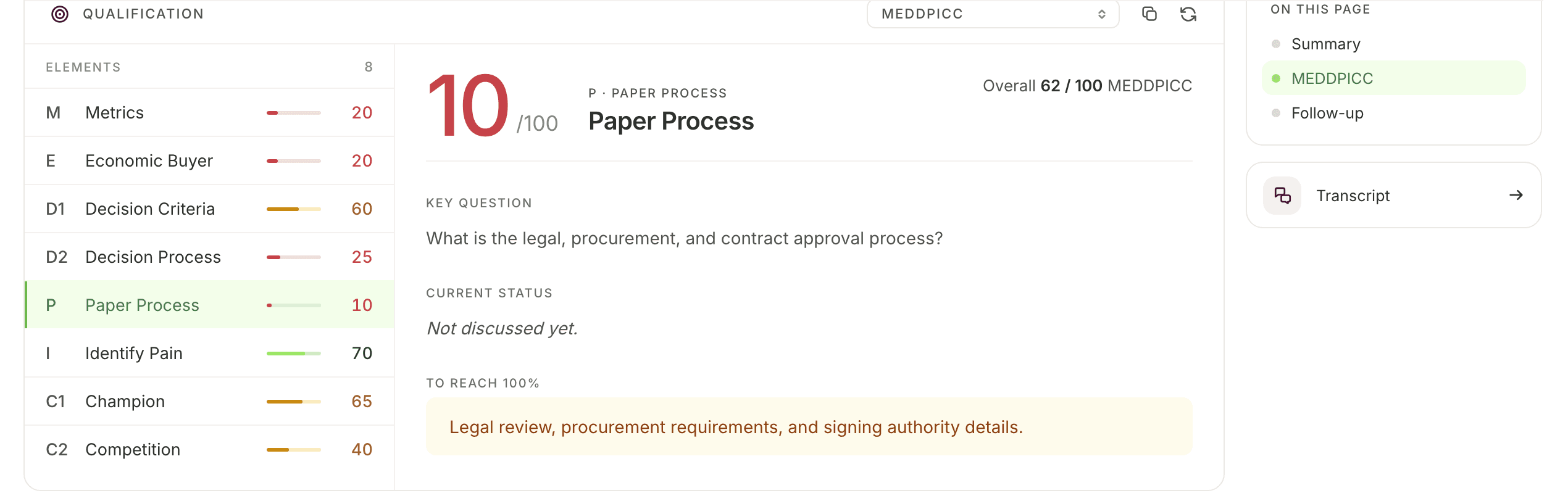
The qualification card scores how well the deal is qualified. A dropdown at the top of the card shows the framework the scorecard is using, here MEDDPICC, alongside a copy button and a refresh button. The overall score sits on the right, for example Overall 62 / 100 MEDDPICC.
The card is split in two.
Elements
The left pane lists the eight elements, each with its code, its name, a mini bar, and a score out of 100:
M Metrics · E Economic Buyer · D1 Decision Criteria · D2 Decision Process · P Paper Process · I Identify Pain · C1 Champion · C2 Competition
Select one to open it in the right pane, which is where the definitions live.
The selected element
The right pane shows the element's score out of 100, its name, and three things:
- Key question: the question that element is really asking. For Paper Process: What is the legal, procurement, and contract approval process?
- Current status: what the call established. If the topic never came up, it reads Not discussed yet.
- To reach 100%: the evidence that's still missing.
The gaps are your next-call agenda
Read To reach 100% on every element scoring low and you have your agenda for the next call. An element still in the teens, with its key question unanswered, is the one to open with.
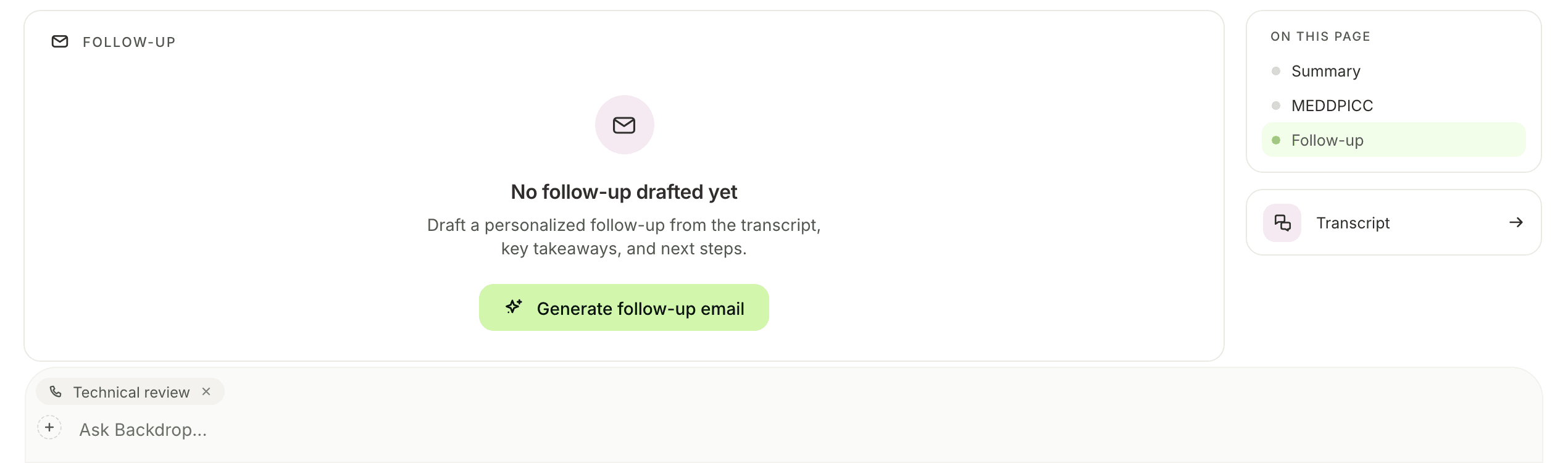
Follow-up
Backdrop doesn't write the follow-up email until you ask for it. Until then, the Follow-up section shows an empty state, No follow-up drafted yet, and offers to draft a personalized follow-up from the transcript, key takeaways, and next steps.
Click Generate follow-up email to write the draft.
Nothing sends automatically
Backdrop writes the draft and stops there. Sending it is up to you.
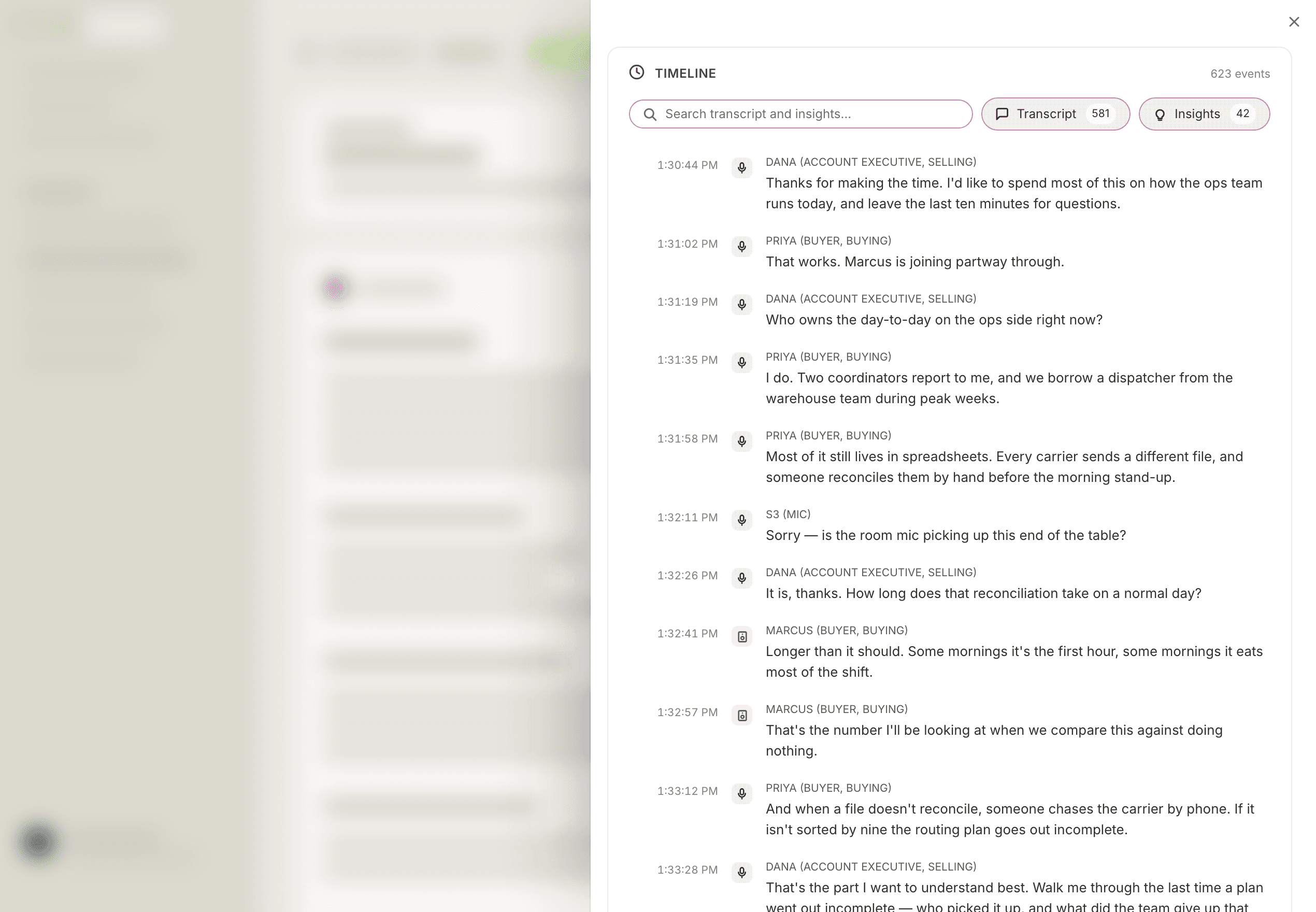
Transcript and timeline
The Transcript card in the rail opens the Timeline: a slide-over panel across the call page. At the top it shows the total number of events, a search field that covers both the transcript and the insights, and two filter pills with their own counts: Transcript and Insights.
Below that, the call runs in order. Every entry is timestamped and labeled with
the speaker in caps, their role, and which side of the deal they're on, for
example DANA (ACCOUNT EXECUTIVE, SELLING) or SAM (BUYER, BUYING). A voice
Backdrop hasn't matched to a person yet shows as a speaker number instead, along
with the audio source it came from, like S3 (MIC). A small icon on every entry
marks that source.
Where your calls live
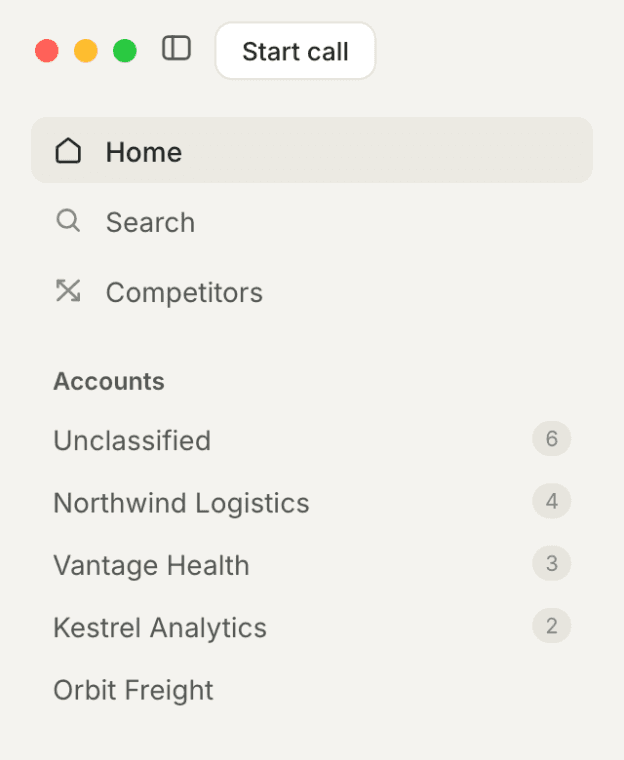
Calls are grouped by account, the company you talked to. The sidebar lists your accounts with a count of calls against each one, and calls Backdrop hasn't matched to an account yet sit under Unclassified.
Next step
Connect your content sources and CRM so Backdrop can draw on them when it writes. See Integrations for what you can connect.
During a call
How to use Backdrop on a live sales call. Start recording, switch between the transcript and the prompter, watch the MEDDPICC rail fill in, and ask anything mid-call.
Competitors
Backdrop's Competitors section holds a read-only card per vendor, covering how to spot them, why you win, why you lose, objection responses, and pricing.