Competitor Cards: How to Position Backdrop Against Other Vendors
Backdrop's Competitors section holds a read-only card per vendor, covering how to spot them, why you win, why you lose, objection responses, and pricing.
Competitors is where your team's answers to "how are you different from them?" live. Each vendor on the list gets a card: how to recognize them in a conversation, the arguments that land, the ones that don't, and what to say when the objection arrives.
Opening Competitors
Competitors sits in the left rail, under Home and Search. Click it to open the full list.
The competitor list
The list is a grid of cards, one per vendor. Each card shows:
- The vendor name
- A status badge, normally READY
- A short description, truncated after the first few lines
- Updated <when>: when the card last changed, in relative time ("12 hours ago", "Yesterday", "2 days ago")
Click a card to open it.
Inside a competitor card
The card header keeps the vendor name, the status badge, and the Updated time, with a back arrow on the left. Below it the sections run in a fixed order, so you always know where to look, and the bottom of the page is stamped Generated <date>, marking when the content was produced.
Read-only
A banner at the top of the card reads Read-only. To change or edit, talk to your manager.
You can read a card and use it, but you can't change it. If something is wrong, stale, or missing, or the Generated date looks old and you're walking into a competitive deal, take it to your manager rather than working around it on the call.
Overview
Who the vendor is, in a paragraph. Underneath it:
- Chips with the vendor's founding year, headcount band, and revenue band
- Outbound links to Website, LinkedIn, Twitter, G2, and Glassdoor
Read this before a call where you expect the vendor to come up. The chips tell you what kind of company you're up against. A company founded last year with a handful of people is a different argument than an established one. Use the links when you need more than the card holds.
Quick dismiss
A short positioning paragraph for the moment the vendor's name comes up and you don't want to spend the call on them. It draws the contrast and hands the conversation back to you.
Read it once before the call so it comes out in your own words instead of sounding recited.
How to spot them
A list of things a prospect says that mean this vendor is already in the deal. These are quotes, not keywords: the category language the prospect uses, the problem they describe, the internal initiative they name. None of them need the prospect to name the vendor.
For a fictional vendor called Meridian, an entry might read:
"We've got a push this quarter to cut the time our reps spend writing up calls."
When you hear one of these, open the card.
Why we win
The arguments that work against this vendor, each with a short heading and the supporting detail beneath it. The heading is the point; the paragraph is what you say if the prospect pushes.
Skim the headings before the call. You want two or three you can reach for without reading.
Why we lose
The honest half. Each entry names a situation where this vendor genuinely wins, followed by a Pivot: line, naming where to take the conversation instead of arguing a point you're going to lose.
This is the section that keeps you from over-claiming. If the prospect is describing one of these situations, acknowledge it and pivot rather than pushing.
Objection handling
Specific objections prospects raise when this vendor is in the deal. The objection is quoted at the top of each block, and the response runs underneath it as a short paragraph.
Scan for the objection you actually heard rather than reading top to bottom.
Win stories
Deals won against this vendor. Each story sets out the scenario (who was on the call, what got thrown at the rep, how it went) and ends with a Key learning: line.
Use these as proof on a call. A specific story about a similar company lands harder than a claim about the product.
Questions to ask
Questions to put to the prospect when this vendor is in the deal, each with a line underneath saying what the question exposes.
These are for the prospect, not for you. Ask one and let the answer do the work.
Pricing & packaging
How the vendor charges: who they sell to, the model they price on, and chips describing their packages or licensing tiers. A Discounting: line at the end covers where they tend to move on price.
Pricing on a competitor card is your team's best current read, not a quote from the vendor. Don't repeat a number to a prospect as fact.
When a competitor comes up on a call
You don't need to open this list mid-call. While Backdrop is recording, the status strip in the panel reads Listening for competitors... until it hears one. When a prospect names a vendor, the strip switches to Competitor mentioned: <vendor> and the name is highlighted in the transcript.
Then it raises a short version of the card, in the panel, without you touching anything. A tab per vendor it has heard runs across the top, so a call that names three gives you three tabs.
The in-call card is deliberately smaller than the full one:
- The vendor's name, what they do, and a line of context: headcount, founding year, and their site
- A We / They split, one sentence each, the contrast you would say out loud
- Landmines: questions to put to the prospect, written to be read off the screen and asked as they are
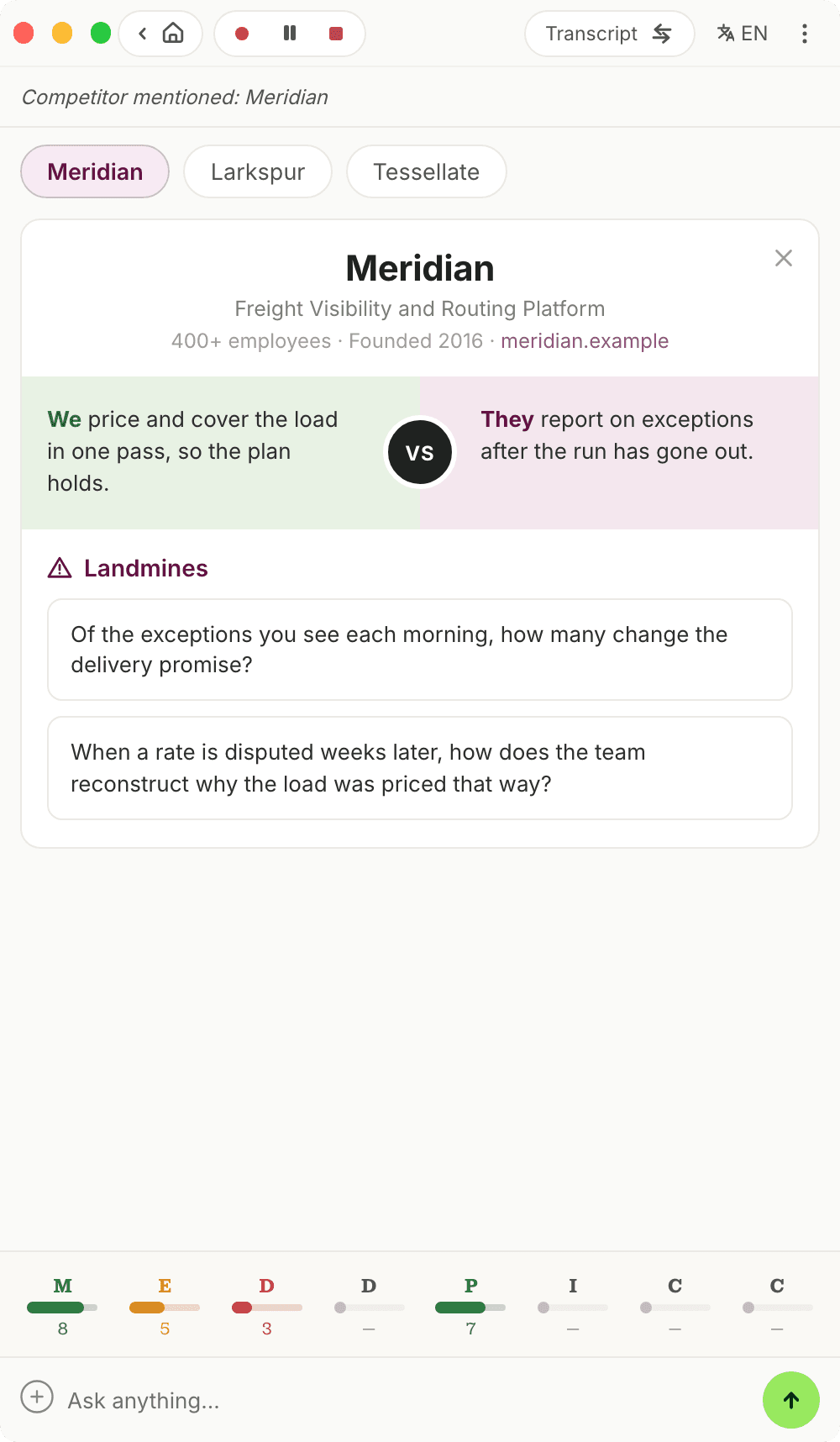
It is the same content as the full card, cut down to what you can act on without breaking eye contact. Close it with the × and the transcript comes back; the tabs stay, so you can reopen a vendor later in the call.
So the flow is: prep with the card before the call, let the panel raise it during, and come back to the full card afterwards if the deal turns competitive.
Next step
See During a Call for the rest of the in-call panel and what it surfaces while you talk.
After a call
After every call, Backdrop writes a structured summary and a MEDDPICC qualification scorecard, and drafts a personalized follow-up email on demand. Nothing sends until you send it.
Hide from screen
Which apps support Backdrop's Hide from Screen feature? Full compatibility list for Zoom, Google Meet, and Microsoft Teams on macOS and Windows 11.