How to Install Backdrop: Desktop App Setup Guide
Step-by-step guide to install Backdrop. Download the desktop app for Mac or Windows, sign in with your work email, and set up your screen for live sales calls.
Everything you need to do once, before your first call. It takes about two minutes.
What you need
A Mac or Windows machine and a work email. Backdrop signs you in with Google, Microsoft, or an email link. No invite code required.
Step 1: Download Backdrop
Go to getbackdrop.ai/get. The download starts automatically and the page detects whether you're on macOS or Windows. If it doesn't start, use the download Backdrop manually link on that page.
On your phone?
The /get page has a Send link field. Enter your work email and Backdrop
will send you a link to open later on your computer.
Step 2: Install the app
Open Backdrop.dmg from your Downloads folder.
Drag the Backdrop icon into your Applications folder.
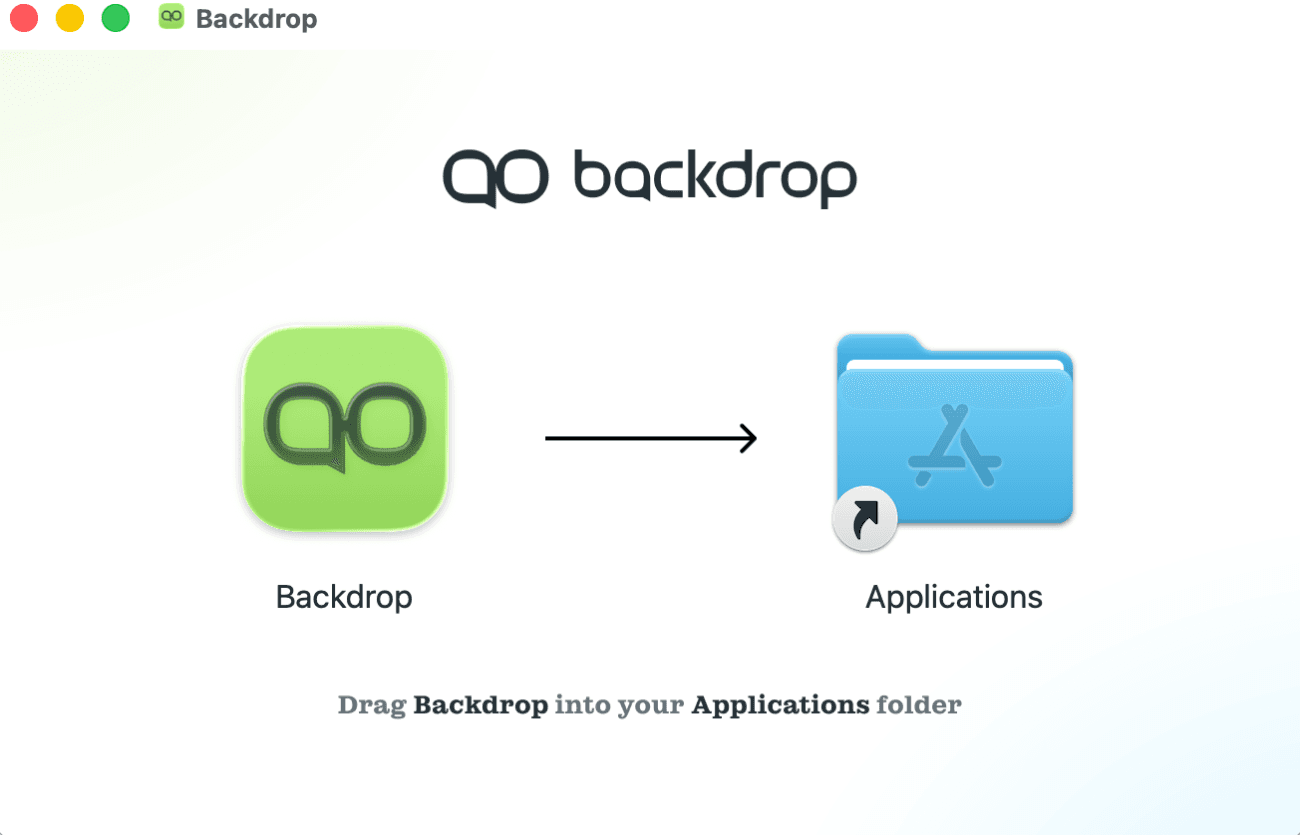
Open Backdrop from Applications.
The first time you launch it, macOS may warn that Backdrop was downloaded from the internet. That's expected. Click Open.
Step 3: Sign in
On first launch you'll see the welcome screen. Click Sign up or sign in.
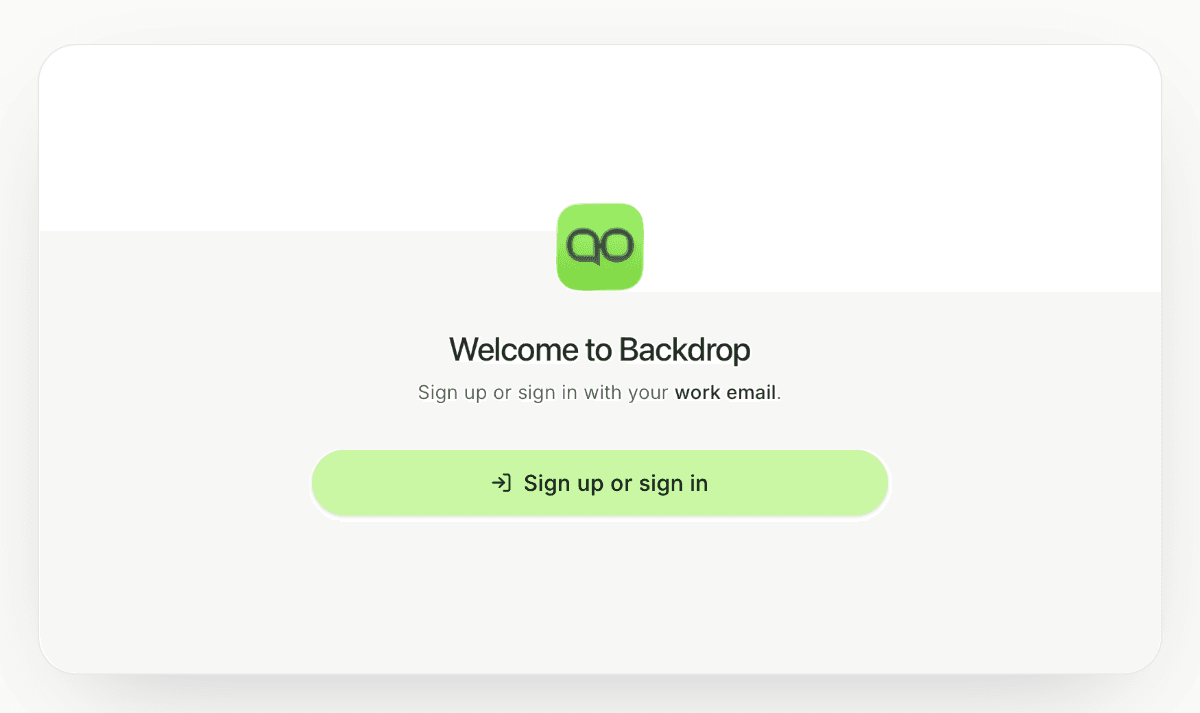
Backdrop hands off to your browser to authenticate. Pick one of three methods:
- Google: fastest if you're on Google Workspace
- Microsoft: for Microsoft 365 accounts
- Email address: enter your work email and continue
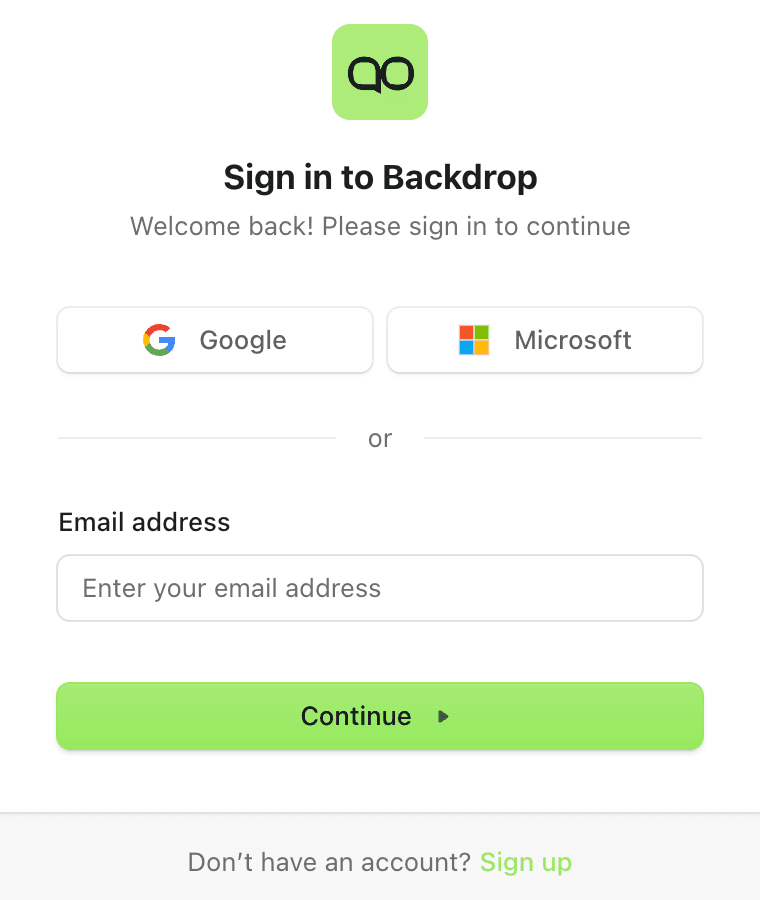
Use your work email
Backdrop works best when it's connected to the calendar you actually take meetings on. A personal address won't see your work meetings, and won't match your team's workspace.
Once you've signed in, the browser hands you back to the desktop app automatically. When the main Backdrop window appears, you're in.
Step 4: Set up your screen
This is the single most important thing for a smooth first call. Backdrop is designed to live on your screen while you share, but only if you set it up right.
Recommended: dual-monitor setup
Two monitors is the cleanest setup:
- Monitor 1: your presentation, demo, or deck (the one you share)
- Monitor 2: Backdrop, your notes, and anything else you reference
With two monitors, you never toggle between windows during a call, and Backdrop is physically on a screen the prospect can't see.
Single monitor: share a specific window
If you only have one screen, share a specific window, not your entire desktop. Every major conferencing tool lets you pick a single window:
- In Zoom, click Share Screen and choose the specific app window instead of "Desktop 1"
- In Google Meet, choose A window instead of Your entire screen
- In Teams, pick the specific window from the share tray
When you share a specific window, Backdrop stays on your desktop but is never broadcast.
Avoid full-screen sharing
If you share your entire screen or desktop, the prospect can see Backdrop. If you must share full-screen, enable Hide from Screen (see below).
Backup: Hide from Screen
For situations where you need to share full-screen (for example, a deck in presenter mode), Backdrop has a built-in Hide from Screen feature that keeps the widget invisible to screen sharing, recording, and screenshot tools.
Support varies by OS and conferencing app. See Hide from Screen: Supported Apps for the full compatibility list.
Next step
You're installed and ready. Next up: During a Call. The anatomy of the in-call UI and how to drive it in real time.
Getting started
Download Backdrop and set up your first AI-enabled sales call in minutes. Install the app, connect your calendar, and get real-time guidance on every call.
Before a call
Backdrop's Prep page gathers the company, its financials, who's on the invite, recent developments, and an opening talk track on one page, so you can read the account in the minutes before a call.