Pre-Call Prep: Company Research, Stakeholders, and a Talk Track
Backdrop's Prep page gathers the company, its financials, who's on the invite, recent developments, and an opening talk track on one page, so you can read the account in the minutes before a call.
Prep is the page you read in the last few minutes before a call. One scrolling page per meeting: the company, its numbers, who's on the invite and what they care about, what's happened lately, and an opening question to lead with. You leave it by clicking Join & record.
Opening Prep
There are two ways in.
From Home. The Coming up card lists your next meetings. Each row shows the date, the meeting name, and the time range, with two buttons at the right end: Join & record and Prep. Click Prep.

From the notification. Shortly before the call starts, Backdrop posts a desktop notification: the app icon with a small video badge, the meeting name, the words Starts soon, and a lime Join & Record button. Clicking it takes you into the call.
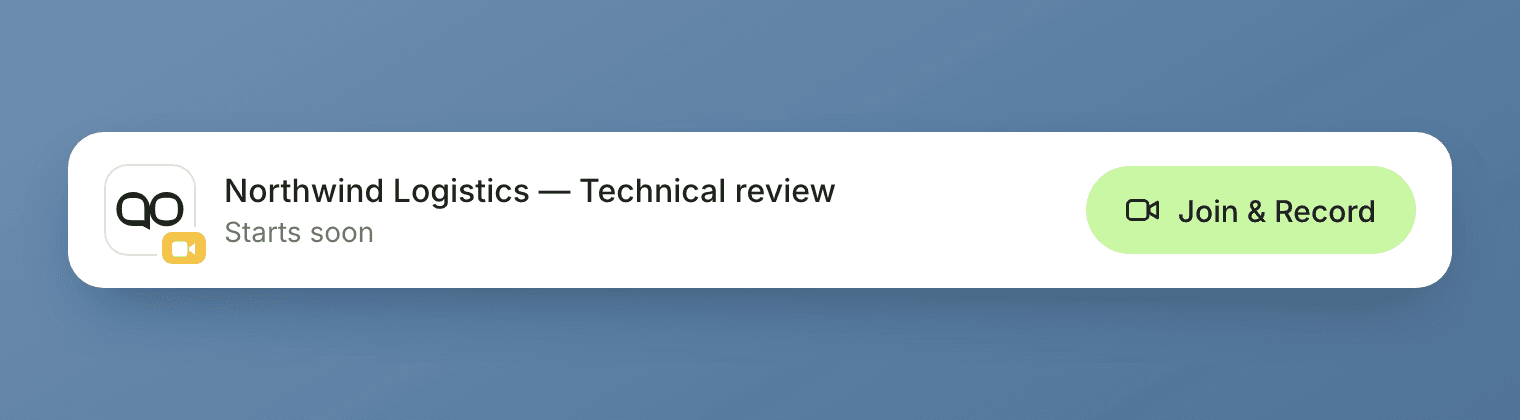
The notification skips Prep
The notification offers Join & Record and nothing else. If you want to read Prep first, open it from the Coming up card on Home rather than waiting for the notification to fire.
The header
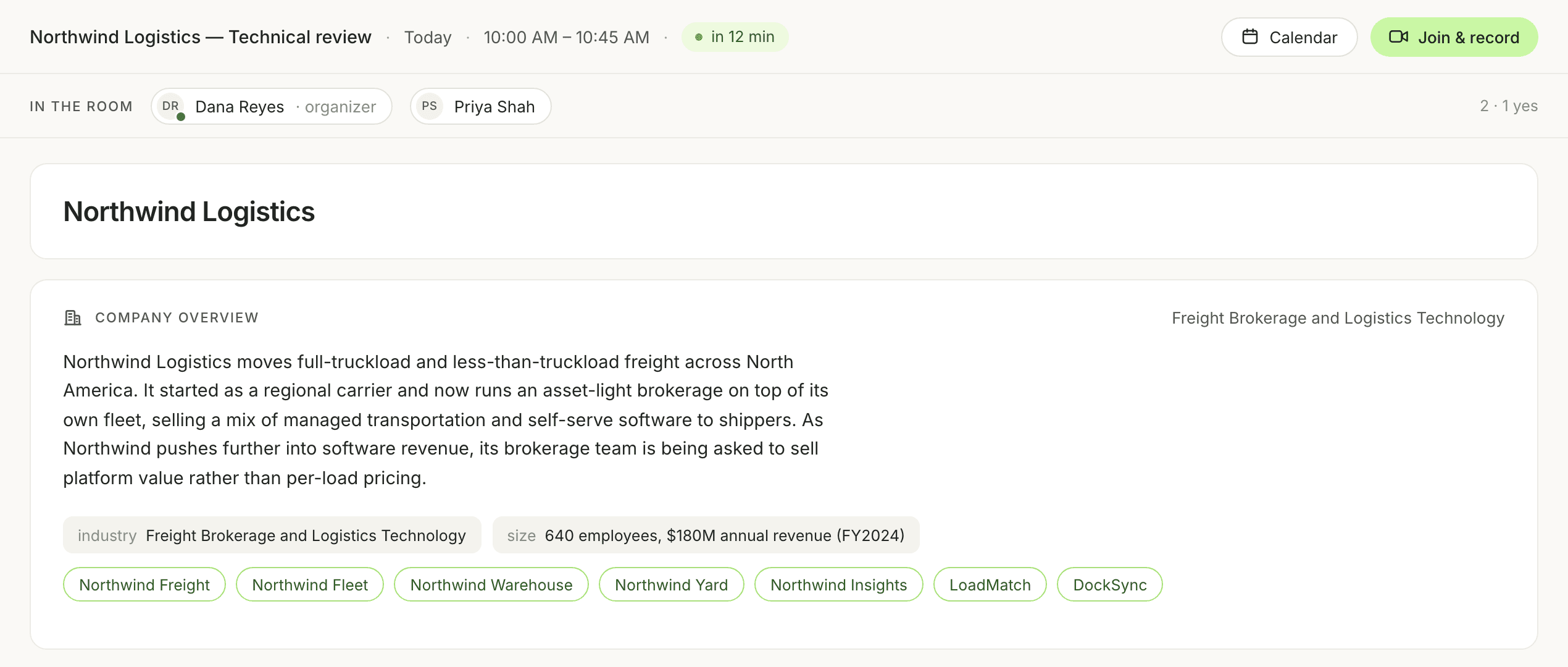
Across the top of the Prep page, left to right: the meeting name, Today, the time range, and a pale-lime status pill counting down to the start, for example ● in 12 min.
At the right end sit two buttons: an outlined Calendar button and a lime Join & record button with a video icon. That's the same Join & record you saw on the meeting row and in the notification, so you never have to leave Prep to get into the call.
The countdown pill is your timer while you read.
In the room
Under the header, IN THE ROOM lists everyone on the invite as a chip: an initials avatar, the person's name, and · organizer after the organizer's name: DR Dana Reyes · organizer, then PS Priya Shah. Right-aligned on the same line is a count in the form 2 · 1 yes, meaning how many people were invited and how many have accepted.
Read it as a check on the meeting you prepared for. A name you don't recognize usually means someone was added late. One accept out of four is worth knowing before you join.
Company overview
Below the header sits a plain card holding the company's name or wordmark, and under that the overview.
The section opens with a small-caps COMPANY OVERVIEW eyebrow and a building icon, with the industry right-aligned on the same line. Then a few paragraphs on what the company does, how it's put together, and where it's heading.
Under the description, grey chips restate the facts in a label value form:
- industry: the same industry named at the top right
- size: headcount and annual revenue, with the fiscal year, for example 640 employees, $180M annual revenue (FY2025)
Then a row of lime-outlined pills naming the company's products. For a freight operator like Northwind Logistics, something like Northwind Freight, Northwind Fleet, and Northwind Warehouse.
Read the paragraphs once. The chips and the product pills are what you carry into the call: the product names are the vocabulary the prospect will use, and saying them back correctly is most of what "did your homework" means.
Financial highlights
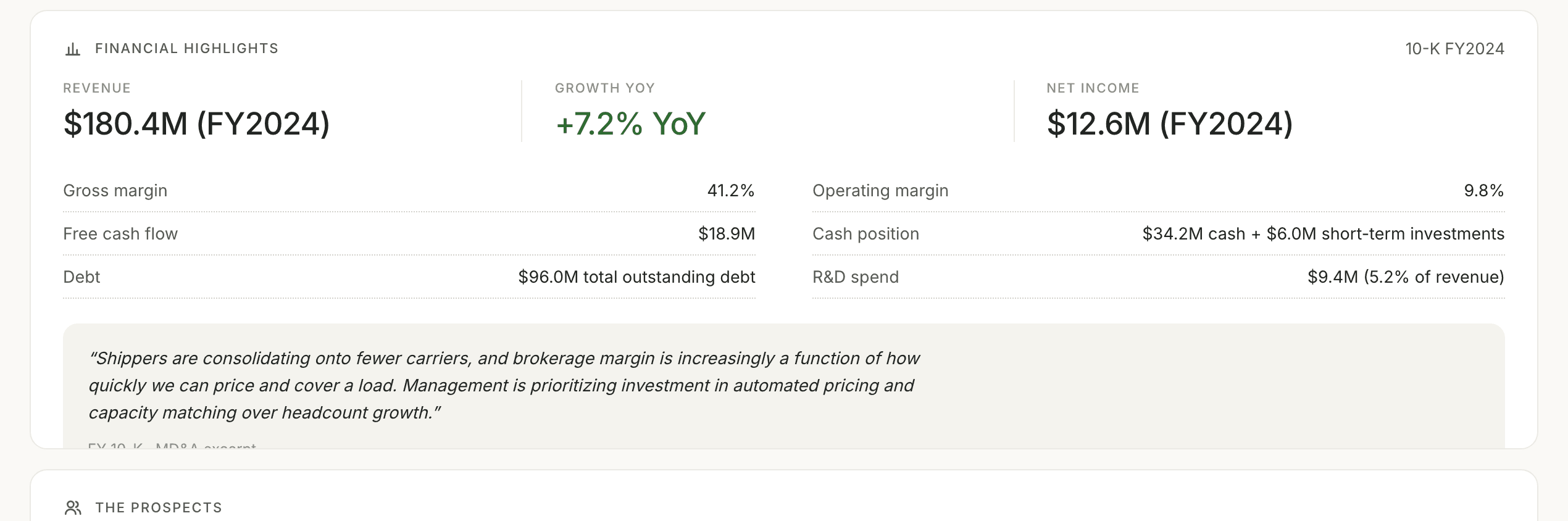
A bar-chart icon and a FINANCIAL HIGHLIGHTS eyebrow, with the source labeled at the right end of the line, for example 10-K FY2025.
Three figures run across the top, each a small-caps label above a large value:
- REVENUE
- GROWTH YOY, set in green
- NET INCOME
Below them, two columns of rows with dotted leaders, label on the left and value right-aligned. On the left: gross margin, free cash flow, debt, operating expenses. On the right: operating margin, cash position, R&D spend.
At the bottom, a grey box holds an italic excerpt in quotation marks with a small attribution line under it, FY 10-K · MD&A excerpt. That excerpt is usually the most useful thing in the section, because it's the company describing its own problem in its own words.
Say the period with the number
The label at the top right names the document the figures came from. When you use one of these numbers on the call, quote the period along with it.
The prospects
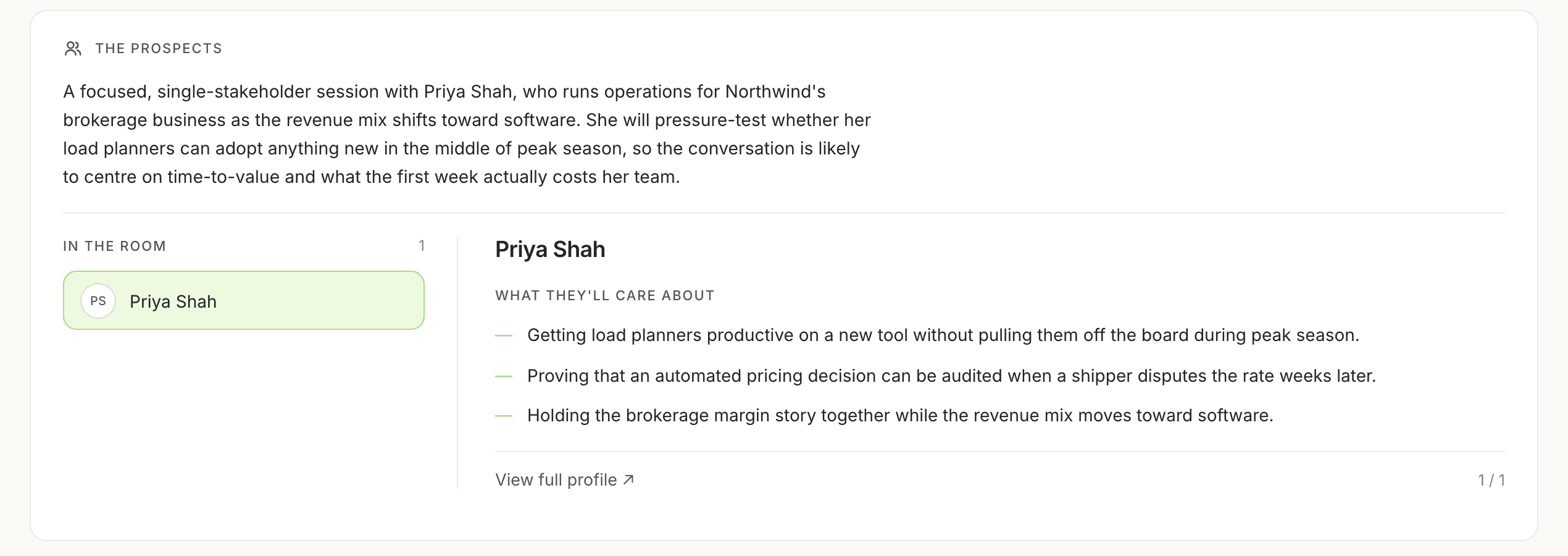
A people icon and a THE PROSPECTS eyebrow. The section opens with a paragraph framing the meeting: who you're sitting with, what they're dealing with, and what they're likely to push on.
Under a hairline, two panes:
- On the left, IN THE ROOM with a count and a chip per attendee. The selected chip has a lime border and a pale-lime fill. Click a name to switch.
- On the right, the person you selected: their name as a heading, then a small-caps WHAT THEY'LL CARE ABOUT and a short list of bullets marked with lime dashes.
At the bottom of the right pane, View full profile ↗ opens the full profile, and a pager sits in the corner, reading 1 / 1 when there's a single prospect.
Click through every name before you join. The bullets are per person, and the answer to "what do I lead with" changes depending on who actually shows up.
Recent developments
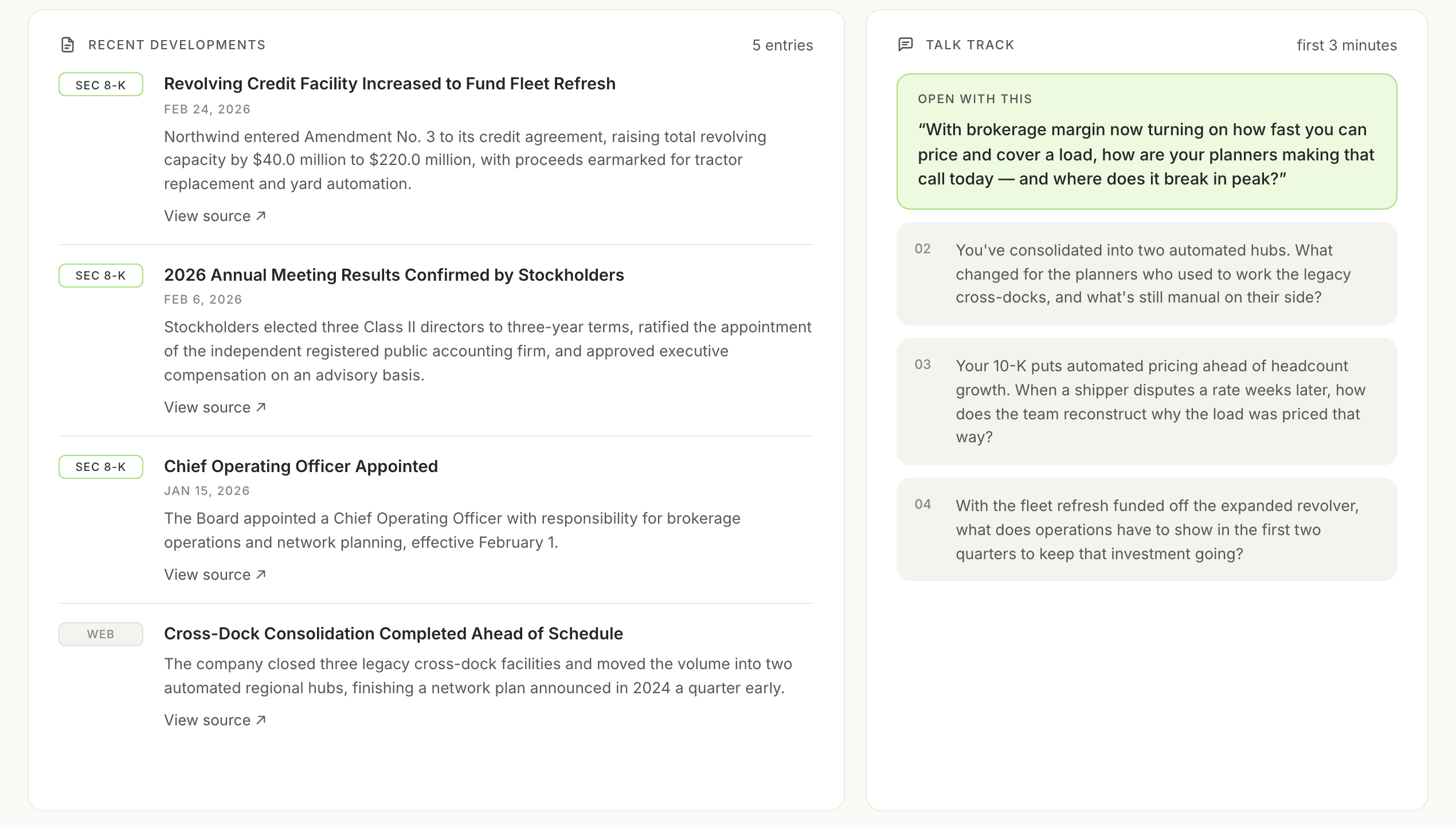
A document icon, a RECENT DEVELOPMENTS eyebrow, and the entry count right-aligned, for example 5 entries.
Each entry carries a source badge on the left: filings get a lime-outlined badge naming the form, like SEC 8-K, and everything else gets a grey WEB. Then the headline in bold, the date in small caps, a paragraph, and a View source ↗ link. Hairlines separate the entries.
This is where you find something current to open with. It's also where another vendor's name tends to appear: a new partnership, a system they're replacing, a deal they lost. When it does, open that vendor's card in Competitors before you join, so you're not meeting the name for the first time mid-call.
Talk track
A speech-bubble icon, a TALK TRACK eyebrow, and first 3 minutes at the right.
The first card is lime-bordered with a pale-lime fill and labeled OPEN WITH THIS. It holds a single question in quotation marks, built from what's above it on the page: the figures, the filing excerpt, and what the prospect cares about.
Under it sit numbered grey cards, 02, 03 and 04, each holding one follow-up question with the number set to the left of the text.
If you read nothing else on this page, read this. Go over the opener until you can say it in your own words rather than reciting it, then glance down the three follow-ups so you know where the conversation is meant to go.
How we can help
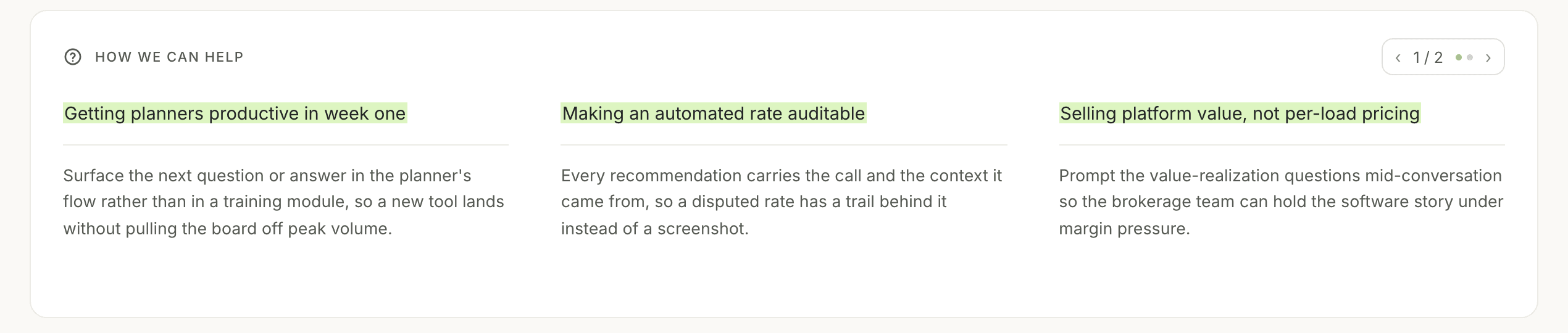
A question-mark icon, a HOW WE CAN HELP eyebrow, and a pager in the top right, ‹ 1 / 2 › with dots for the pages.
Each page holds three columns. A column is a heading with a lime highlight behind the text, a hairline, and a paragraph underneath. Use the arrows to page through.
Read the three headings. They're the angles this call has. The paragraph under each one is the detail if the prospect pushes on it.
The last thirty seconds
If you opened Prep with a minute to spare, read in this order:
- Talk track: the opener, then the three follow-ups
- How we can help: the three headings
- The prospects: the bullets under the name of whoever you're actually talking to
Then click Join & record in the header.
Next step
During a Call picks up where Prep leaves off: the live panel, the transcript, the prompter, and the MEDDPICC rail filling in while you talk.
Install Backdrop
Step-by-step guide to install Backdrop. Download the desktop app for Mac or Windows, sign in with your work email, and set up your screen for live sales calls.
During a call
How to use Backdrop on a live sales call. Start recording, switch between the transcript and the prompter, watch the MEDDPICC rail fill in, and ask anything mid-call.