Integrations
Gong Integration: Connect Call Recordings to Backdrop
Step-by-step guide to connect Gong with Backdrop. Get your API key and base URL from Gong Admin Center, then link call recordings to power real-time answers.
Find base URL
- Log in to your Gong account.
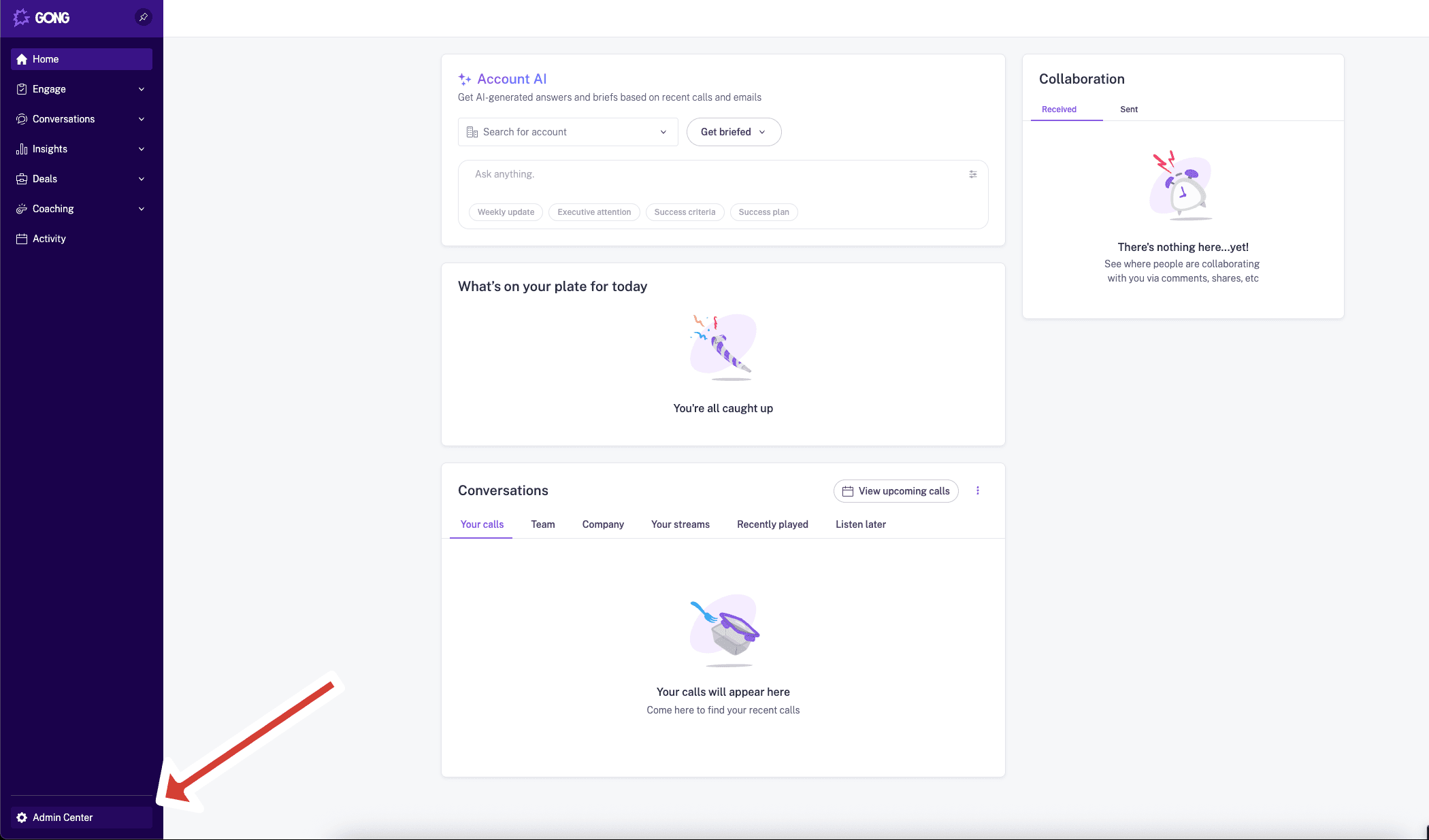
- In the bottom left corner of the page, click Admin Center.
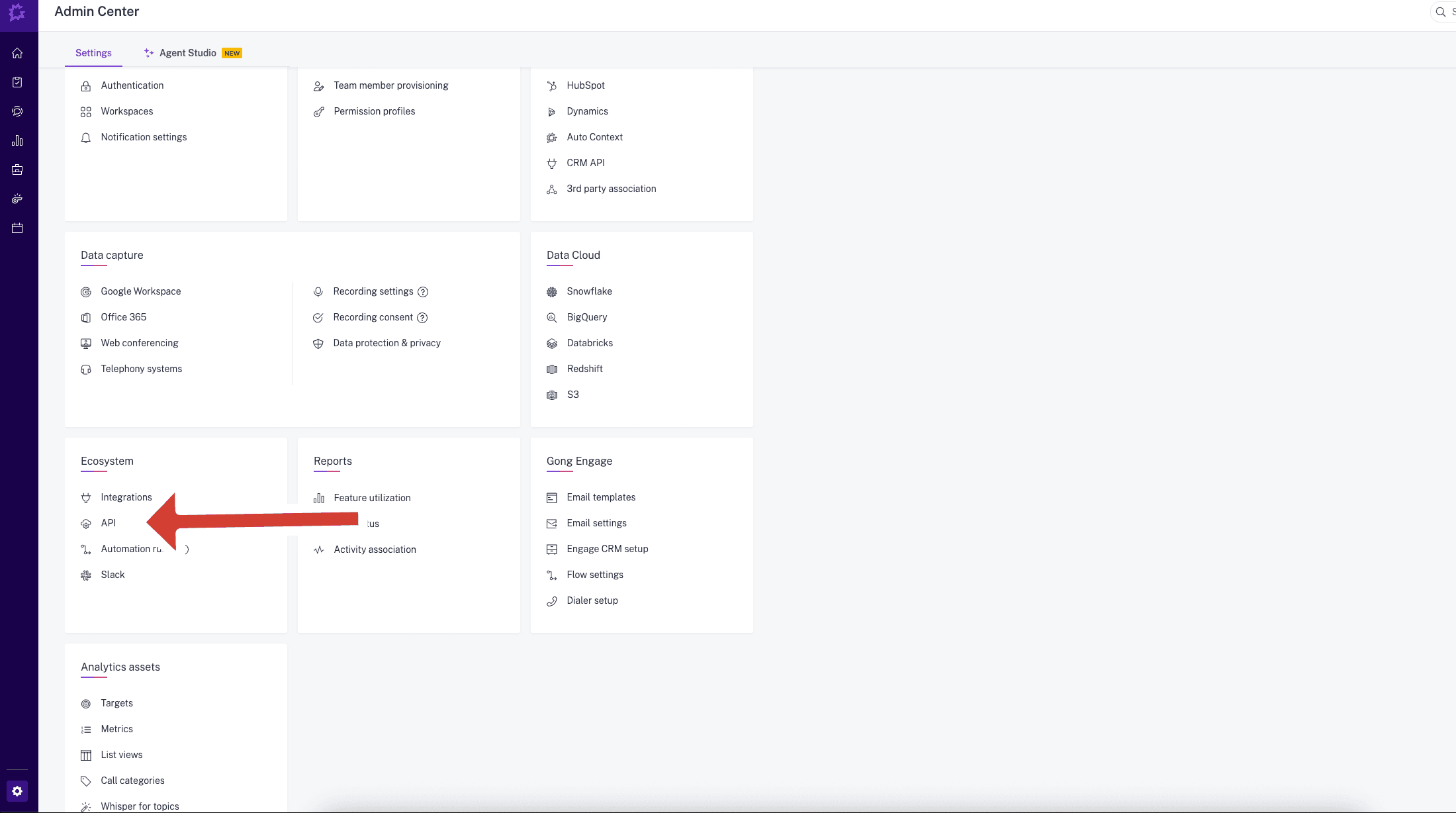
- In the Ecosystem section, click API.
- Go to the API KEYS tab and click Get API Key. Save the Access Key
and the Secret Key. You'll need both to configure Backdrop.
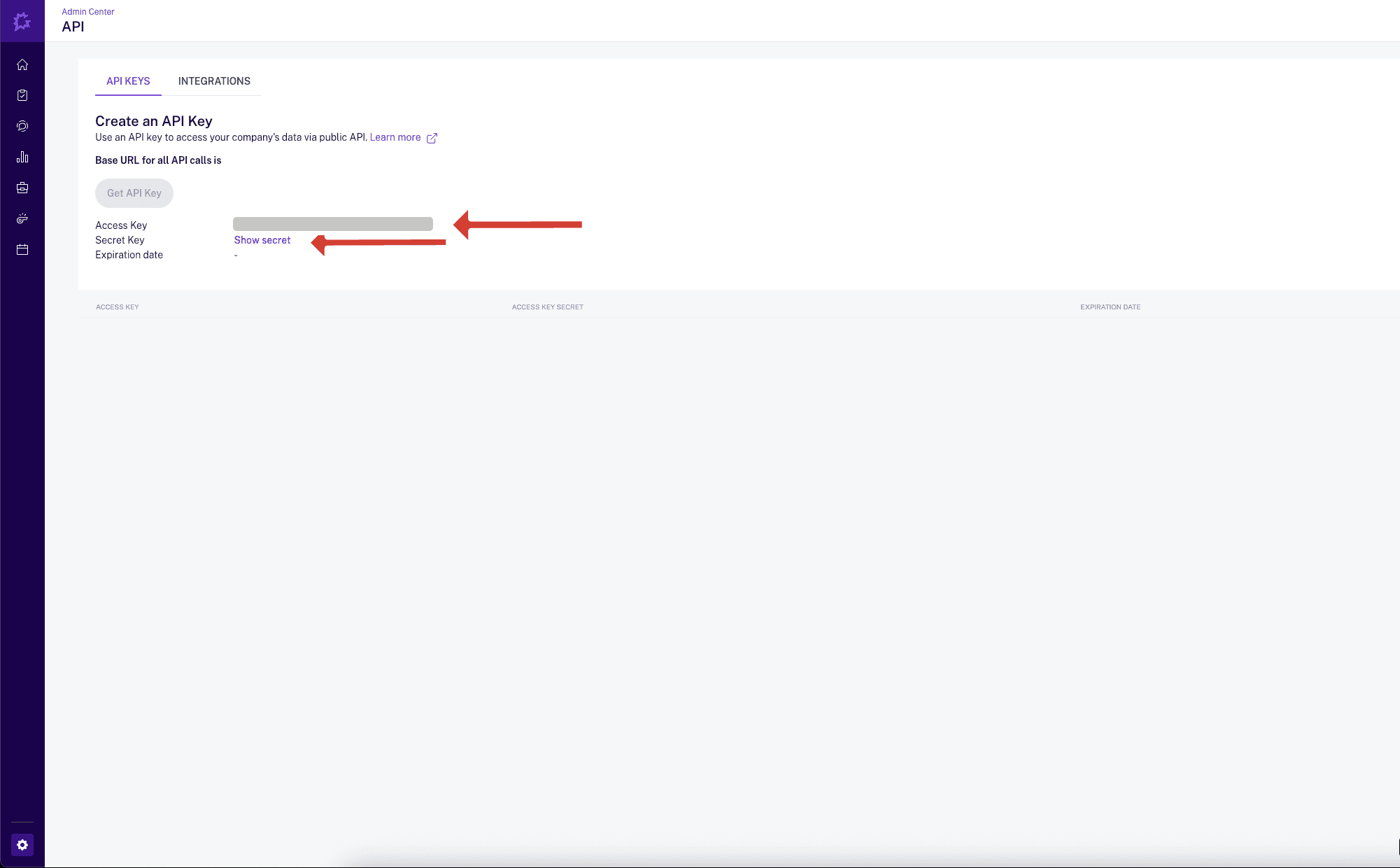
- Refresh the page and go back to the API KEYS tab.
- Find your Base URL and note it down. You'll need it to configure Backdrop.

Finish Backdrop configuration
Send the Access Key, Access Key Secret, and Base URL securely over to Backdrop.
Google Drive
Share product docs, battlecards, and case studies from Google Drive so Backdrop can reference them during live sales calls. Read-only viewer access.
Microsoft Calendar
Step-by-step guide for Microsoft 365 admins to grant Backdrop calendar access. Requires Global Administrator consent. Setup takes under 2 minutes.