Integrations
Google Drive Integration: Share Docs with Backdrop
Share product docs, battlecards, and case studies from Google Drive so Backdrop can reference them during live sales calls. Read-only viewer access.
Get Your Service Account Email
- Request your service account email from your sales rep
Add Permissions
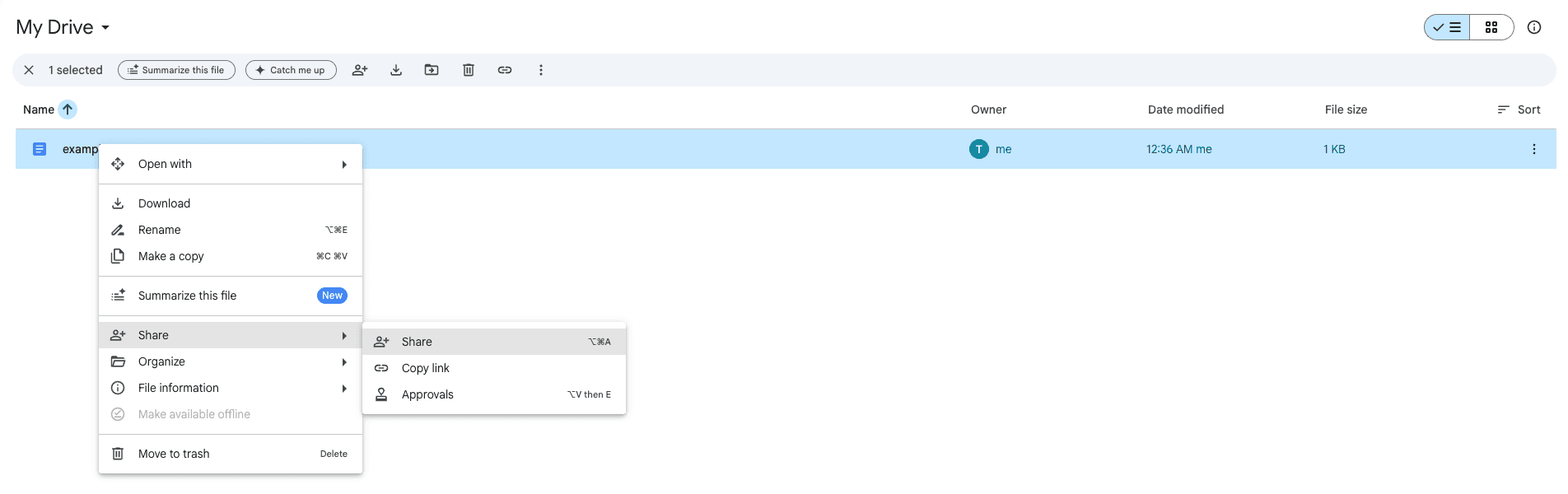
- Right-click the folder or file you want to share, then choose Share.
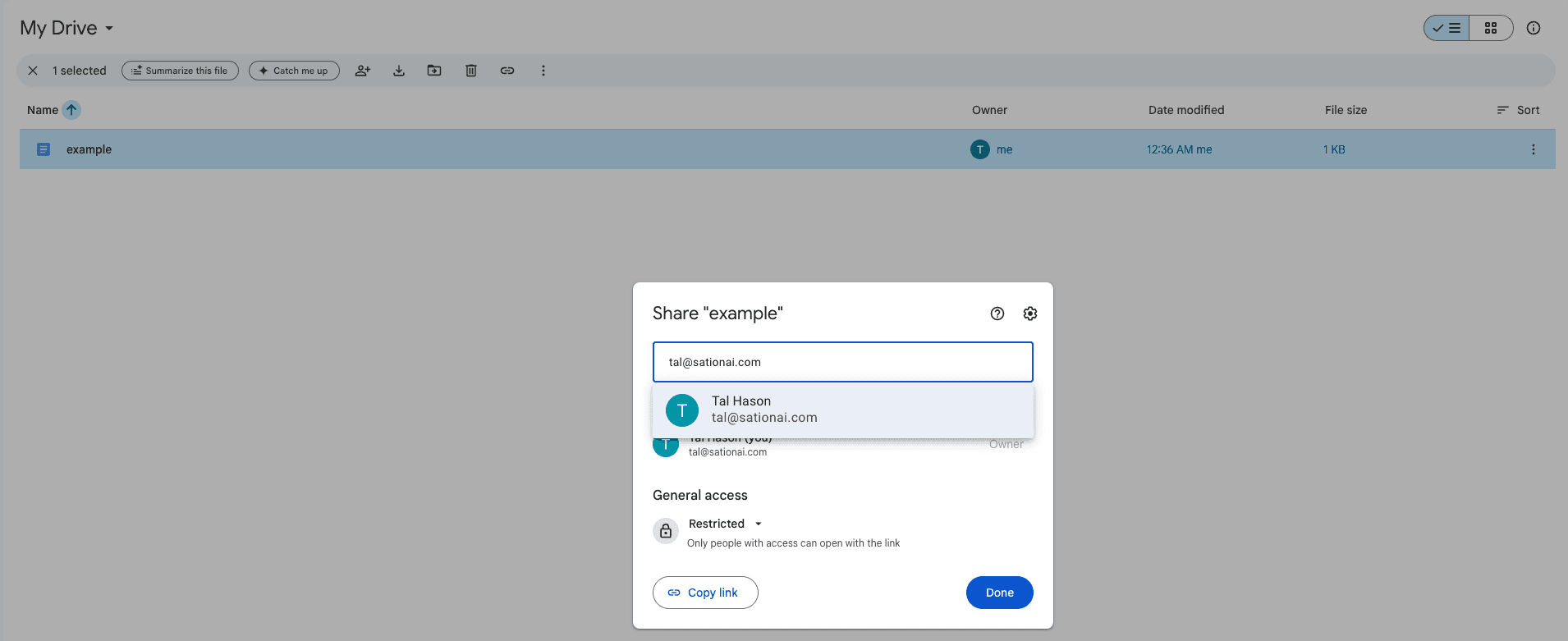
- Enter the service account address from step 1.
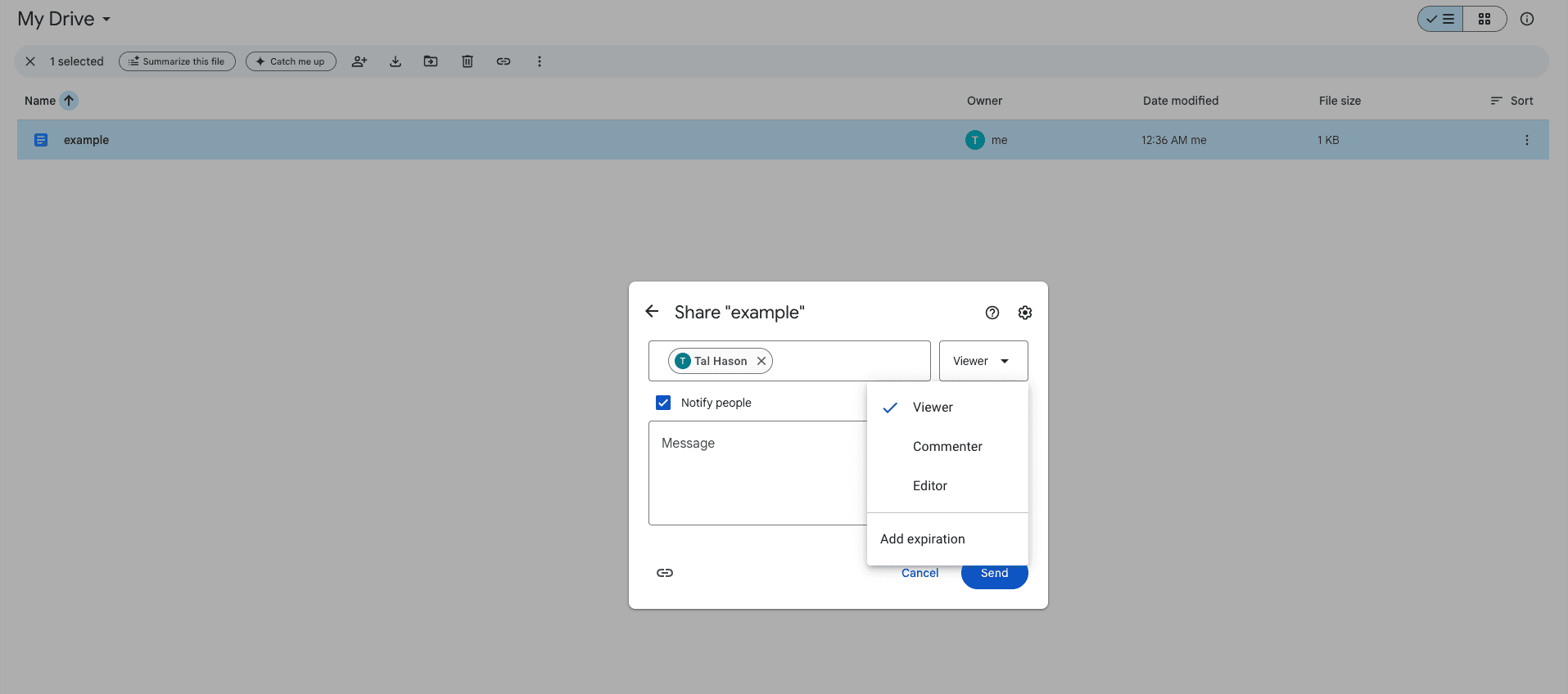
- From the role dropdown, select Viewer, then press Send.
Finish Backdrop Configuration
Notify your sales rep that you have finished adding files/folders.
Confluence
Connect your Confluence spaces and pages to Backdrop as knowledge sources. Read-only access, no write permissions. Supports multi-site Atlassian accounts.
Gong
Step-by-step guide to connect Gong with Backdrop. Get your API key and base URL from Gong Admin Center, then link call recordings to power real-time answers.