Supported Languages: Live Call Transcription in 55 Languages
Every language Backdrop transcribes on a live call. Where the language control sits in the panel, how to switch it, and how to get a non-English language enabled for your workspace.
Backdrop transcribes the call in whichever language the panel is set to, and the transcript is what everything else runs on: the MEDDPICC rail and the post-call scorecard both read it. Set the language before you record and the rest follows.
English is the default and works on every workspace. Every other language is off until the Backdrop team turns it on.
Where the control lives
The language control sits at the right end of the top bar, just left of the overflow menu: a translate glyph and a two-letter code. It reads EN until you change it.

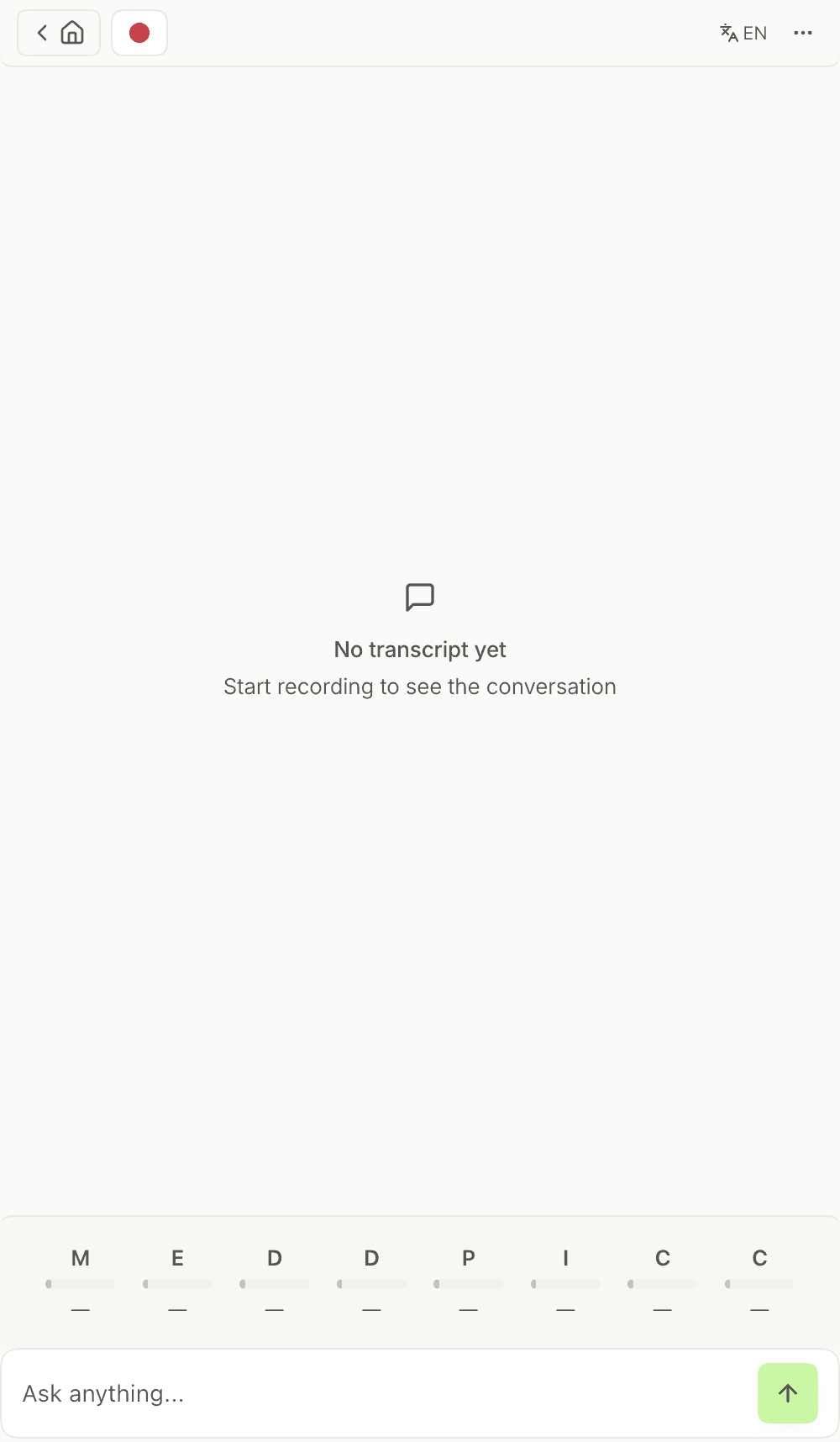
Non-English has to be enabled first
English is available to everyone. Any other language requires an active Backdrop subscription and has to be switched on for your workspace by the Backdrop team. Until it is, the language control has nothing else to offer. See Getting a language enabled.
Switching the language
Open Backdrop and click the language control in the top bar.
Pick the language for this call. The list shows the languages enabled for your workspace.
Click record. Backdrop transcribes in the language you picked.
Set the language before you start recording. If your next call is in a different language from your last one, check the control when you join — it holds whatever you left it on.
Supported languages
Backdrop transcribes the following languages. Each one has a code, which is what support will ask for when you request one. If a call moves between two languages, set the control to the one it opens in.
| Language | Code |
|---|---|
| Arabic | ar |
| Bashkir | ba |
| Basque | eu |
| Belarusian | be |
| Bengali | bn |
| Bulgarian | bg |
| Cantonese | yue |
| Catalan | ca |
| Croatian | hr |
| Czech | cs |
| Danish | da |
| Dutch | nl |
| English | en |
| Esperanto | eo |
| Estonian | et |
| Finnish | fi |
| French | fr |
| Galician | gl |
| German | de |
| Greek | el |
| Hebrew | he |
| Hindi | hi |
| Hungarian | hu |
| Indonesian | id |
| Interlingua | ia |
| Irish | ga |
| Italian | it |
| Japanese | ja |
| Korean | ko |
| Latvian | lv |
| Lithuanian | lt |
| Malay | ms |
| Maltese | mt |
| Mandarin | cmn |
| Marathi | mr |
| Mongolian | mn |
| Norwegian | no |
| Persian | fa |
| Polish | pl |
| Portuguese | pt |
| Romanian | ro |
| Russian | ru |
| Slovakian | sk |
| Slovenian | sl |
| Spanish | es |
| Swahili | sw |
| Swedish | sv |
| Tamil | ta |
| Thai | th |
| Turkish | tr |
| Ukrainian | uk |
| Urdu | ur |
| Uyghur | ug |
| Vietnamese | vi |
| Welsh | cy |
Getting a language enabled
Two things have to be true: your workspace is on an active Backdrop subscription, and someone on the Backdrop team has switched the language on for it. The second one is a request, not a setting you can reach yourself.
Ask by chat or by email — Chat with us at the bottom of this page, or support@getbackdrop.ai. Include:
- The language you need, and its code from the table above
- Roughly how many reps on your team take calls in it
- Whether those reps need it alongside English or instead of it
Not sure about your subscription?
Ask support and they can tell you what your workspace is on. Plans and what each one includes are on the pricing page.
Next step
The language control is one part of the top bar. See During a Call for the rest of the panel: the transcript and the MEDDPICC rail filling in as you talk.
Call goals
Pick the 4 to 10 call goals Backdrop listens for on every call, start from MEDDPICC, BANT, SPICED or SPIN if you like, set the order they're asked in, and read or reshape the rubric behind each one.
Hide from screen
Which apps support Backdrop's Hide from Screen feature? Full compatibility list for Zoom, Google Meet, and Microsoft Teams on macOS and Windows 11.