During a Call: Live Transcript, MEDDPICC Rail, and Ask anything
How to use Backdrop on a live sales call. Start recording, follow the live transcript, watch the MEDDPICC rail fill in, and ask anything mid-call.
Backdrop sits beside your call as a single panel. The body of the panel shows the live transcript. Below it, a MEDDPICC rail tracks how the deal is qualifying, and an Ask anything input handles whatever else comes up.
Starting Backdrop
Backdrop doesn't launch with your conferencing app. Open it manually before a call, or wait for the notification when a call begins, then click record in the transport pill.
Backdrop records your microphone and your computer's system audio, so it runs alongside whichever conferencing app you're on: Zoom, Google Meet, or Microsoft Teams.
Anatomy of the panel
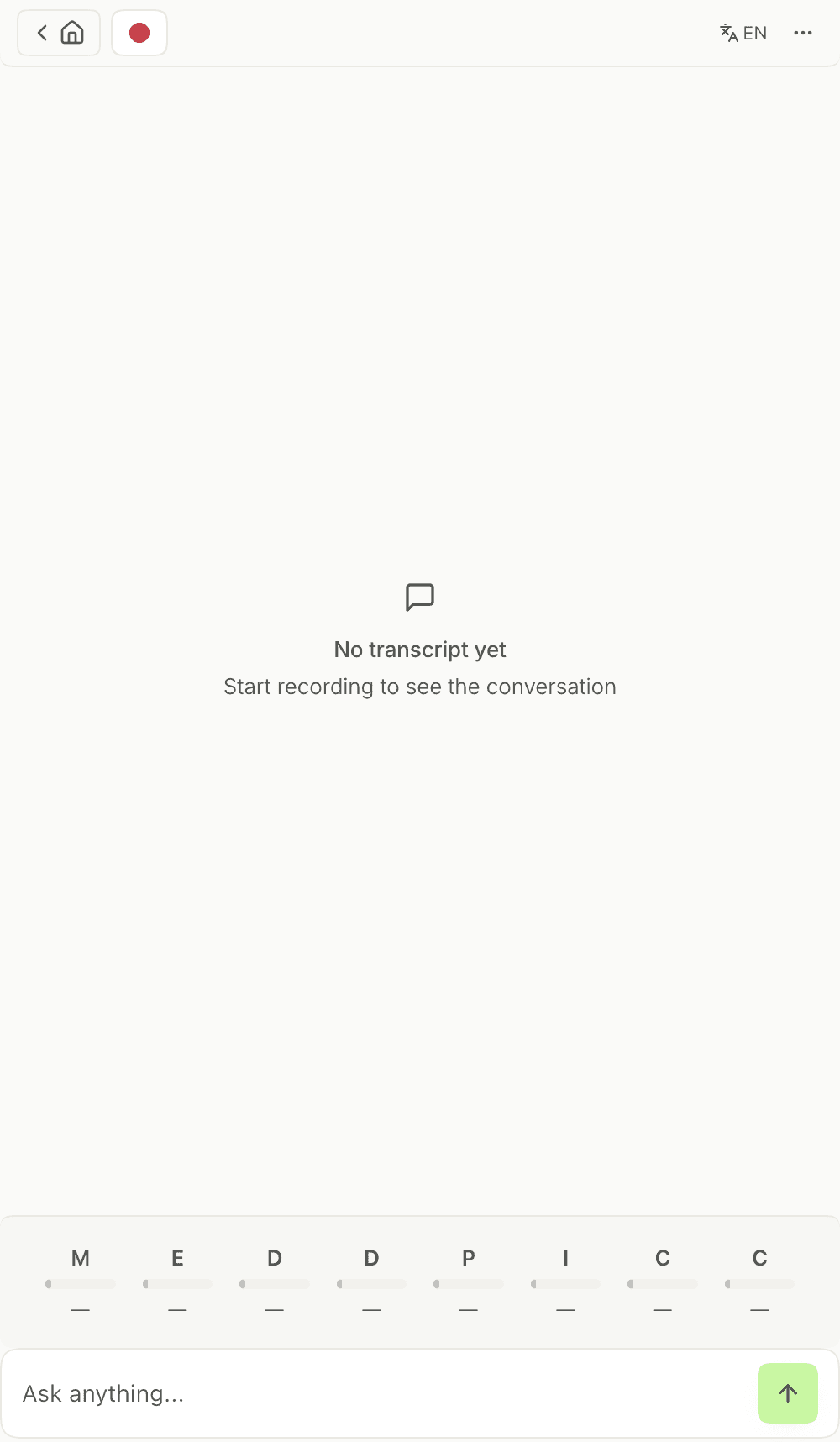
From top to bottom:
- Top bar: a back chevron and a home button on the left; a transport pill with record, which opens out to pause and stop once you're recording; a language control showing EN; and an overflow menu.
- Body: the live transcript.
- MEDDPICC rail: eight letters, each with a track and a number under it.
- Ask anything: an input with a send button on the right.
Transcript
The live conversation as Backdrop hears it, each turn labeled with the speaker and their role. Before you start recording it reads No transcript yet. Start recording to see the conversation.
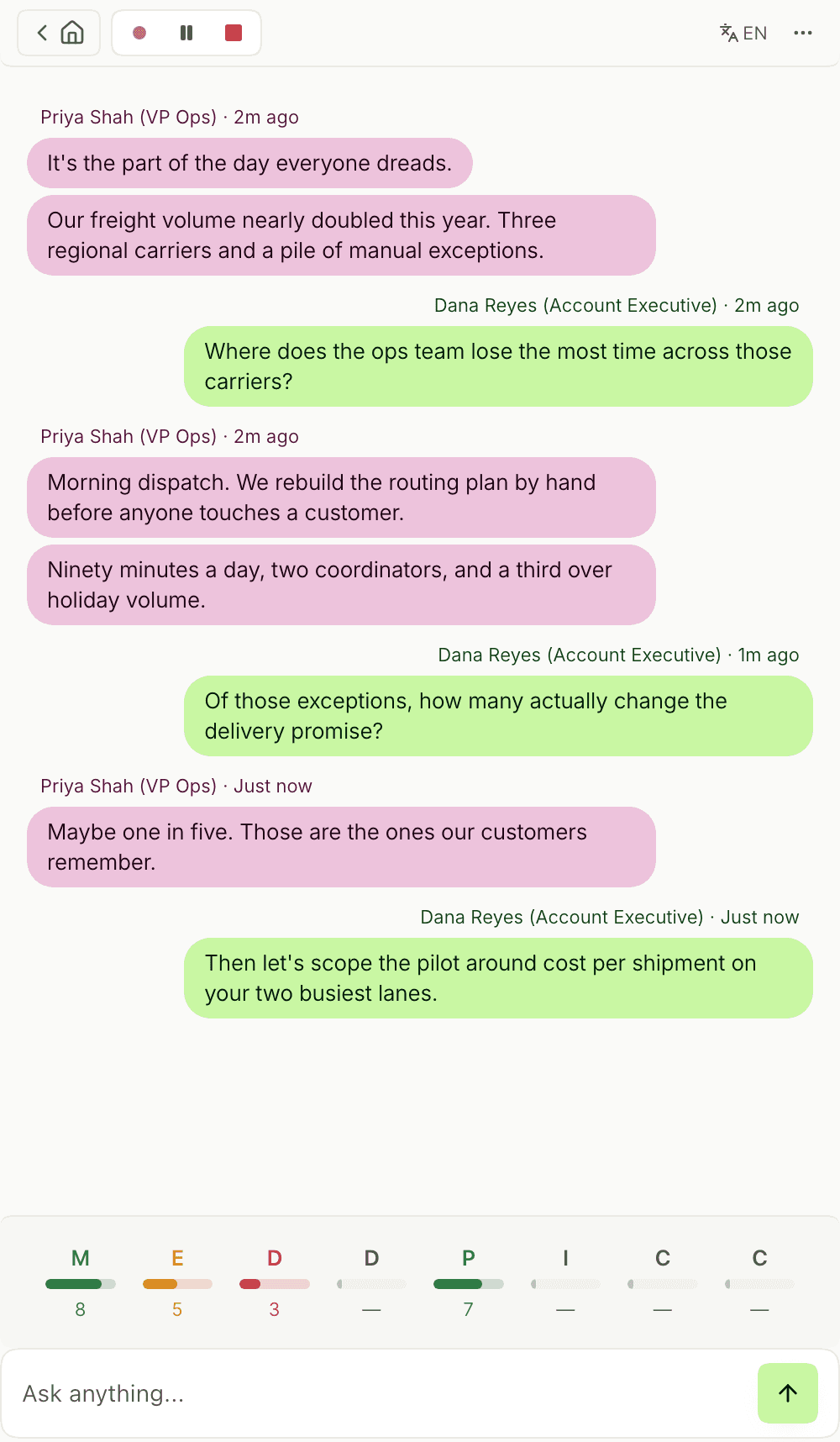
The MEDDPICC rail
Along the bottom of the panel, eight letters track how the deal is qualifying while you're still on the call. They're the eight MEDDPICC elements in order: Metrics, Economic Buyer, Decision Criteria, Decision Process, Paper Process, Identify Pain, Champion, Competition. The rail shows bare letters. The post-call scorecard is where they're named and where the two Ds and two Cs get labeled D1/D2 and C1/C2.
Each letter has a track and a number beneath it. Both move as the call gives Backdrop something to go on for that element, and the color steps from red through amber to green as the number climbs. Elements the conversation hasn't reached sit at the bottom of the scale, so the rail doubles as a list of what you haven't asked about yet.

After the call, each element gets a score out of 100 in the qualification scorecard. See After a Call.
Ask anything
The input at the bottom of the panel is for the answer you need right now: a product question the prospect just asked, an objection you want a line for, a technical detail you can't recall. Type your question and click the send arrow.
Keeping the panel off the shared screen
Backdrop is a floating desktop window, so it sits on top of whatever else is open, including anything you're sharing. Two monitors is the clean answer: share from one, keep Backdrop on the other. On a single screen, share a specific window rather than your whole desktop. Installing Backdrop walks through both.
If neither is an option, turn on Hide from Screen, which keeps the panel out of screen shares, recordings, and screenshots. Support varies by conferencing app and OS. See Hide from Screen for the list.
Stopping a call
When the call ends, click stop in the transport pill. Backdrop closes the call out and writes it up on its own page.
Next step
Most of Backdrop's output lands after you hang up. See After a Call for the summary, the MEDDPICC scorecard, and the follow-up email draft.
Before a call
Backdrop's Prep page gathers the company, its financials, who's on the invite, recent developments, and an opening talk track on one page, so you can read the account in the minutes before a call.
After a call
After every call, Backdrop writes a structured summary and a MEDDPICC qualification scorecard, and drafts a personalized follow-up email on demand. Nothing sends until you send it.