Post-Call Briefing and MEDDPICC Scoring
After every call, Backdrop gives you an Overview, a structured summary, a MEDDPICC scorecard, and a follow-up email on demand. Nothing sends until you send it.
When a call ends, Backdrop writes it up. Every call gets its own page with five tabs across the top: Overview, Summary, Goals, Follow-up, and Transcript. The page opens on Overview. Nothing sends automatically.
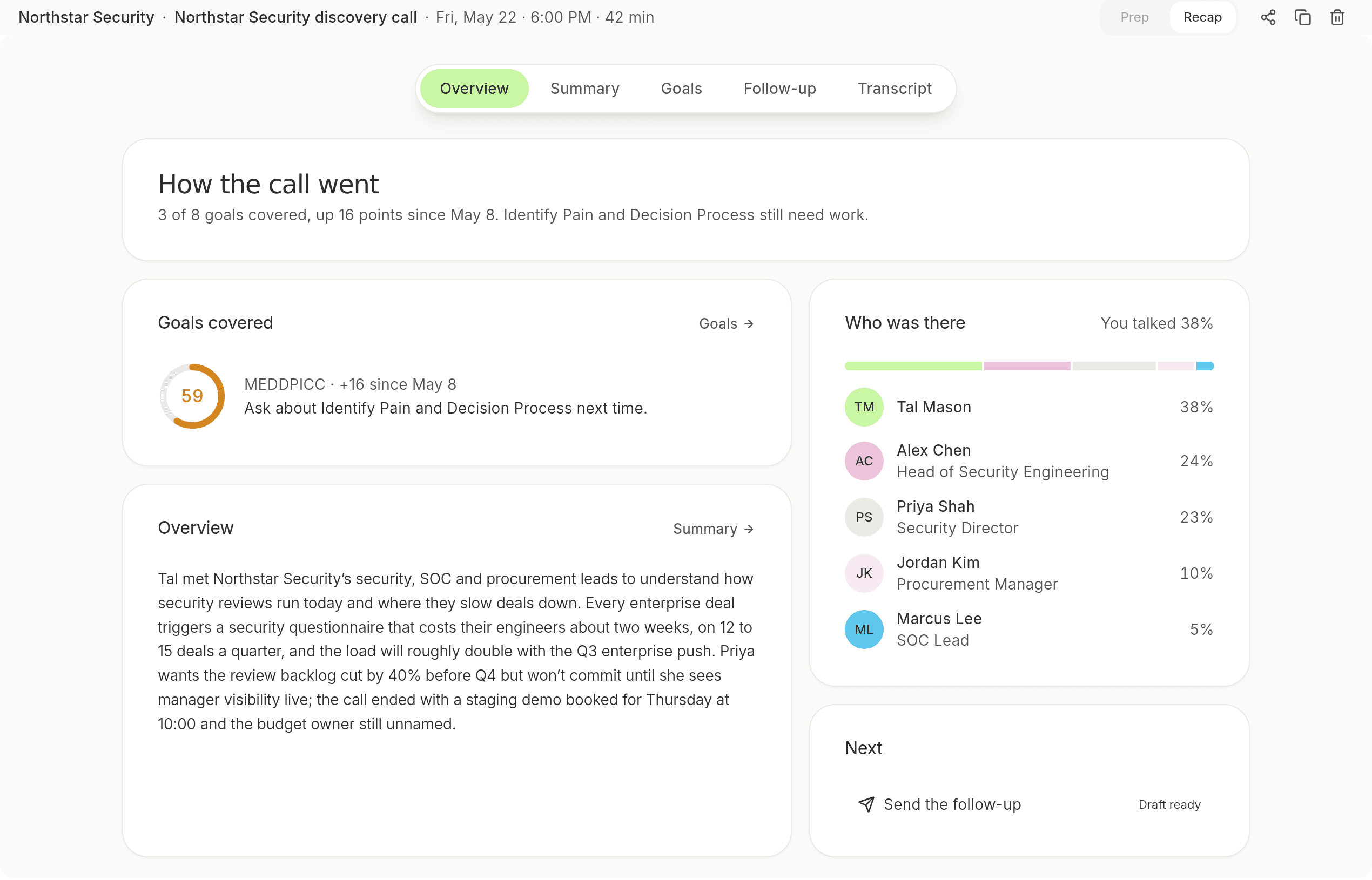
The header bar
Across the top of the call page, left to right:
- The account the call belongs to
- The call title
- The date, start time, and length of the call
At the right end sit a Prep | Recap switch, a delete button, a copy button, and a share button. See Share a call.
Prep and Recap
The call page is the Recap. Click Prep to jump back to the prep Backdrop wrote for that meeting, and click Recap on the Prep page to come back to the call. Prep is greyed out when the call has no prep to open, for example a call that wasn't on your calendar. Hover over it to see why: There's no prep for this call. See Before a call.
Overview
Overview gives you the shape of the call on one screen.
- How the call went: one line on how many goals you covered, how the score moved since the account's last call, and which goals still need work.
- Goals covered: the call's score, the framework it was scored against, the change since the last call, and the goal to ask about next time. Click Goals to open the full scorecard.
- Overview: the opening of the summary. Click Summary to read the rest.
- Next steps: what the call agreed to do next, at the top of the right column. It shows up a few seconds after the call ends. Calls that agreed no next steps don't show it. Click Send to Slack to post them to a Slack channel as your own message.
- Who was there: everyone Backdrop heard, with their role and their share of the talking. The top line shows how much of the call you did, for example You talked 38%.
The Ask Backdrop input stays at the bottom of the window while you read, with the call attached as a chip above it, so you can ask questions about the call you just had.
Summary
Summary is the whole write-up as one document: a recap of what the group covered, debated, and decided, then the call broken up by topic, with action items and next steps. A copy button sits at the top.
While Backdrop is still writing, the tab says so. Come back in a moment.
Goals
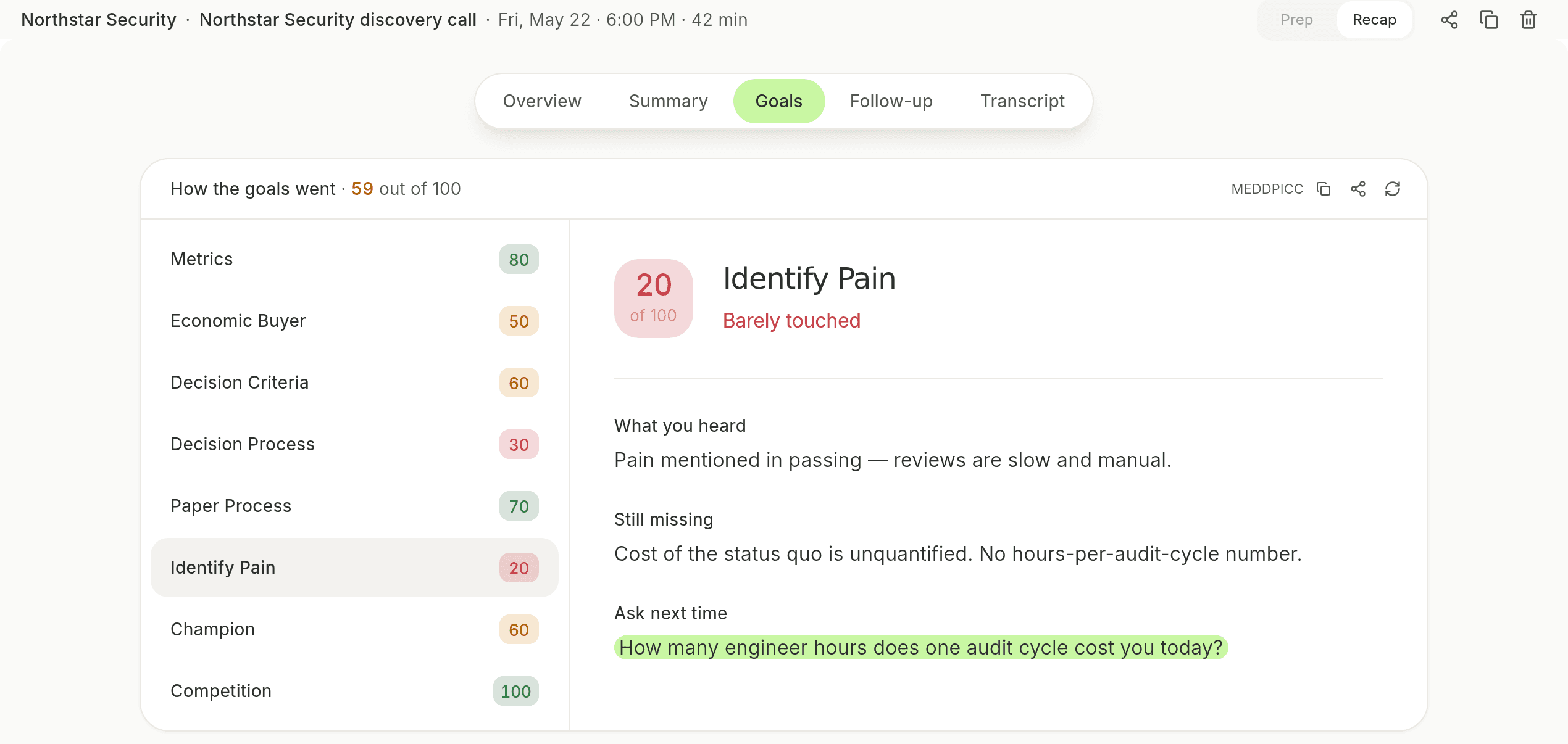
Goals scores how well the deal is qualified. The top of the card reads How the goals went with the overall score, for example 59 out of 100. On the right are the framework the score uses, here MEDDPICC, a copy button, and a refresh button.
The card is split in two.
The goal list
The left side lists every goal in the framework by its full name, each with its score out of 100. For MEDDPICC: Metrics, Economic Buyer, Decision Criteria, Decision Process, Paper Process, Identify Pain, Champion, and Competition.
Select a goal to open it on the right.
The selected goal
The right side shows the goal's score out of 100, how well it was covered, for example Barely touched, and three things:
- What you heard: what the call established for that goal.
- Still missing: the evidence you don't have yet.
- Ask next time: a question to ask on your next call.
If a call hasn't been scored yet, click Check my goals.
The gaps are your next-call agenda
Read Still missing and Ask next time on every goal scoring low and you have your agenda for the next call.
Want these scores in Claude, ChatGPT or another AI assistant? Connect Backdrop and ask, for example, "What's the MEDDPICC score on my last Acme call?": Use Backdrop in Claude, ChatGPT or any AI agent.
Follow-up
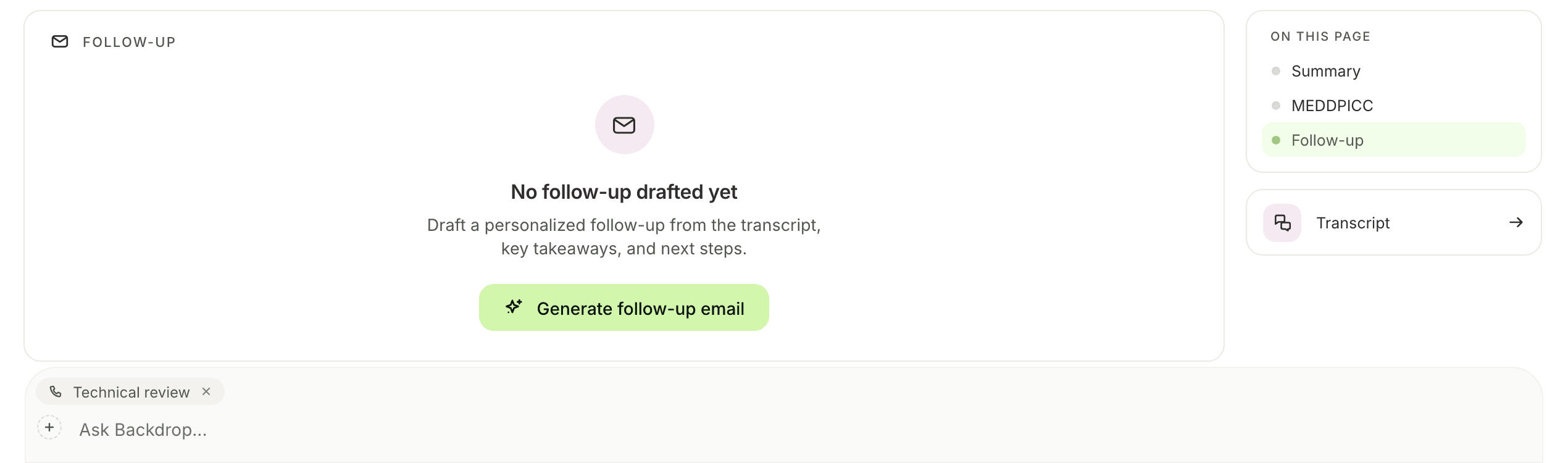
Backdrop doesn't write the follow-up email until you ask for it. Until then, the Follow-up tab shows an empty state, No follow-up drafted yet, and offers to draft a personalized follow-up from the transcript, key takeaways, and next steps.
Click Generate follow-up email to write the draft.
Nothing sends automatically
Backdrop writes the draft and stops there. Sending it is up to you.
Change the draft with AI
Once a draft is there, click Edit with AI above it. The chat opens with a sentence started for you, In the follow-up email for the call "Call name", I want to change the…. Finish it, for example …the closing, so it proposes a time for the demo, and send. Backdrop rewrites the draft and saves it right away. There's nothing to approve.
Transcript
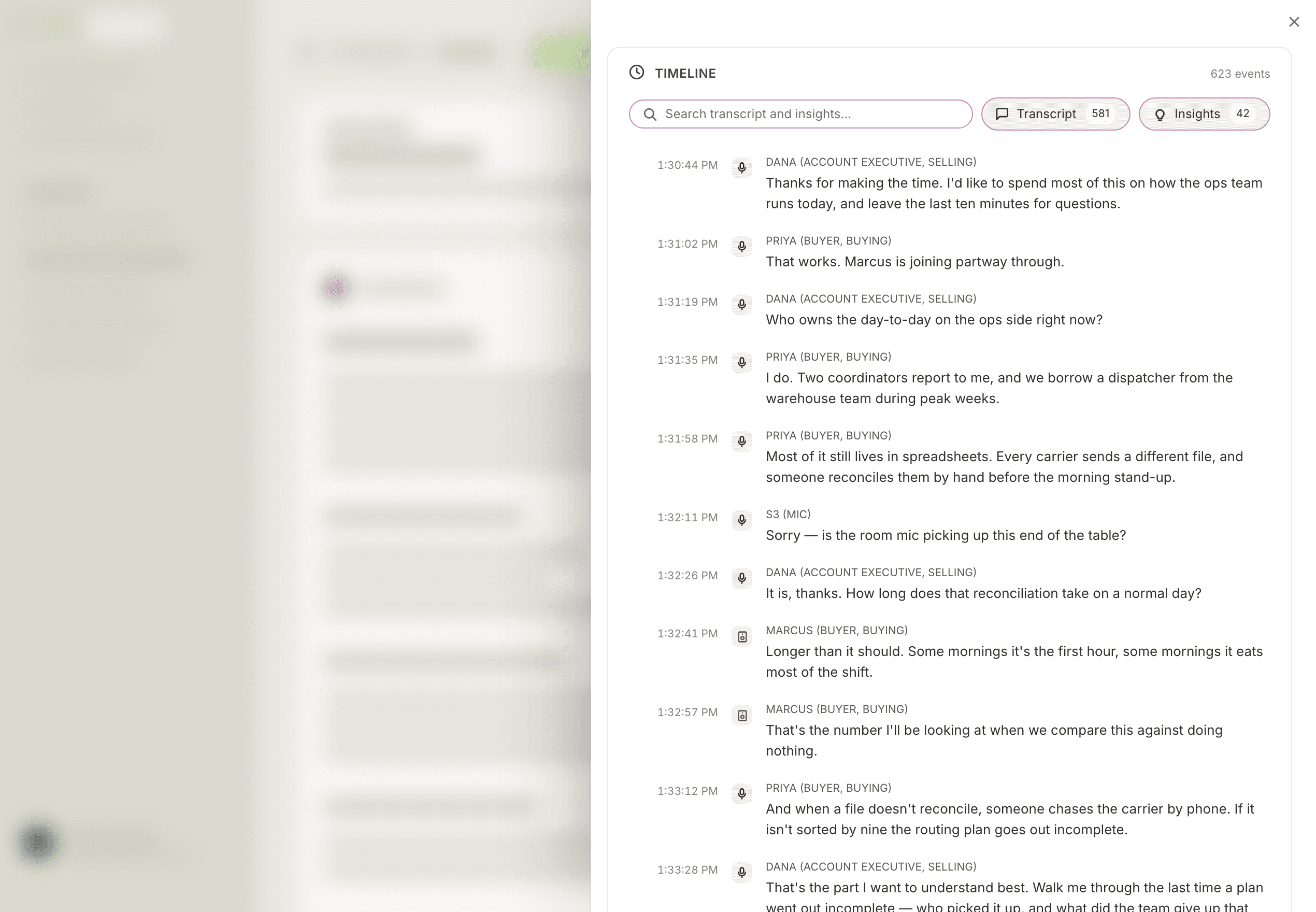
The Transcript tab shows how long the call ran and how many people talked, then the call's timeline. At the top it shows the total number of events, a search field that covers both the transcript and the insights, and two filter pills with their own counts: Transcript and Insights.
Below that, the call runs in order. Every entry is timestamped and labeled with
the speaker in caps, their role, and which side of the deal they're on, for
example DANA (ACCOUNT EXECUTIVE, SELLING) or SAM (BUYER, BUYING). A voice
Backdrop hasn't matched to a person yet shows as a speaker number instead, along
with the audio source it came from, like S3 (MIC). A small icon on every entry
marks that source.
Share a call
Once a call is done, you can send a link to it. Anyone with the link can view it for 7 days.
Click the share button. It's at the right end of the header bar, and Share also sits on the Goals tab. To share only the summary or only the transcript, use the share button on the Summary tab or Share on the Transcript tab.
Pick where to send it:
- Slack: posts the link to a channel you pick.
- WhatsApp: opens a new chat with the link.
- Messages: opens a new text with the link.
- Copy link: copies the link so you can paste it anywhere.
Post to a Slack channel
Picking Slack opens Post to Slack. Backdrop posts the link as you, marked "from Backdrop".
If Slack isn't connected yet, click Connect Slack and sign in. If it's connected but can only read, click Allow posting and approve once.
Only channels you're a member of show up. See Slack for more on your Slack connection.
Where your calls live
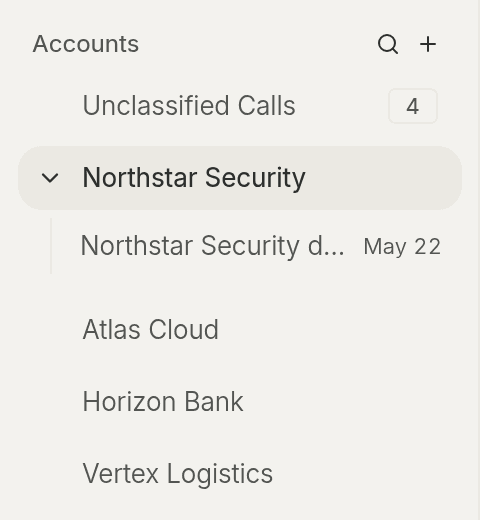
Calls are grouped by account, the company you talked to. The sidebar lists your accounts, and calls Backdrop hasn't matched to an account yet sit under Unclassified Calls, with a count of how many are waiting.
Click the arrow before an account's name to unfold its calls, newest first, each with its date. Click a call to open it. The account of the call you have open unfolds by itself.
To move a call to a different account, drag it from the sidebar onto that account.
Next step
Connect your content sources and CRM so Backdrop can draw on them when it writes. See Integrations for what you can connect.
When Backdrop records
Backdrop only records when you click record. How to start recording, what the call notification does, and how recording stops.
Call goals
Pick up to 10 call goals Backdrop listens for on every call, start from a popular framework like MEDDPICC, BANT, SPICED or CHAMP, and reshape the rubric behind each one.