Practice a Call: Run Backdrop on an AI Buyer First
Start a practice call and an AI buyer joins and talks back, so you learn the transcript, the MEDDPICC rail, and Ask anything before a real prospect is on the line. Mac and Windows, no meeting needed.
A practice call is a real Backdrop call with a buyer who doesn't matter. Click Practice a call and Backdrop starts recording, then an AI buyer joins and talks to you out loud. Everything a live call does runs as usual: the transcript, the MEDDPICC rail, Ask anything, and the write-up when you hang up.
Backdrop takes two or three calls before it clicks. A practice call lets you spend the first one finding where things are, instead of finding them in front of a prospect.
Before you start
Put on headphones. Backdrop suggests them when the buyer joins, and they keep the buyer's voice out of your microphone. Backdrop also needs the microphone and system-audio access it uses on a real call; if you haven't recorded before, your computer asks for both. You don't need a meeting on your calendar or a conferencing app open. The whole call happens inside Backdrop.
Starting a practice call
The quickest way in is the sidebar: Practice a call sits right under Home, next to a headphones icon.
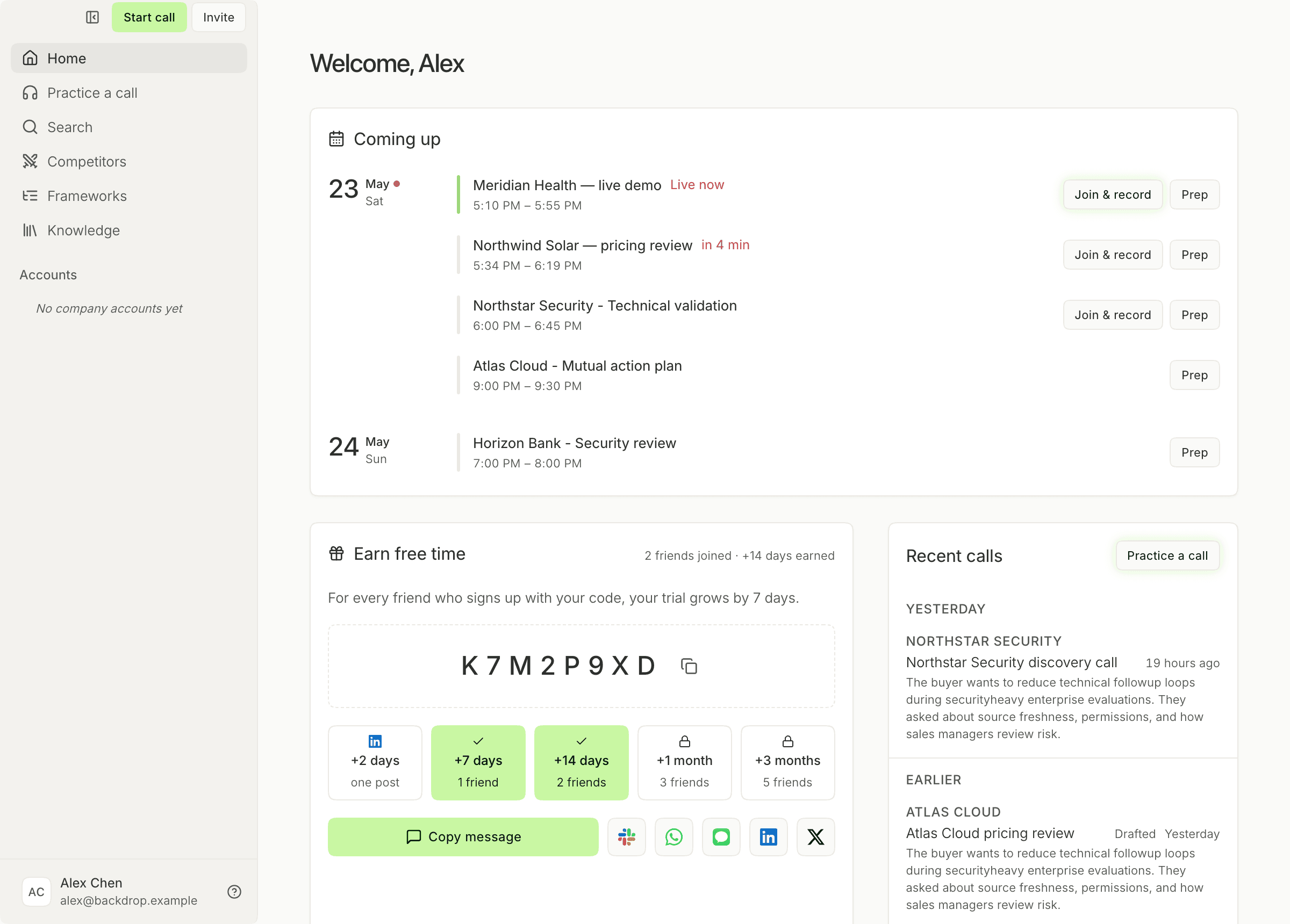
The same button turns up in four other places.
The Recent calls card on Home has Practice a call in its header. Before you've recorded anything, the card is empty and offers Practice first next to Start a call.
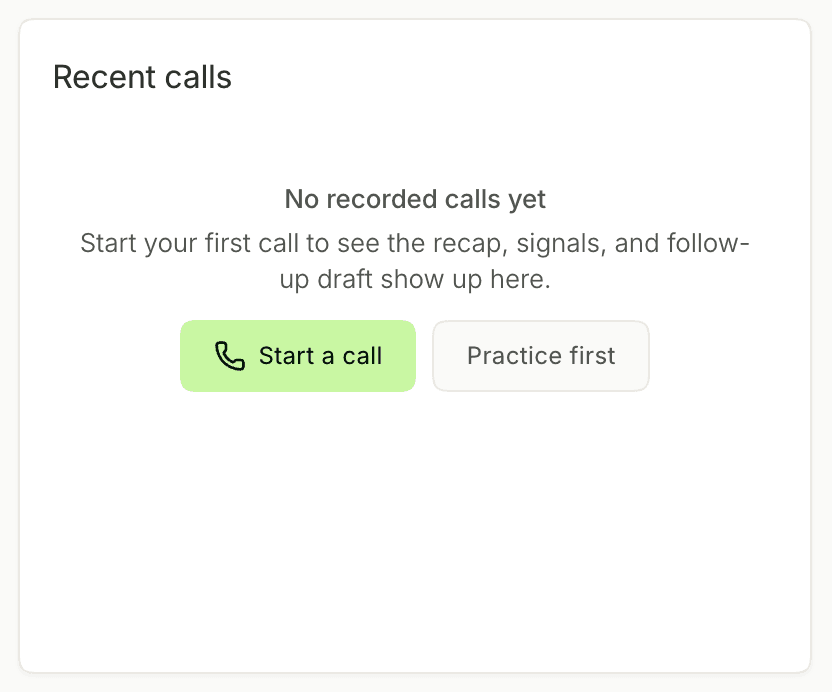
Whichever you pick, Backdrop switches to the live panel and starts recording right away. A notice reads Mike Johnson is joining as your buyer. Headphones work best. and a moment later Mike says hello.
Meet your buyer
Your buyer is Mike Johnson, Head of Operations at Northwind. Northwind is made up, but it's the kind of company you sell to. Mike speaks first, with a one-line introduction and the reason for the call. From there it's your discovery call.
- Mike knows your company. What you sell and who you are come from the same sales hub that powers Backdrop's answers.
- Mike only tells you what you ask. The buyer brings a problem your product could solve, along with what it costs Northwind, the budget, the timeline, who signs off, how the decision gets made, and what else is on the table. Each one comes out only when you ask about it, and a vague question gets a vague answer.
- Mike tests you. Expect one question about how your product works (pricing, security, or an integration) and one pushback on price, timing, or effort.
- Mike keeps it short. A sentence or two per turn, like a busy buyer on a work call.
- Mike wraps up unprompted. After about a dozen exchanges, or as soon as you propose a next step, Mike agrees to one and says goodbye.
Mike answers in whatever language you speak. If you practice in something other than English, set the panel's language control first so the transcript follows along.
What to try while Mike talks
This is the point of the exercise. Use Mike to find the parts of the panel you'll reach for on a real call:
Watch the transcript fill in. Every turn is labeled with who said it, so you can see Backdrop hearing both sides of the call.
Keep an eye on the MEDDPICC rail. The letters that stay low are the things you haven't asked about yet, so let them pick your next question and go after the pain, the budget, and the decision process.
When Mike asks the product question or pushes back, type it into Ask anything and answer from what comes back.
During a Call covers each of these in full.
Ending the call
Mike says goodbye, but the call doesn't end itself. Click stop in the transport pill, the same as on a real call.
Pause stops Backdrop from listening, and Mike stops hearing you too. The buyer stays on the line, and you pick up where you left off when you resume.
After the call
A practice call is saved like any other. It gets its own page with the summary, the MEDDPICC scorecard, and the follow-up email, and it shows up under Recent calls on Home. There's no separate practice score: the scorecard is the same one a real call gets, graded on what Mike told you. See After a Call.
Finishing a practice call also ticks Practice on an AI buyer and Record your first call in the setup checklist.
If Mike doesn't join
Two messages can appear instead of the buyer's voice.
Your practice buyer couldn't join. Try again in a minute. Backdrop couldn't connect the buyer. Click stop, wait a minute, and start a new practice call. Mike learns about your company from your sales hub, so the buyer can't join until setup has finished building it.
Your practice buyer dropped. End the call and try again. The connection to Mike failed partway through. Click stop and start a fresh practice call.
If Mike is connected but you can't hear anything, check that your headphones are your computer's selected sound output. Mike plays through whatever output your computer is set to use.
If it keeps happening, use Chat with us at the bottom of this page.
Next step
Ready for the real thing? Before a Call walks through the Prep page you'll read in the minutes before it starts.
Install Backdrop
Step-by-step guide to install Backdrop. Download the desktop app for Mac or Windows, sign in with your work email, and set up your screen for live sales calls.
Before a call
Backdrop's Prep page gathers the company, its financials, who's on the invite, recent developments, and an opening talk track on one page, so you can read the account in the minutes before a call.