Pre-Call Prep: Company Research, Stakeholders, and a Talk Track
Backdrop's Prep page gathers where the deal stands, the company, its numbers, who's coming, and an opening talk track, so you can read the account before a call.
Prep is the page you read in the last few minutes before a call. One scrolling page per meeting: where things stand, the company, its numbers, who's coming and what they care about, what's in the news, and how to open. You leave it by clicking Join & record.
Opening Prep
There are three ways in.
From Home. The Coming up card lists your next meetings. Each row shows the date, the meeting name, and the time range, with two buttons at the right end: Join & record and Prep. Click Prep.
A calendar block with nobody else invited and no meeting link, like time you hold for yourself, still shows in Coming up, but without Join & record.

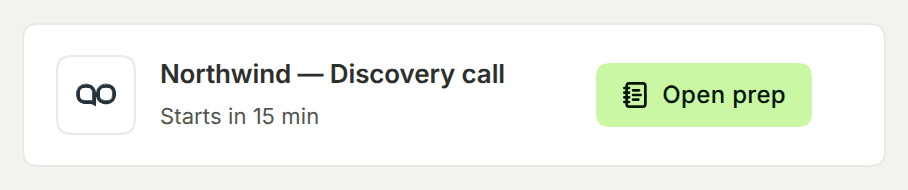
From the prep notification. About 15 minutes before a sales call that has a prep, Backdrop posts a desktop notification with the meeting name, how many minutes until it starts, for example Starts in 15 min, and an Open prep button. Click Open prep to open that meeting's Prep page. You won't get it while you're already on a call with Backdrop.
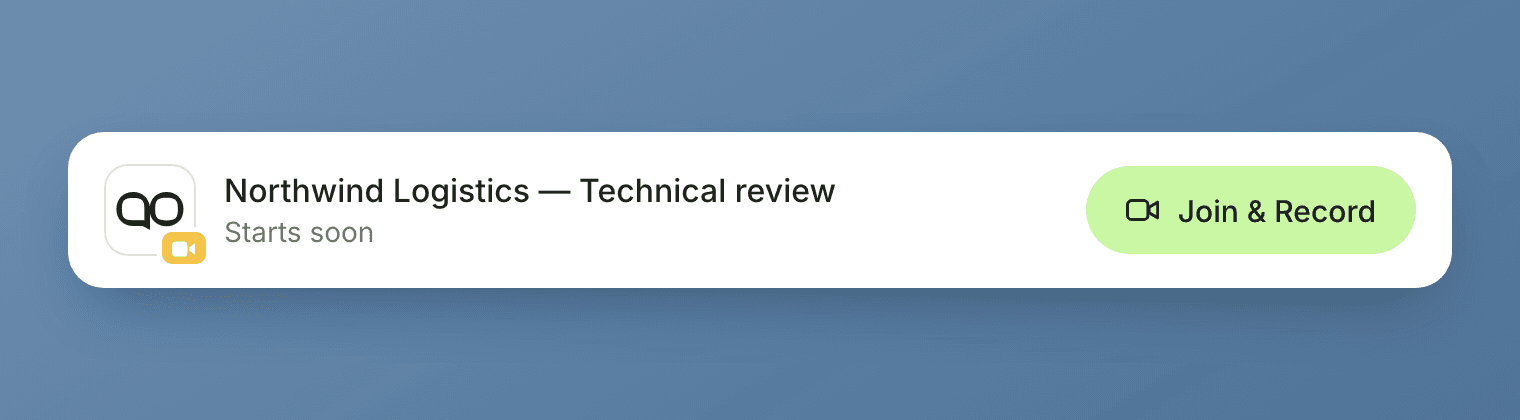
From the Join & Record notification. Closer to the start, Backdrop posts a second notification: the app icon with a small video badge, the meeting name, the words Starts soon, and a lime Join & Record button. It stays on screen until the meeting starts. Clicking it takes you into the call, not to Prep.
The top bar
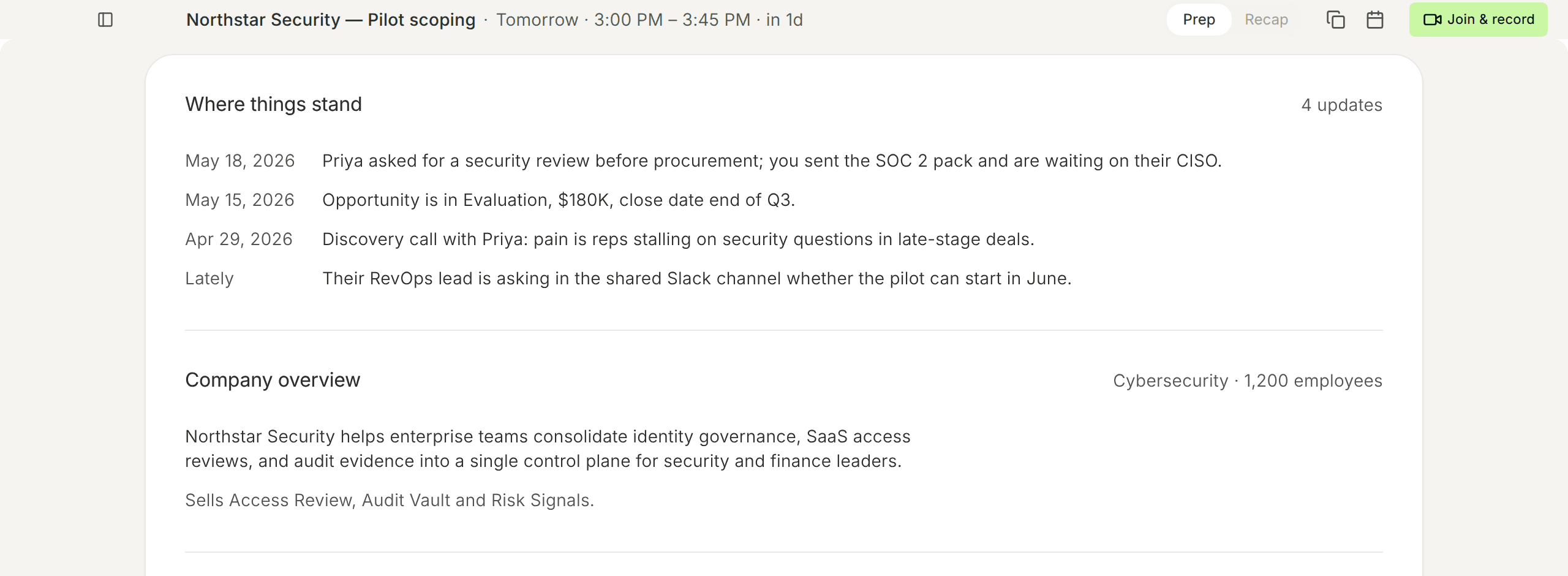
The top bar stays put while you scroll. On the left: the meeting name, the day, the time range, and how long until it starts, for example Tomorrow · 3:00 PM – 3:45 PM · in 1d.
On the right, left to right:
- Prep | Recap: switch to the call's page once you've had the call. Recap is greyed out until the meeting has been recorded. Hover over it to see why.
- Copy brief: copies the brief as text, so you can paste it into a note or an email.
- Share prep (the paper plane): makes a link to this prep that anyone with the link can view. Pick Slack to post the link to a channel you pick, WhatsApp or Messages to start a new message with the link, or Copy link. It shows up once the brief is ready.
- Open in calendar: opens the meeting in your calendar.
- Join & record: opens the meeting link and starts recording. During the call, it reads Return and takes you back to the call. If the invite has no meeting link, it reads No join link.

See After a call for the Recap side.
The brief
Under the top bar, everything sits in one card, split into sections. Each section has its title on the left and a short summary on the right, like 4 updates or 4 people · 3 said yes. A section only shows up when Backdrop has something to put in it.
Where things stand
A dated list of what's happened with this account so far: earlier calls, emails, where the deal is, and anything new. Read it first. It's what the prospect expects you to remember.
Company overview
What the company does and what it sells, with the industry and headcount at the right. The product names are the words the prospect will use, so say them back the same way.
The numbers
Revenue, growth, and net income across the top, then supporting figures like margins, cash, and R&D spend. The source is named at the right, for example FY 2026 10-K, and a short quote from the filing sits underneath.
Say the period with the number
When you use one of these numbers on the call, quote the period from the top right along with it.
Who's coming
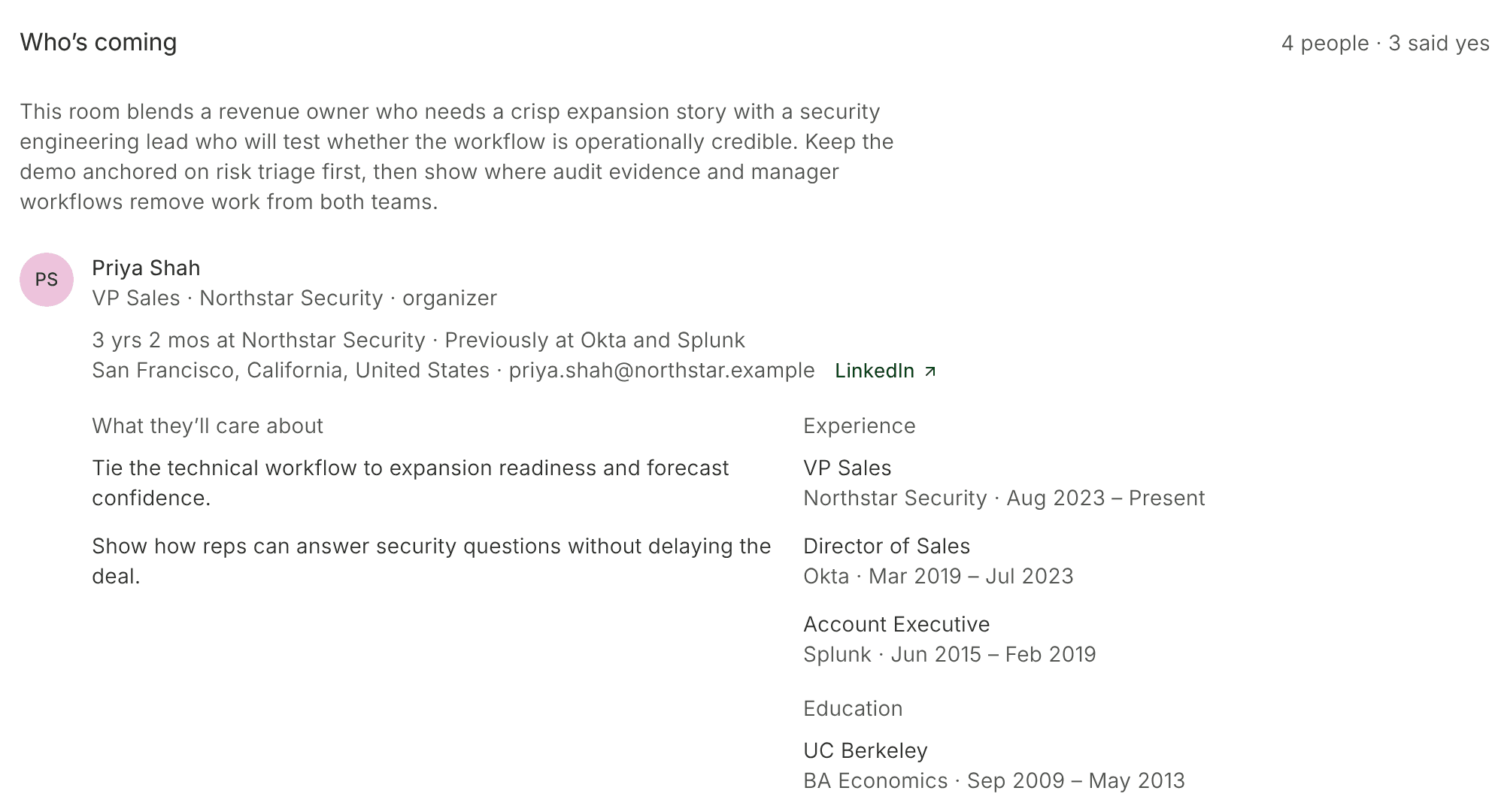
A short paragraph on who's in the room and what that means for the call, then one entry per person on the invite. The summary at the right shows how many people are invited and how many said yes.
Each person shows their title and company, and whether they're the organizer or said maybe. You show up as you. When Backdrop finds more, you also see:
- How long they've been at the company, and where they worked before
- Where they're based, their email, and a link to their LinkedIn profile, for example Priya Shah's LinkedIn
- What they'll care about: what to cover for this person
- Experience and Education
Read What they'll care about for everyone who said yes. What you lead with depends on who actually shows up.
In the news
Recent stories about the company: the headline, the date and source, a short summary, and a View source link. This is where you find something current to open with.
Talk track
How to open the call and the follow-up questions to ask in the first few minutes. Go over the opener until you can say it in your own words.
How we can help
The angles this call has: each one is a short heading with the detail under it, in case the prospect pushes on it.
The last thirty seconds
If you opened Prep with a minute to spare, read in this order:
- Talk track: the opener and the follow-ups
- How we can help: the headings
- Who's coming: what the people who said yes care about
Then click Join & record in the top bar.
Next step
During a Call picks up where Prep leaves off: the live panel, the transcript, and the MEDDPICC rail filling in while you talk.
Practice a call
Two AI practice partners. Mike gives you a short guided tour of the live panel, and Rachel plays a tough buyer so you can rehearse a real discovery call.
During a call
How to use Backdrop on a live sales call. Start recording, follow the live transcript, watch the MEDDPICC rail fill in, and ask anything mid-call.