Upload Files: Teach Backdrop Your Decks, FAQs and Pricing
Upload documents to your workspace's knowledge base so Backdrop can draw on them during calls. Which files work, where to upload them, and how to resync or remove one.
Files you upload go into your workspace's knowledge base. Backdrop reads each one and learns from it, then draws on it during calls, for everyone in the workspace. When a buyer asks about your SOC 2 report or last quarter's price change, the answer comes from your own documents, not a guess.
Good files to start with:
- Sales decks: your pitch, positioning and proof points.
- FAQs and objection handling: the questions you hear every week.
- Pricing and packaging: rate cards, tiers, discount rules.
- Security and compliance: whitepapers, questionnaires, trust docs.
- Product docs and battlecards: how it works, and how you win.
Which files work
| Format | Extensions |
|---|---|
.pdf | |
| Word | .docx |
| PowerPoint | .pptx |
| Excel | .xlsx |
| CSV | .csv |
| JSON | .json |
| Markdown | .md, .markdown |
| Text | .txt |
You can upload up to 10 files at a time.
Older Office formats
.doc, .ppt and .xls aren't supported. Save them as .docx, .pptx or
.xlsx first. Keynote and Pages files should be exported to PDF.
During setup
Setting up Backdrop includes a step called Let's build your knowledge base. Under Your files, click Add files and pick your documents. Each file shows a progress bar while it uploads, then Learning, then Ready.
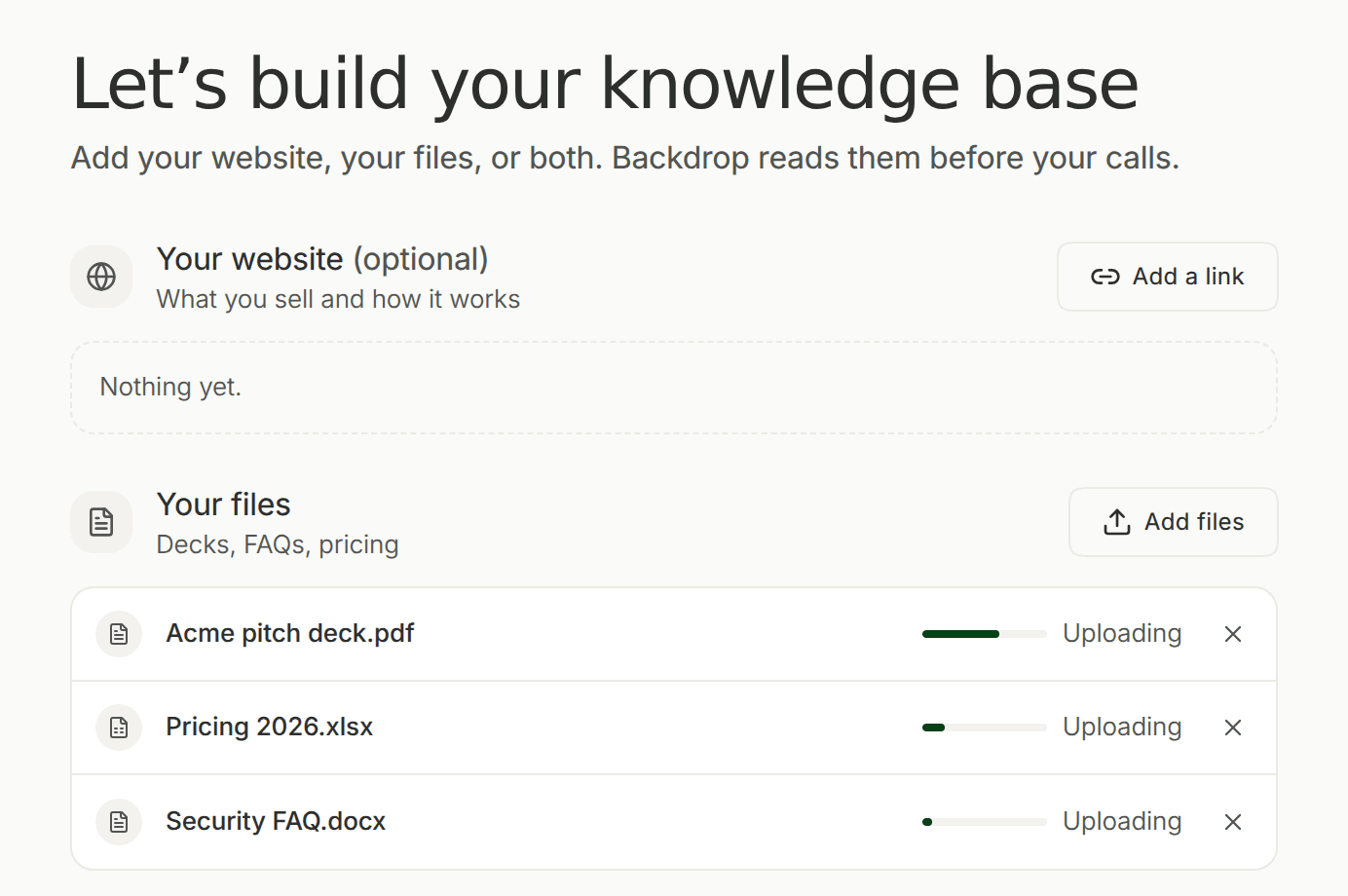
You can skip this step and add files later from Knowledge.
Upload files later
Admins only
Uploads change the knowledge base for the whole workspace, so only workspace admins see the Content section. If you're not an admin, send the file to yours.
In the Backdrop app, click Knowledge in the sidebar. Content is at the top of the page.
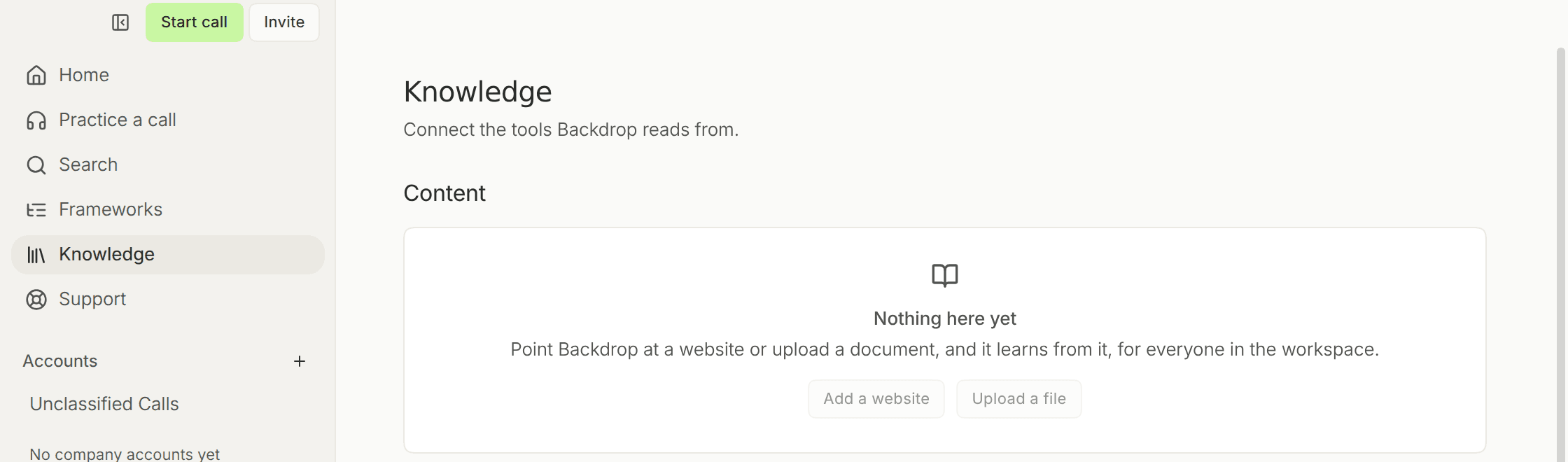
Click Upload files. If nothing has been added yet, click Upload a file instead.
Click Browse files and choose your documents. Use Add more files to add to the list, or the trash icon to take one off.
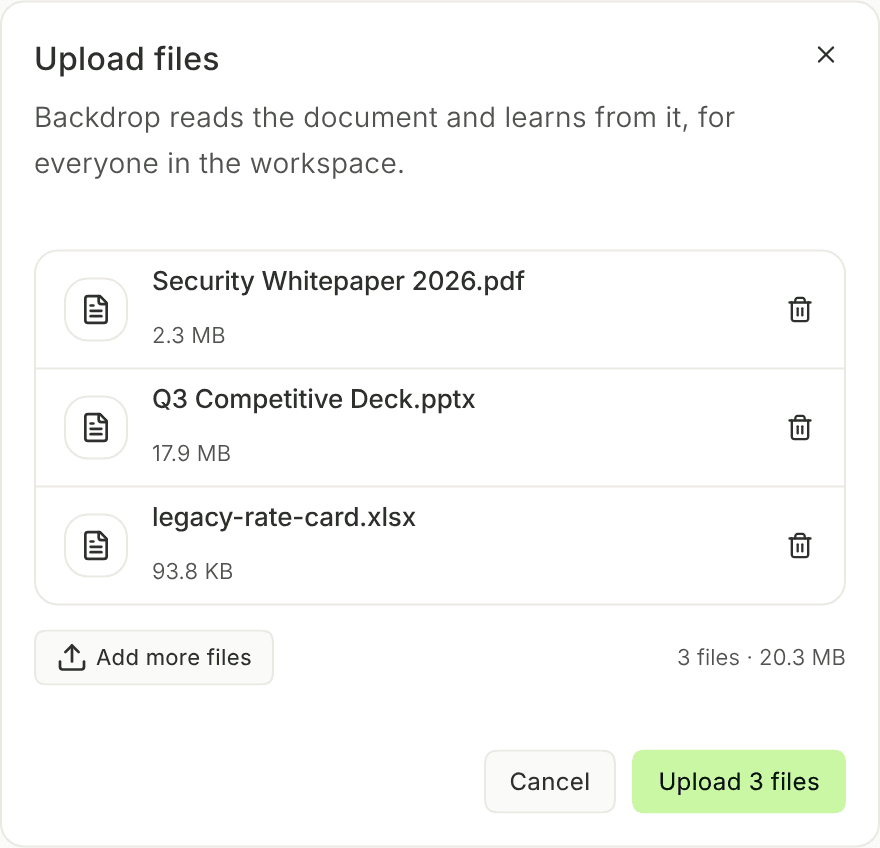
Click Upload (for example Upload 3 files). Each file reads Uploading with a percentage, then Adding, then Added. Keep the dialog open until it closes on its own.
Check that Backdrop learned it
Your file now appears in the Content list as a Document, next to any websites you've added. The badge shows where it is:
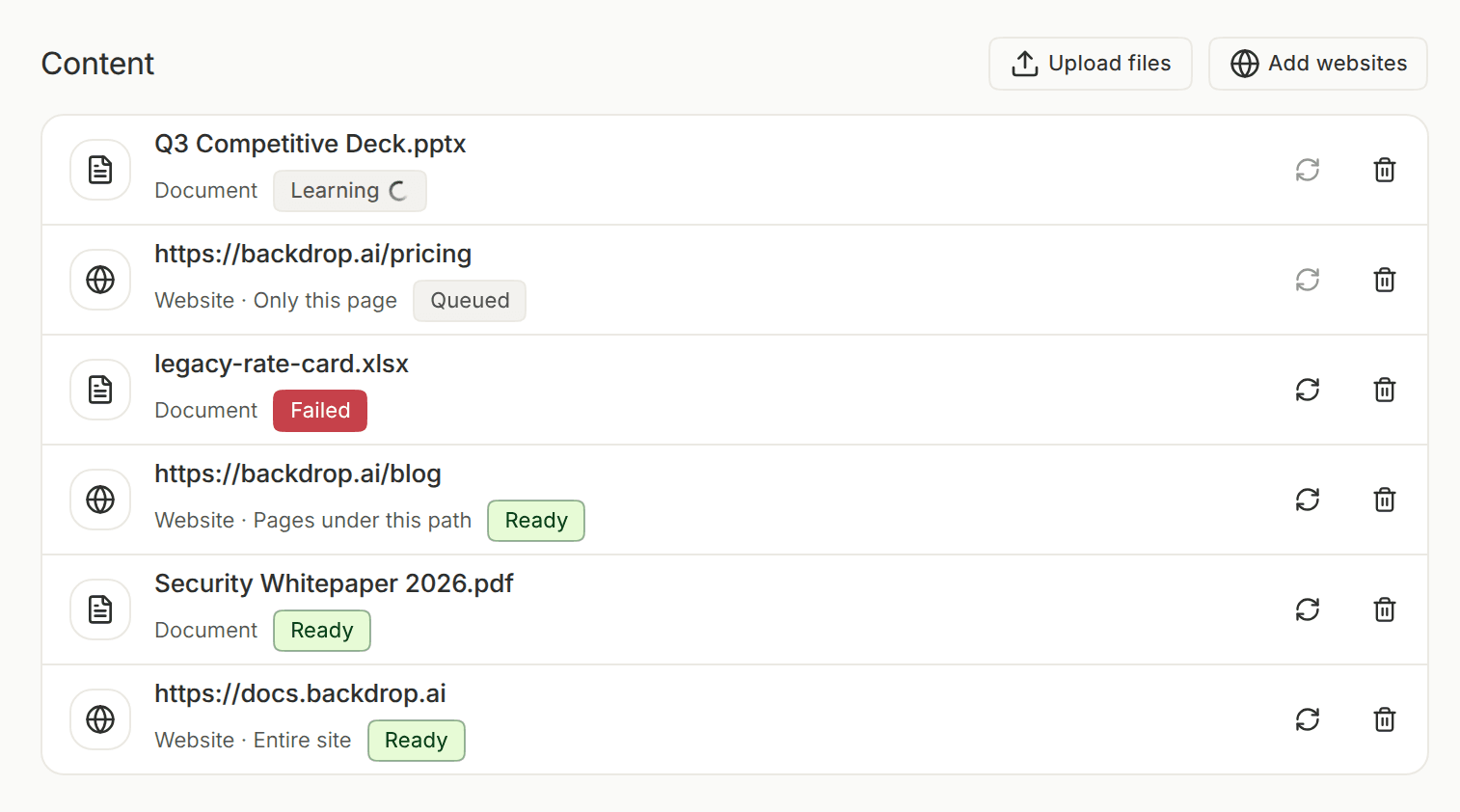
| Badge | What it means |
|---|---|
| Queued | Waiting its turn. |
| Learning | Backdrop is reading it. |
| Ready | Backdrop draws on it during calls. |
| Failed | Something went wrong. Click resync, or upload it again. |
Why a file was turned away
Backdrop checks every file before it uploads. A file that can't be used reads Failed in the dialog, with the reason underneath, and the rest still upload.
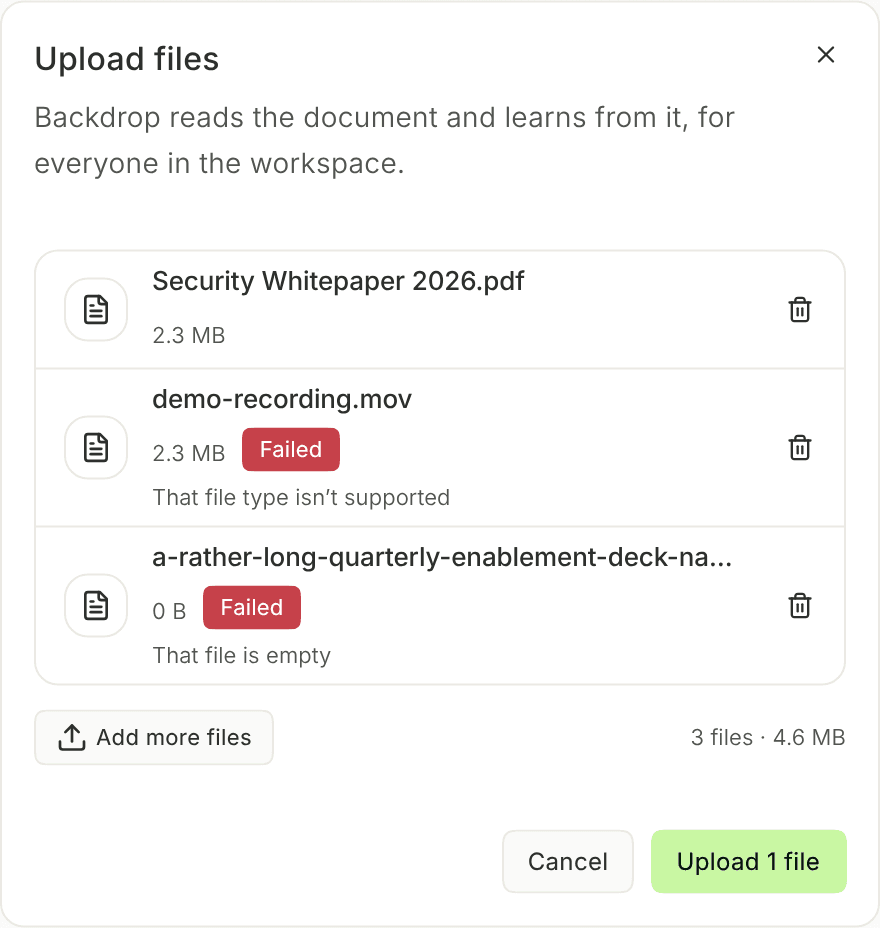
- That file type isn't supported: it isn't one of the formats above.
- That file is empty: the file has no content.
- Only 10 files at a time: upload the first ten, then add the rest.
Resync, replace or remove a file
Every row in Content has two buttons on the right:
- Resync (the circular arrows) reads the source again. It's greyed out while the source is Queued or Learning.
- Remove (the trash icon) asks Remove file name? Confirm, and Backdrop stops drawing on it during calls and deletes what it learned from it. You can upload it again later.
Updating a document
To replace a file with a newer version, upload the new one, then remove the old one.
Next step
Call goals
Pick the 4 to 10 call goals Backdrop listens for on every call, start from MEDDPICC, BANT, SPICED or SPIN if you like, set the order they're asked in, and read or reshape the rubric behind each one.
Languages
Every language Backdrop transcribes on a live call. Where the language control sits in the panel, how to switch it, and how to get a non-English language enabled for your workspace.