Export Backdrop Data: Send Calls, Transcripts and Scores Anywhere
Get your Backdrop calls, summaries, transcripts and qualification scores out of Backdrop and into a spreadsheet, doc, CRM or any other tool, using Backdrop's MCP connector in Claude, ChatGPT or any other AI agent.
Want your Backdrop data somewhere else, like a spreadsheet, a doc, your CRM or a Slack channel? Use Backdrop's MCP connector. Connect it once to Claude or ChatGPT, then ask for what you need in plain words. Your assistant pulls it from Backdrop and turns it into whatever you ask for: a table, a CSV, a written recap, or an update in another app you've connected there.
What you can export
| Data | What comes with it |
|---|---|
| Calls | Title, company, date and status of the calls you've had |
| Call details | Who was on the call, the post-call summary, and the follow-up email Backdrop drafted |
| Transcripts | Every line in order, with the speaker and timestamp |
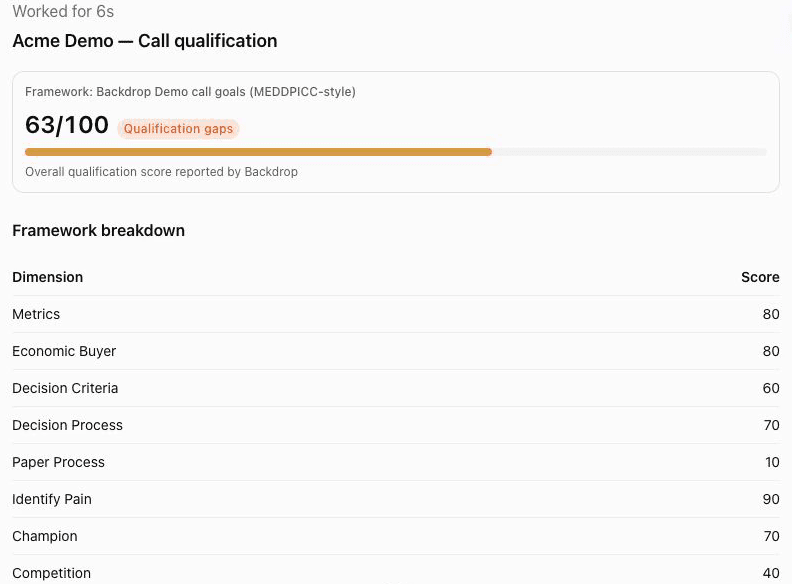
| Qualification | The framework the call was scored against and, for each element, what the call answered, what's still missing, and a score out of 100 |
| Accounts | The companies you've had calls with, and their domains |
| Upcoming meetings | Your meetings in the next 72 hours, with attendees and the pre-call brief |
Step 1: Connect Backdrop to your assistant
Add Backdrop's MCP connector to Claude, ChatGPT or another AI agent. It takes about a minute: Use Backdrop in Claude, ChatGPT or any AI agent.
Step 2: Ask for the data
Ask your assistant for the calls, summaries or scores you want. It finds the right calls in Backdrop and shows you what it pulled.
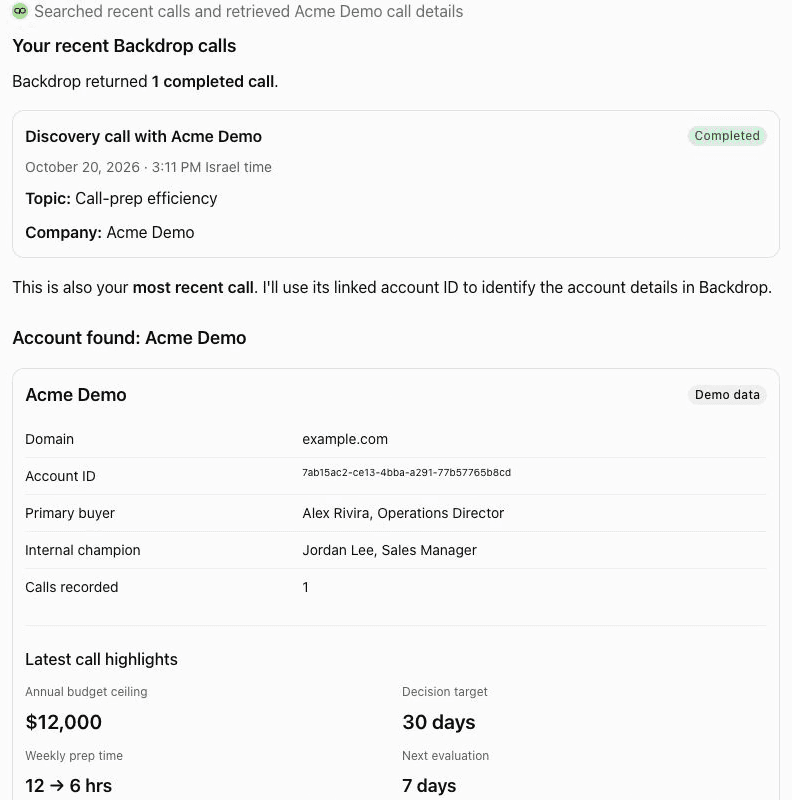
Ask for a call's summary, or for the exact transcript lines behind a next step:
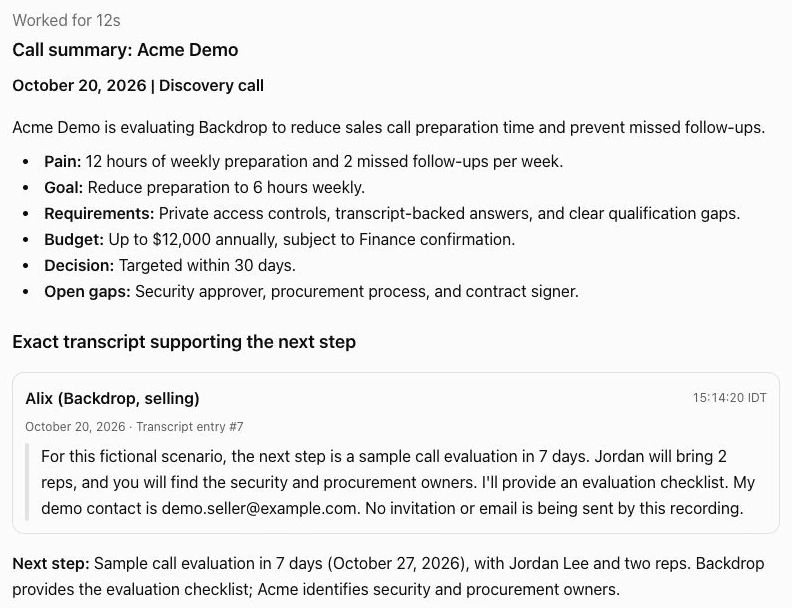
Or for how a deal is qualified:
Step 3: Send it where you need it
Tell your assistant what shape you want the data in, and where it should go.
Into a spreadsheet
- "Make a CSV of all my calls this month with the company, date and a one-line summary."
- "Build a table of my open deals with the MEDDPICC score and the biggest gap for each."
Into a doc
- "Write up yesterday's Acme call as a one-page recap for my manager."
- "Give me the full transcript of my last call with Acme, with speakers and timestamps."
Into another app
If you've also connected other apps to your AI assistant, like your CRM, Google Drive, Notion or Slack, your assistant can take the Backdrop data straight there:
- "Add the qualification gaps from my last Acme call as a note on the Acme deal in HubSpot."
- "Save the summary of every call I had with Acme this quarter to a new Google Doc."
- "Post a recap of today's demo to the #deals channel in Slack."
Check before it sends
Your assistant does the writing in the other app, not Backdrop. Read what it drafted before you let it post or update anything.
Is there an API or webhook?
Not today. Backdrop has no REST API and doesn't send webhooks. The MCP connector is how data leaves Backdrop, and it works with any AI agent that supports remote MCP servers, not only Claude and ChatGPT. To feed Backdrop data into your own agent or workflow, connect that agent to Backdrop's MCP server and have it pull what it needs: connect another AI tool.
Good to know
- Only your own calls. The connector shows the calls you recorded, in the workspace you signed in to. It can't see your teammates' calls.
- Read-only. Exporting never changes or deletes anything in Backdrop.
- Big exports go in batches. One search returns up to 100 calls. For more, ask month by month or account by account.
- Long transcripts come in parts. For a very long call, your assistant may read the transcript in chunks. If it stops early, ask it to keep going.
- Once it's out, the other app's rules apply. Data you pull into Claude, ChatGPT or any other tool follows that tool's data and sharing settings.
Questions? Email support@getbackdrop.ai.
Claude, ChatGPT & more
Connect Backdrop's MCP server to Claude, ChatGPT, Claude Code, Codex, Cursor or any other AI agent and ask questions about your calls right from your AI assistant. Paste one link, sign in, and you're done.
All integrations
Connect Backdrop to your CRM, meeting notes, and call recordings. Personal integrations are yours alone; enterprise integrations serve the whole workspace.