Pay for Backdrop on a Team Plan
How paying for Backdrop works on a team plan. Your company pays, and an admin adds the card and chooses who gets a paid seat.
On a team plan, your company pays for Backdrop. An admin adds the card and chooses who gets a paid seat. Paying for yourself? See Personal plan instead.
If you're a member
You don't pay for anything. Settings → Subscription says Your team pays for your seat.
If your usage runs out, ask your admin for a paid seat.
Already paying for a personal plan?
Your personal plan doesn't apply in your team's workspace. Email support@getbackdrop.ai and we'll cancel it so you don't pay twice.
If you're an admin
Everything happens on the Team page in the sidebar.
During the team trial
Everyone on the team gets full access, and there's nothing to set up. The banner at the top shows when the trial ends.
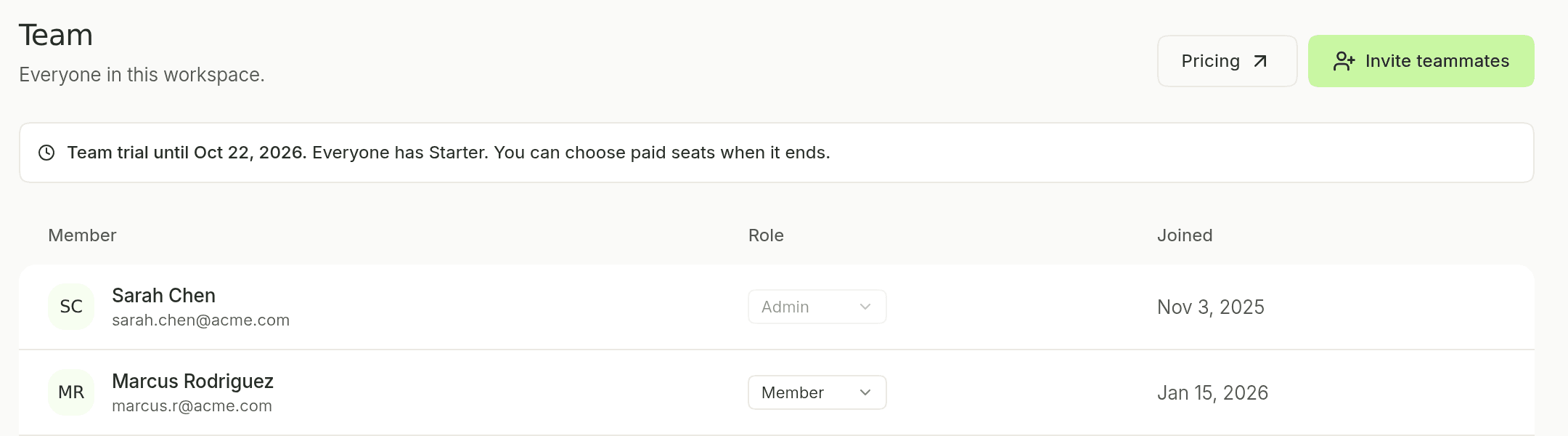
After the trial: choose paid seats
When the trial ends, everyone moves to Free until you give them a paid seat.
The first time, click Add card to apply. Your team's billing page opens in your browser. Add the company card, then go back to Backdrop.
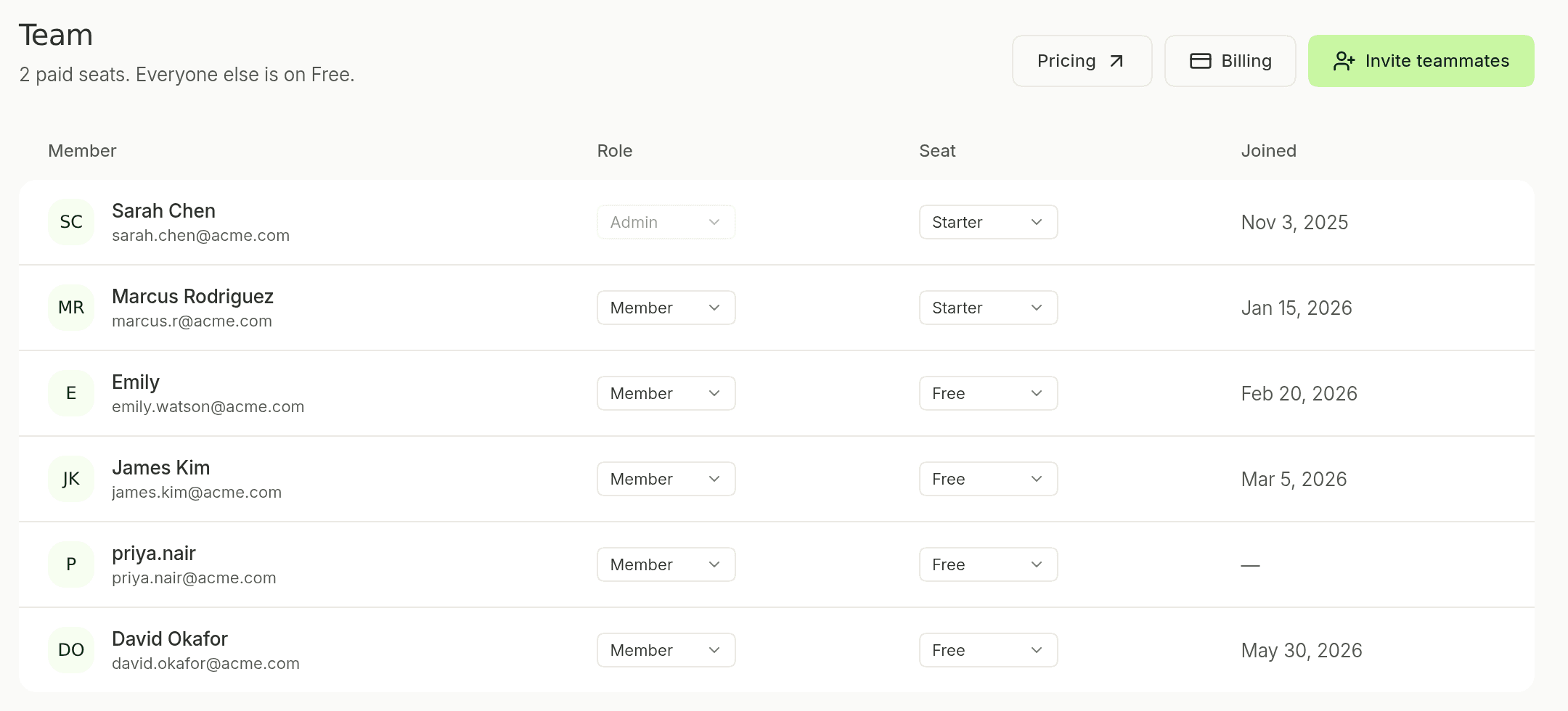
New teammates start on Free. To give them a seat, or to stop paying for someone who left, change their seat and click Apply again. See Invite teammates to add people.
Update the card or download invoices
Click Billing at the top of the Team page.
If a card is declined, Backdrop tells you when you click Apply. Update the card in Billing and apply again.
Use a coupon
Questions about a charge? Email support@getbackdrop.ai.
Personal plan
How paying for Backdrop works when you use it on your own. Start with a free trial, subscribe from the app, and manage your card and invoices from Settings.
All integrations
Connect Backdrop to your CRM, meeting notes, and call recordings. Personal integrations are yours alone; enterprise integrations serve the whole workspace.