Connect Your Calendar to Backdrop
Skipped the calendar step during setup, or need to switch calendars? Connect Google Calendar or Outlook to Backdrop any time from Home or Settings.
Skipped the calendar during setup? You can connect it any time. Once it's connected, Backdrop preps you before each meeting on it and shows them under Coming up on Home.
Connect from Home
Open Backdrop and go to Home.
In the Coming up card, click Connect Google Calendar or Connect Outlook.
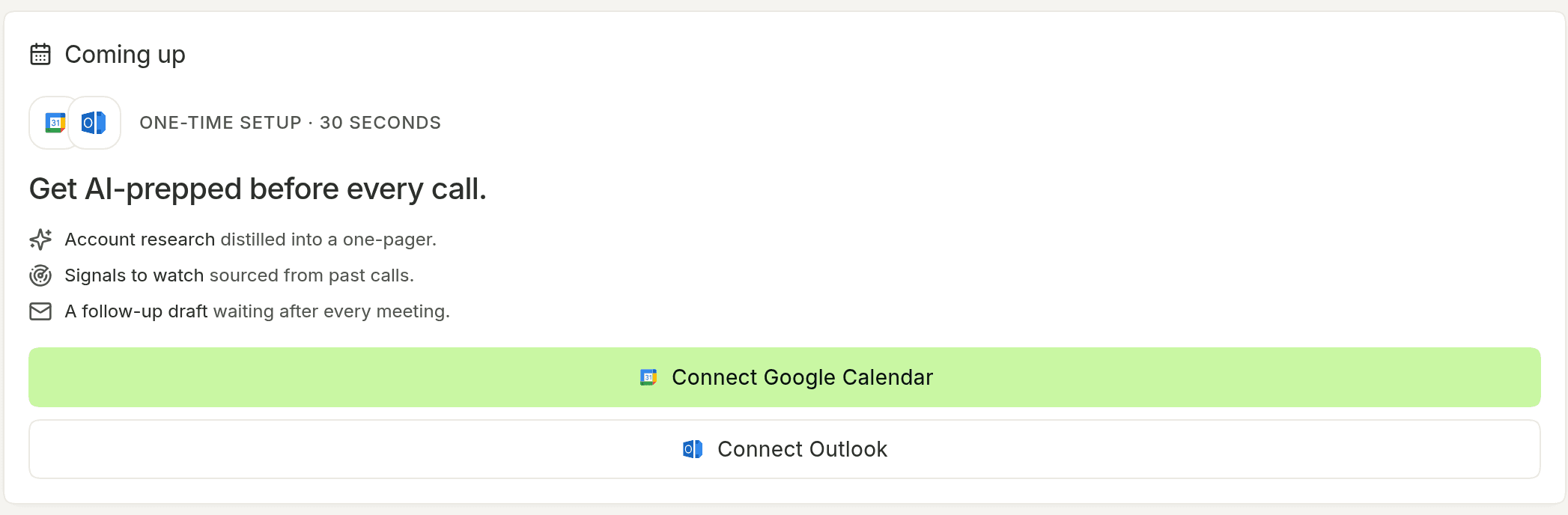
Your browser opens. Sign in with the account your meetings are on and allow access.
Backdrop comes back on its own, and your meetings show up under Coming up.
Connect from Settings
Click your name in the bottom left to open Settings, or press ⌘, (Mac) / Ctrl+, (Windows).
Open the General tab.
Under Calendar, click Connect next to Google Calendar or Microsoft Calendar, then sign in in your browser.
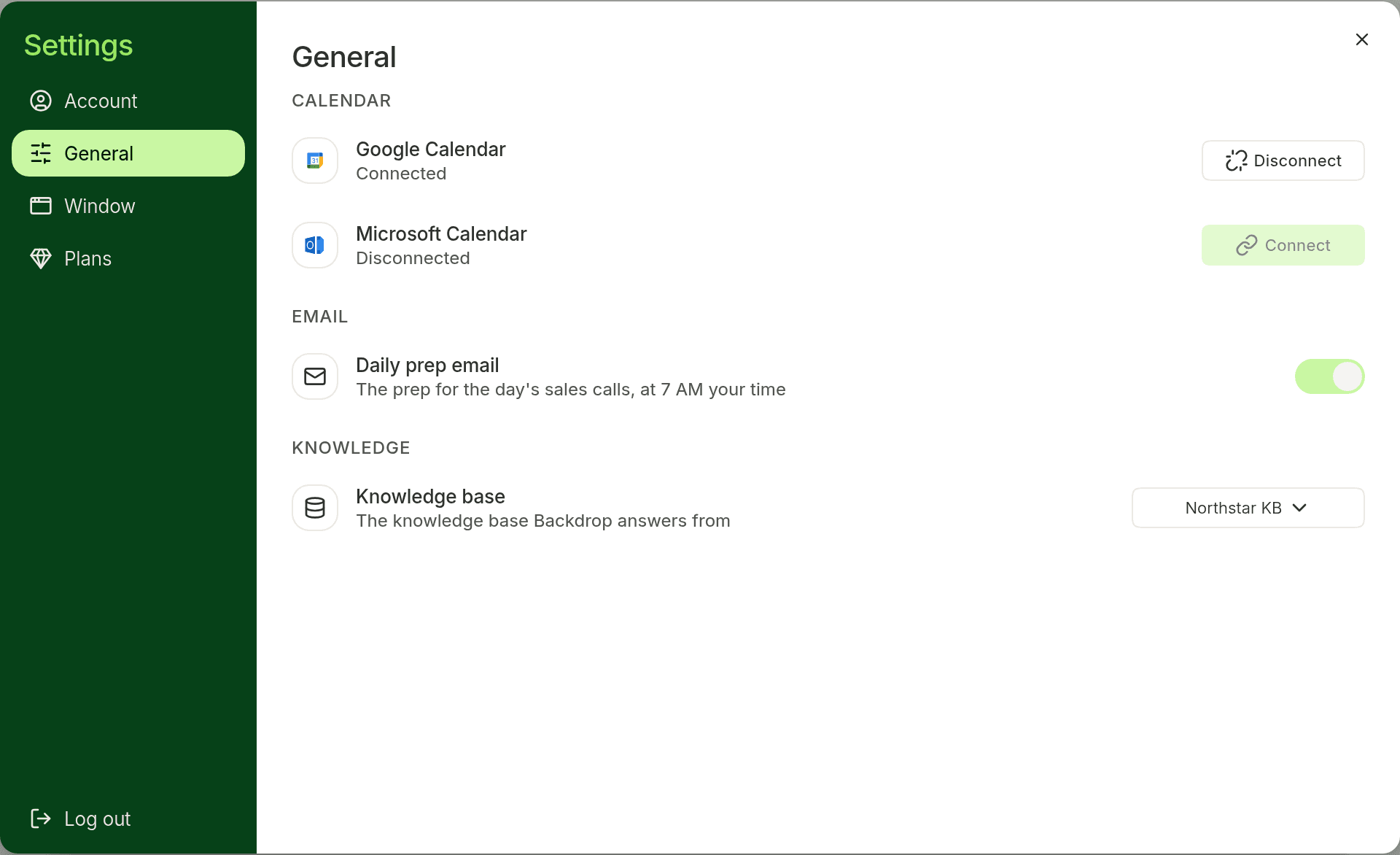
You can also click Connect next to Connect your calendar in the setup list on Home. It opens the same Settings tab.
Switch to a different calendar
Backdrop connects one calendar at a time. To switch, open Settings → General, click Disconnect next to the calendar you have now, then click Connect next to the other one.
If it says "Expired - please reconnect"
Backdrop lost access to your calendar. Open Settings → General and click Connect next to that calendar to sign in again.
Using Outlook at work?
Some companies need an IT admin to approve Backdrop before you can connect a Microsoft calendar. If Microsoft asks for admin approval, send your admin the Microsoft Calendar setup guide.
Install Backdrop
Step-by-step guide to install Backdrop. Download the desktop app for Mac or Windows, sign in with your work email, and set up your screen for live sales calls.
Practice a call
Start a practice call and an AI buyer talks back, so you learn the transcript, the MEDDPICC rail, and Ask anything before a real prospect is on the line.