Drops: Save the Prompts You Use on Every Call
Turn a prompt you use often into a drop, pick when it shows up, and run it from the Ask bar before, during or after a call. Share drops with your team, or add one a teammate made.
A drop is a prompt you save once and run with one click. Each drop has a short name, like /follow-up, and shows up in the Ask bar at the moment you made it for: before a call, during a call, or after a call.
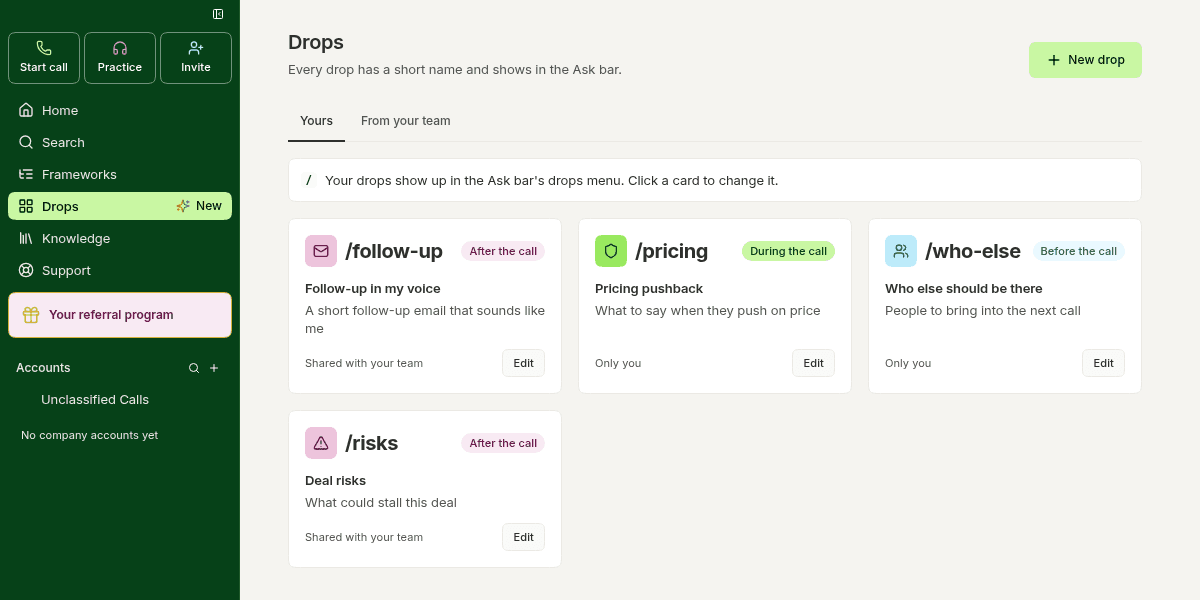
Make a drop
In the Backdrop app, click Drops in the sidebar.
Click New drop.
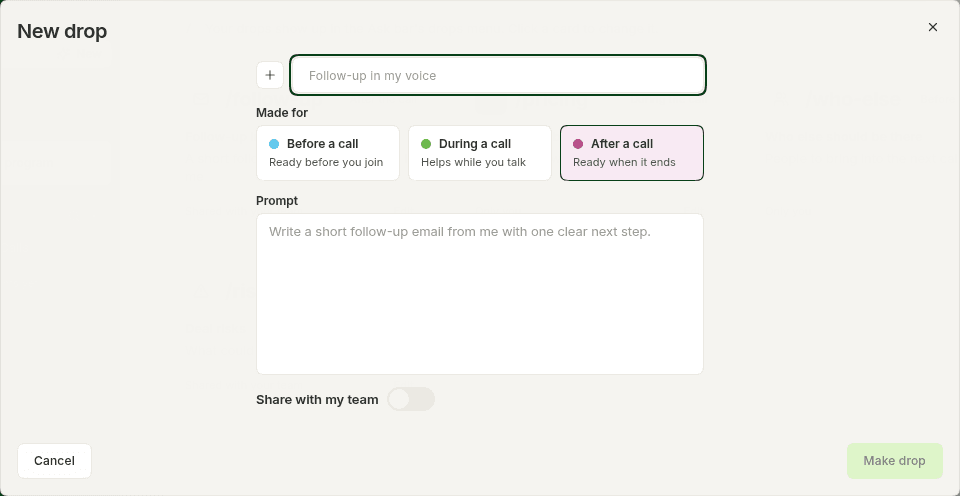
Give it a title, for example Follow-up in my voice. Click the icon next to the title to pick a different one.
Under Made for, pick when it should show up: Before a call, During a call, or After a call.
In Prompt, write what Backdrop should do, for example Write a short follow-up email from me with one clear next step.
Turn on Share with my team if your teammates should see it too.
Click Make drop.
Use a drop
Click the drop in the Ask bar's drops menu. The menu shows the drops made for where you are: Before the call, For this call while you're on one, or After the call. Your own drops come first.
Change or delete a drop
Open Drops and click the card, or its Edit button.
Make your changes and click Save. Or click Delete to remove it.
Deleted a drop by mistake? Click Undo right away to bring it back.
Use a drop from your team
Drops your teammates shared are on the From your team tab.
Open Drops and click From your team.
Click a drop to see who made it, when it shows, and what Backdrop does.
Click Add to mine. It's now in your drops, and you can change it like any drop you made.
Call goals
Pick up to 10 call goals Backdrop listens for on every call, start from a popular framework like MEDDPICC, BANT, SPICED or CHAMP, and reshape the rubric behind each one.
Languages
Backdrop detects the language of every call on its own and transcribes 60 languages, including French, Spanish, and German. You can also pick the call's languages yourself from the call's top bar.