Add a Website: Teach Backdrop Your Site, Docs or a Single Page
Add a URL to your knowledge base so Backdrop learns your website, product docs or a single page and draws on it during calls. How to add one, whole site or one page, and how to keep it current.
Paste a link and Backdrop reads the page, learns from it and draws on it during calls, for everyone in the workspace. Use it for your company website, your product docs, a pricing page or a public trust center: anything a buyer might ask about that already lives on the web.
Backdrop can read just the page you paste, or follow the site's sitemap and learn every page it finds.
During setup
Setting up Backdrop includes a step called Let's build your knowledge base. If you signed up with a work email, your company's site is already listed under Your website and ticked.
To add another one, click Add a link, paste the address (for example
acme.com/docs) and press Enter. Click Continue and Backdrop starts
learning every site that's ticked.
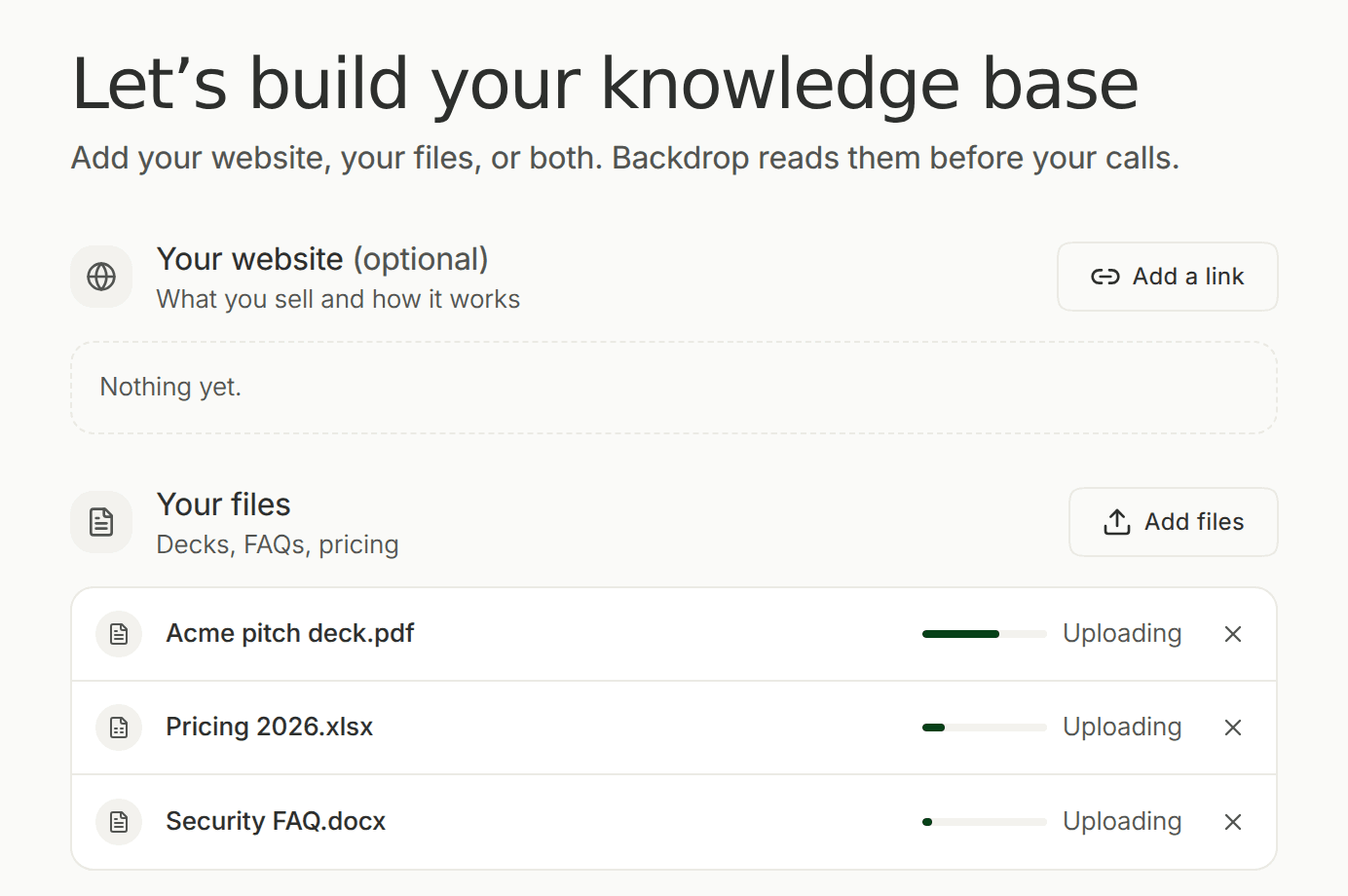
You can skip this step and add websites later from Knowledge.
Add a website later
Admins only
Websites change the knowledge base for the whole workspace, so only workspace admins see the Content section. If you're not an admin, send the link to yours.
In the Backdrop app, click Knowledge in the sidebar. Content is at the top of the page.
Click Add websites. If nothing has been added yet, click Add a website instead.
Paste the address. You can leave off https://. When you click away from
the field, Backdrop checks the link and shows the page it found, for example
Found "Acme — Anvils that arrive on time".
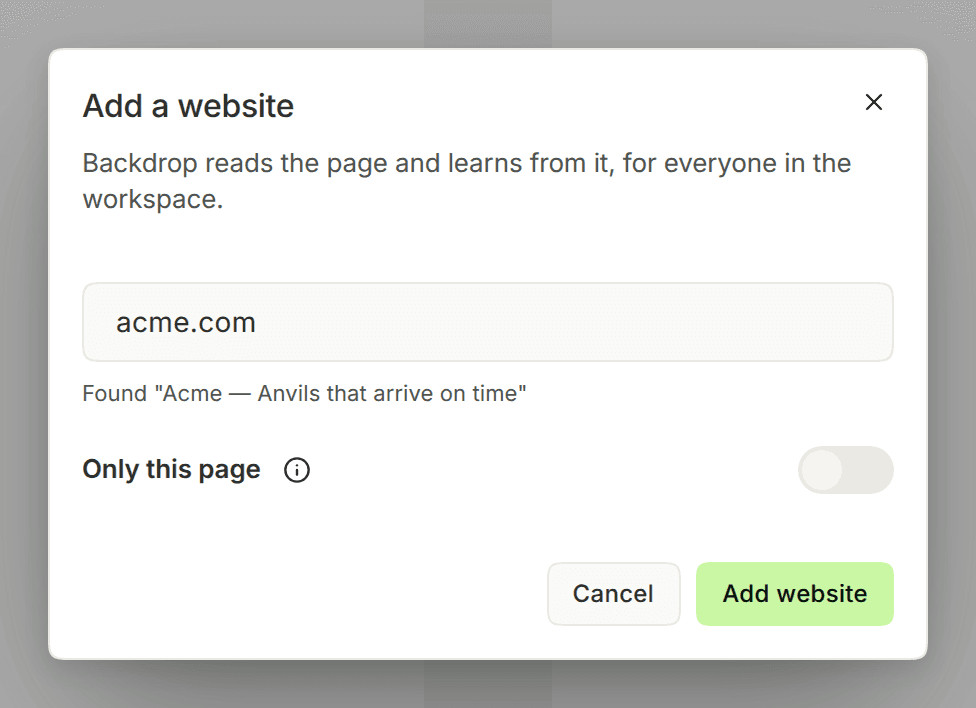
Choose how much to read with Only this page:
- Off (the default): Backdrop follows the site's sitemap and learns every page it finds. Best for your company website or a docs site.
- On: Backdrop reads only the page you pasted. Best for one pricing page, a blog post or a single doc.
Click Add website. The dialog closes and the website shows up in the Content list.
Watch Backdrop learn it
Each website in Content shows its address, how much Backdrop reads (Entire site or Only this page) and a badge. While Backdrop works through a site, the badge shows how far it's got, for example Reading pages · 340 of 700, then Indexing · 60%.
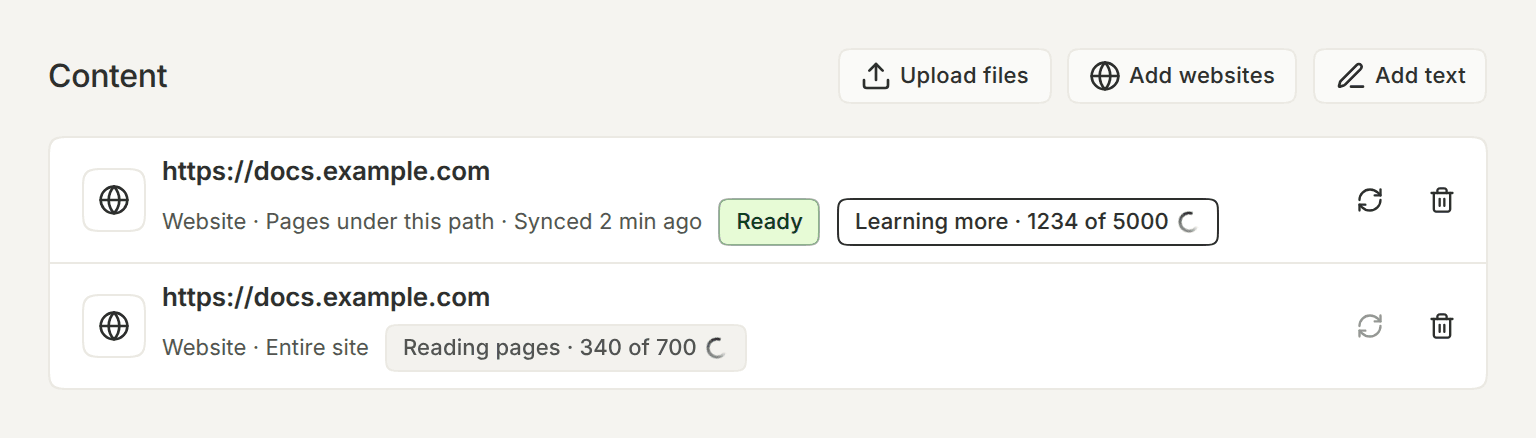
A large site can turn Ready before Backdrop has read every page. It then shows Learning more while Backdrop reads the rest. You can use it on calls in the meantime.
For every badge, see Check that Backdrop learned it.
When a link won't add
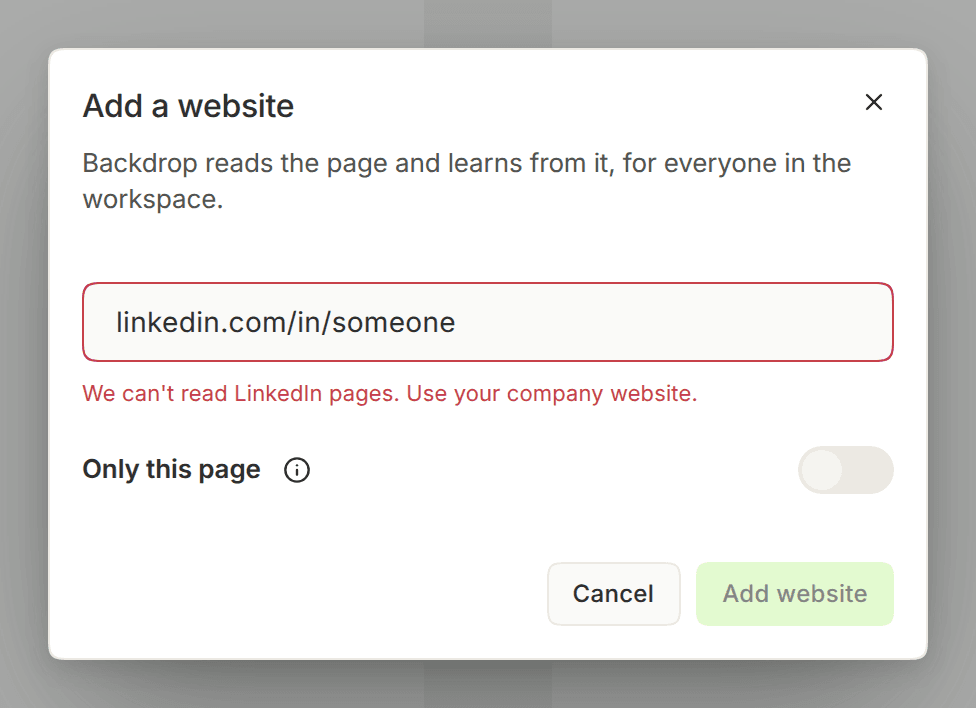
Add website stays greyed out until the link can be used.
- We could not open that link. Check the address and try again. The page didn't load. Check for typos, and make sure the page is public: Backdrop can't read pages behind a login.
- We can't read LinkedIn pages. Use your company website. LinkedIn profiles and company pages can't be added. Add your own site instead.
Pages behind a login
For content in Notion, Confluence or another tool your team signs in to, connect an integration instead of adding the link.
Keep a website up to date
Backdrop reads a website when you add it, and again only when you click Resync (the circular arrows) on its row. Once a website is Ready, its row shows when Backdrop last read it, for example Synced 3 days ago. After 30 days it reads Needs resync.
So when you change your site, for example new pricing or a launch, click Resync so Backdrop reads the latest version.
To stop using a website, click Remove (the trash icon) and confirm. Backdrop deletes what it learned from it.
Next step
Change your company name
Backdrop has the wrong name for the company you sell for? Workspace admins can fix it from the Knowledge page or by asking Backdrop.
Claude, ChatGPT & more
Connect Backdrop's MCP server to Claude, ChatGPT, Codex, Cursor or any AI agent and ask about your calls and MEDDPICC scores. One link, sign in, done.