Zoom, Google Meet, Microsoft Teams: No Setup Needed
Backdrop works with Zoom, Google Meet, Microsoft Teams and other call apps without an integration. No bot joins your call, and there's nothing to connect.
There's nothing to connect for Zoom, Google Meet, or Microsoft Teams. Backdrop is a desktop app. It listens to the call audio on your own computer, so it works with the call app you already use, with no integration, no admin setup, and no bot joining the meeting. Your prospect sees no one extra on the call.
Apps Backdrop detects
When a call starts in one of these apps, Backdrop shows a Call Detected notification. Click Record to start.
| App | Notes |
|---|---|
| Zoom | Desktop app |
| Microsoft Teams | Desktop app |
| Google Meet | In Chrome, Safari, or Microsoft Edge |
| Slack | Huddles |
| Webex | Desktop app |
| GoTo Meeting | Desktop app |
| FaceTime | Mac |
| Discord | Desktop app |
| Loom | Desktop app |
Calls in a browser, like Google Meet or Teams on the web, are detected through Chrome, Safari, or Edge.
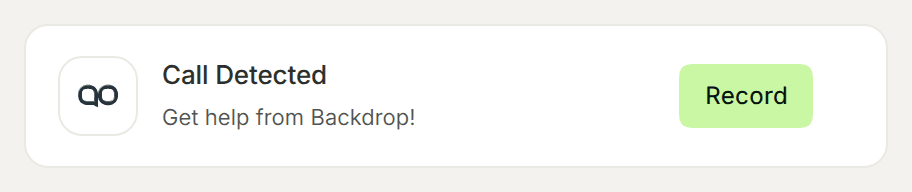
The notification doesn't record anything by itself. Backdrop records only when you click Record. More in When Backdrop records.
Any other call app
Using something that's not on the list? Click Start call at the top of the sidebar in the Backdrop window when the call starts. See Start a call. Backdrop picks up the call through your computer's audio, whatever app it's in.
Start calls from your calendar
With your calendar connected, Backdrop reminds you just before each meeting. Join & Record opens the Zoom, Meet, or Teams link and starts recording in one click.
Keep Backdrop off a shared screen
When you share your screen, share a single window instead of your whole desktop. See Hide from screen share.
All integrations
Connect your calendar, CRM, meeting notes, and call recordings to Backdrop. Zoom, Meet, and Teams need no setup, and Backdrop never reads your email.
Personal Integrations: Connect Your Own Tools
Connect your own CRM, meeting notes, Slack, or your own MCP server to Backdrop. Personal access, managed by you, and set up from the Knowledge page.