Meeting Chat Notice: Tell Everyone Backdrop Is Transcribing
An admin can have Backdrop post a notice in the Zoom chat on every transcribed call, so everyone in the call knows. How to turn it on and what it posts.
With the meeting chat notice on, Backdrop posts a message in the Zoom chat on every call it transcribes, so everyone in the call knows. An admin turns it on for the whole organization and writes the message.
Zoom for Mac, team plans
The notice works in the Zoom desktop app on Mac, with Zoom in English. It isn't posted in Zoom in a browser, Google Meet, or Microsoft Teams. It's available on team and enterprise plans.
Turn it on (admins)
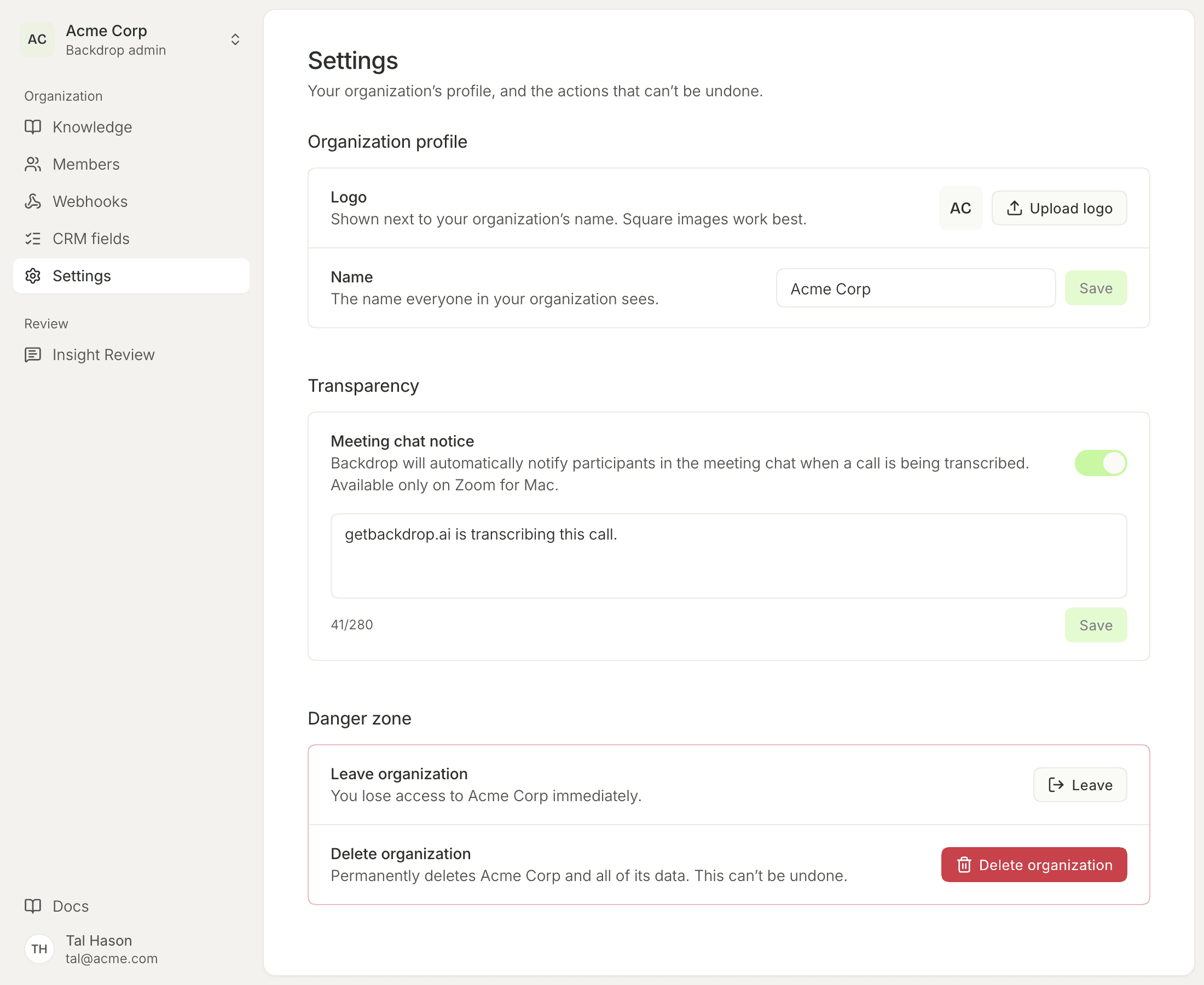
The switch applies to everyone in your organization. Reps can't turn it off for themselves. Their Backdrop app picks up a change within about a minute.
The message
The default message is getbackdrop.ai is transcribing this call. You can write your own, for example to link your privacy policy or say who to ask to stop the transcription.
- Up to 280 characters. The counter under the box shows how many you've used.
- The message can't be empty.
- Click Use default to put the default message back.
What reps see
Accessibility permission on Mac
Backdrop posts in the Zoom chat through macOS Accessibility, so it needs that permission. When your admin turns the notice on, Backdrop asks for it and can't be used until you allow it:
- Click the button on the Backdrop screen. System Settings opens on Privacy & Security → Accessibility.
- Switch on Backdrop.
Backdrop continues by itself once the permission is on. It never asks in the middle of a call. If your organization has the notice off, Backdrop never asks for Accessibility.
On a call
When you transcribe a call in the Zoom desktop app, Backdrop waits until at least one other person has joined, then posts the message in the chat to Everyone. It's posted from your Zoom account, as if you sent it.
- People who join later get the notice too. Zoom only shows guests the chat sent after they joined, so Backdrop posts again as people arrive, up to 5 times per call.
- Zoom stays where it is. If the chat panel is closed, Backdrop opens it and gives the keyboard straight back to the app you're typing in. The chat panel then stays open.
- Your draft is safe. If you're halfway through a chat message, Backdrop posts the notice and puts your draft back.
- Paused or ended calls get nothing. Backdrop only posts while it's transcribing.
Backdrop doesn't show anything in its own window about the notice. Check the Zoom chat to see it.
When the notice isn't posted
Backdrop waits and posts later when:
- The Zoom meeting window is minimized. Backdrop posts once you open the meeting window again.
- Your chat is on a private conversation or popped out. Backdrop posts once you're back on Everyone in the meeting window.
If either lasts until the call ends, that call gets no notice.
If two people in the call use Backdrop, each of their apps posts the notice.
For when Backdrop starts and stops transcribing, see When Backdrop Records.
When Backdrop records
Backdrop only records when you click record. How to start recording, what the call notification does, and how recording stops.
After a call
After every call, Backdrop gives you an Overview, a structured summary, a MEDDPICC scorecard, and a follow-up email on demand. Nothing sends until you send it.