How to Start Recording a Call in Backdrop
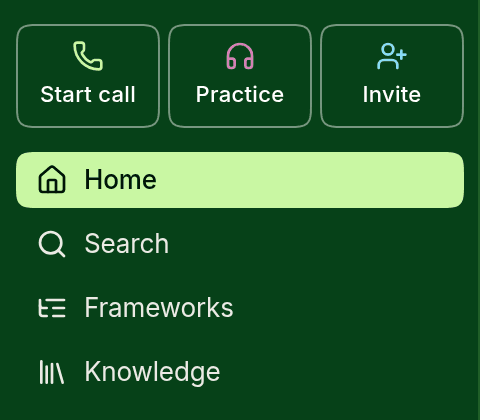
Three ways to start recording a call in Backdrop - the Start call tile in the sidebar, the Record or Join & Record button on a notification, or the red dot in the call panel.
Backdrop never records on its own. You start it, in one of three ways. Use whichever is closest when your call begins.
| Where you are | What to click |
|---|---|
| In the Backdrop window | Start call, top of the sidebar |
| A Backdrop notification popped up | Record or Join & Record |
| In the call panel | The red dot, top left |
1. From the Backdrop window: Start call
Click Start call at the top of the sidebar in the Backdrop window. Backdrop switches to the call panel and starts recording right away.
Shortcut: Cmd+R on Mac, Ctrl+R on Windows.
If the call is on your calendar, you can also click Join & record next to it in Coming up on Home. That opens the meeting link and starts recording in one click. While you're on a call, Start call reads Return and takes you back to the call.
2. From a notification: Record or Join & Record
Backdrop pops up a small notification at the top of your screen in two cases:
- A call starts on your computer (Zoom, Google Meet, Microsoft Teams, and so on). The notification says Call Detected. Click Record.

- A meeting on your calendar is about to start. The notification shows the meeting name and Starts soon. Click Join & Record to open the meeting and start recording.

The notification doesn't record anything by itself. If you ignore or close it, nothing is recorded.
Not seeing notifications?
Backdrop has to be running, so look for its icon in your menu bar (Mac) or system tray (Windows). By default it opens when you sign in to your computer. Also check that Call detection is on in Settings.
3. From the call panel: the red dot
If the call panel is already open, the record button is the red dot in its top bar, just right of the home button. Click it to start recording.

How you know it's recording
Once recording starts, the red dot turns into a timer that counts up, with pause and stop next to it. The transcript starts filling in as people talk.

Click stop when you're done. Backdrop then writes up the call. See After a call. For more on when recording stops on its own, see When Backdrop records.
Practice a call
Two AI practice partners. Stacey plays a friendly buyer and shows you the live panel in about a minute, and Rachel plays a tough buyer so you can rehearse a real discovery call.
Before a call
Backdrop's Prep page gathers where the deal stands, the company and its numbers, who's coming, and an opening talk track, so you can read the account first.