Put Backdrop's CRM Fields in Your CRM
Create a matching field in HubSpot, Salesforce or any CRM for each of your Backdrop CRM fields, then map them one to one from the call.crm_fields.created webhook in Zapier, Clay or a HubSpot workflow.
After each call, Backdrop sends your CRM fields
in the call.crm_fields.created
webhook, each under its key. To get them into your CRM, give each one a
matching field in your CRM, then map them one to one.
Who can do this
A Backdrop admin, with your CRM fields already set up, and someone who can add fields in your CRM.
Step 1: Create the matching fields in your CRM
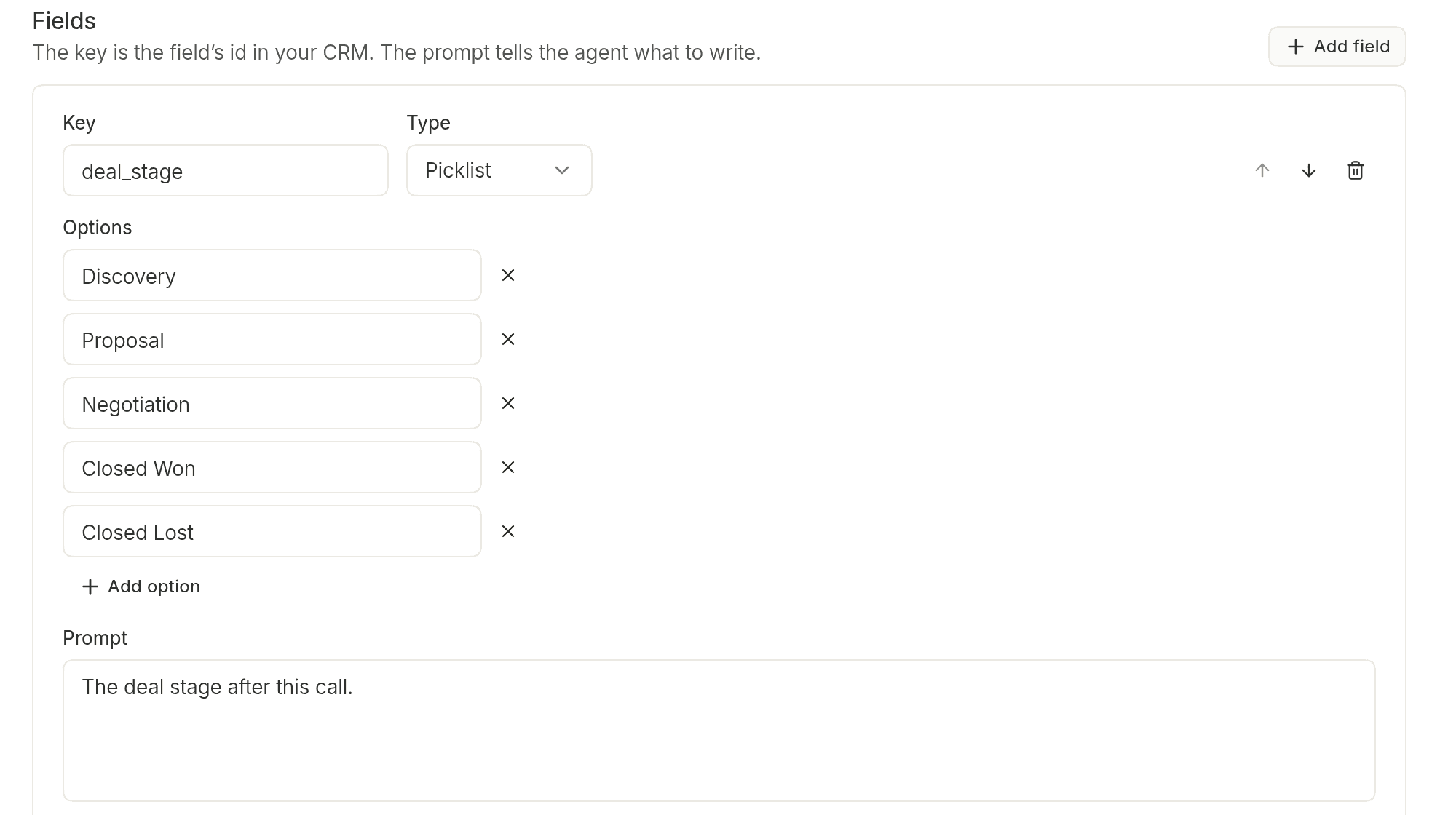
For each Backdrop field, create a field on the company or deal in your CRM, of the matching type. You'll find each field's Key and Type on the CRM fields page in app.getbackdrop.ai.
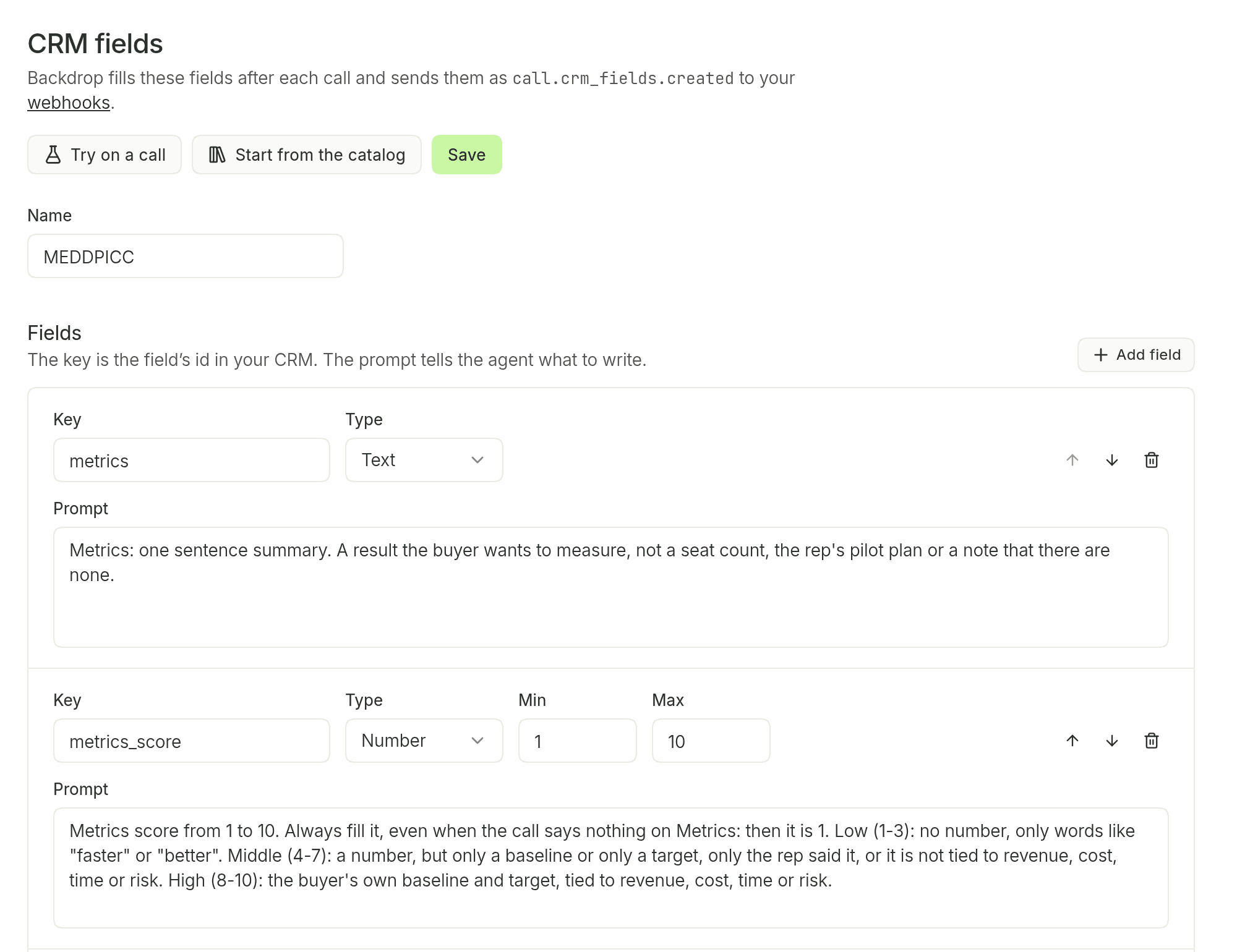
| Backdrop type | CRM field type | What arrives |
|---|---|---|
| Text | Long text (multi-line) | One or two sentences |
| List | Long text (multi-line) | A list of short lines |
| Number | Number | A number, between your Min and Max |
| Picklist | Dropdown (picklist) | One of your options, spelled exactly as you typed it |
- Name the CRM field after its key, like Economic buyer for
economic_buyer, so mapping is easy. - Picklists must match. Each Backdrop option must be spelled the same as the CRM option's value: the Internal value in HubSpot, the API Name in Salesforce.
- A field the call didn't cover arrives empty (
null).
Your CRM's guides: HubSpot: Create and edit properties, Salesforce: Create custom fields.
Step 2: Send call.crm_fields.created to your tool
Add an endpoint on the Webhooks page in app.getbackdrop.ai
and choose call.crm_fields.created. See Add your URL in Backdrop.
In HubSpot, use a workflow just for this event, with its own URL.
The example event has sample fields
The Testing tab sends metrics, metrics_score, economic_buyer,
economic_buyer_score and next_steps, not your own fields. Your fields
show up in your tool once a real call comes through.
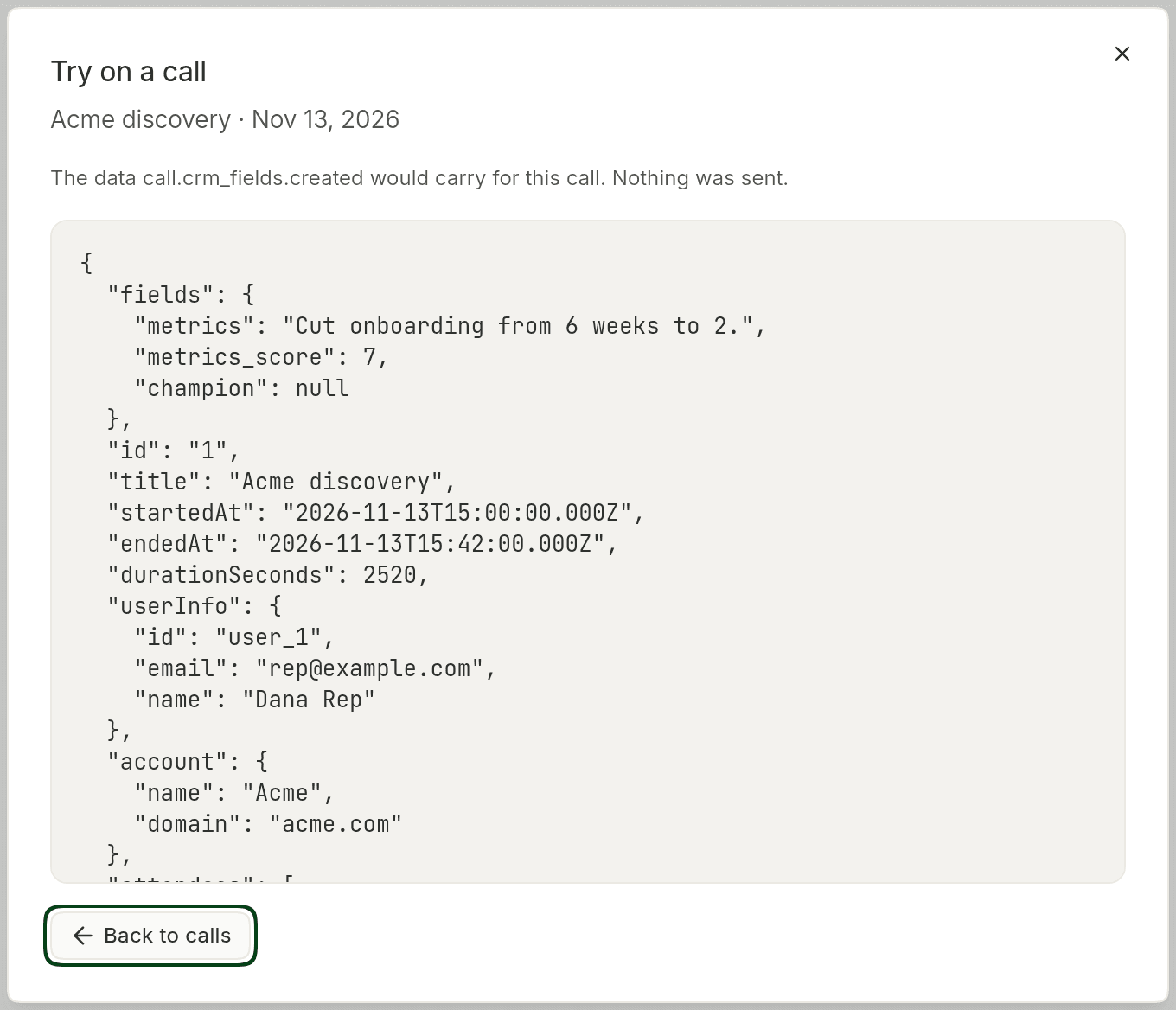
To see your own fields before then, click Try on a call on the CRM
fields page. It shows the data a call would send, under fields, without
sending it.
Step 3: Map each field
First find the company by account.domain, as in the Zapier
and HubSpot guides. Then, in the update step, set each CRM
field to the Backdrop field with the same key:
| Tool | Where your fields are | Example |
|---|---|---|
| Zapier | Data Fields followed by the key | Data Fields Economic Buyer goes in Economic buyer |
| Clay | data.fields. followed by the key | data.fields.economic_buyer |
| HubSpot workflow | The webhook's data, in the Edit record action | The webhook's economic_buyer goes in Economic buyer |
Turn it on. From now on, every call fills the fields on its company once Backdrop has written them.
The catalog's fields
If you started from the catalog, these are the keys to create in your CRM.
Every text field also has a score: the same key with _score at the end, like
metrics_score. A score is a Number from 1 to 10, and it's always filled:
it's 1 when the call said nothing about it.
MEDDPICC
| Key | What Backdrop writes |
|---|---|
metrics | The result the buyer wants to measure |
economic_buyer | Who approves the spend, by name, and what shows their authority |
decision_criteria | What the buyer will judge vendors on, in their words |
decision_process | The steps and people from here to a decision |
paper_process | How the contract gets signed: legal, procurement, security and who signs |
identify_pain | The buyer's top current problem |
champion | The person on the buyer's side who pushes for the deal, and what they did for it |
competition | The other options the buyer is weighing, including building it or doing nothing |
BANT
| Key | What Backdrop writes |
|---|---|
budget | Whose budget, how much, and what releases it |
authority | Who approves the purchase, by name, and who else can block it |
need | The business problem the buyer wants to solve |
timeline | When the buyer will decide and go live, and what drives the date |
Questions? Email support@getbackdrop.ai.
CRM fields
Pick the fields Backdrop fills after each call, like MEDDPICC or BANT, and get them in the call.crm_fields.created webhook to write straight into your CRM.
Zapier
Catch each Backdrop call in a Zap with Webhooks by Zapier, then log it on the right company and contacts in HubSpot, Salesforce or any CRM Zapier connects to.